Before you start
Send a message before asking the workflow to wait for a reply. Every path into Wait for reply must contain a preceding Message. For a pause based only on time, use Wait for time.
After consecutive Messages, this node needs a new reply received at or after the final complete message is handed to the messaging provider. An earlier reply received while that burst is still going out is not reused to satisfy this wait, even if it is processed later. It can still trigger an opt-out or another applicable interruption.
Sent, Delivered, and Read updates do not move the reply boundary. ShowBoss waits for the lead's qualifying reply burst to finish before deciding how to continue.
Choose how replies continue
- Select Wait for reply on the canvas.
- Under Route replies, choose Any reply when every response should follow one Reply path. ShowBoss waits until the lead finishes replying before continuing.
- Choose Evaluate reply when different replies should take different branches. ShowBoss evaluates what the lead means and chooses the best matching branch. The branches and Add branch sit inside the Evaluate reply tab. Name and describe each branch clearly.
- Optionally, under Reply timeout, choose a tab other than Off for a separate path when no reply arrives.
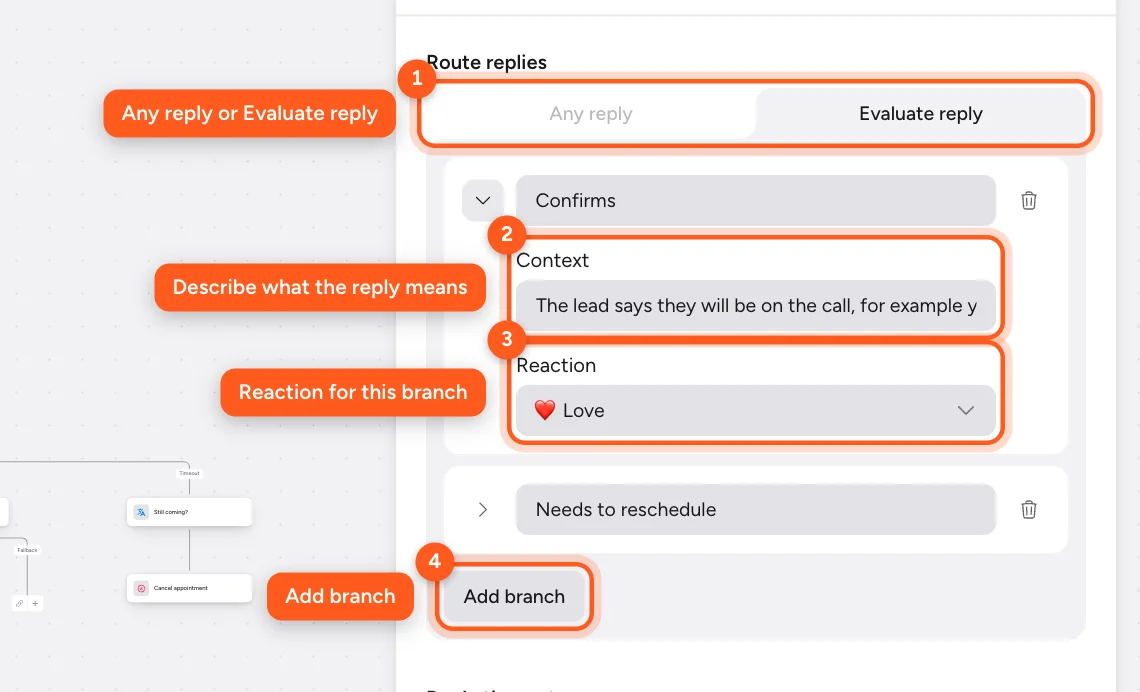
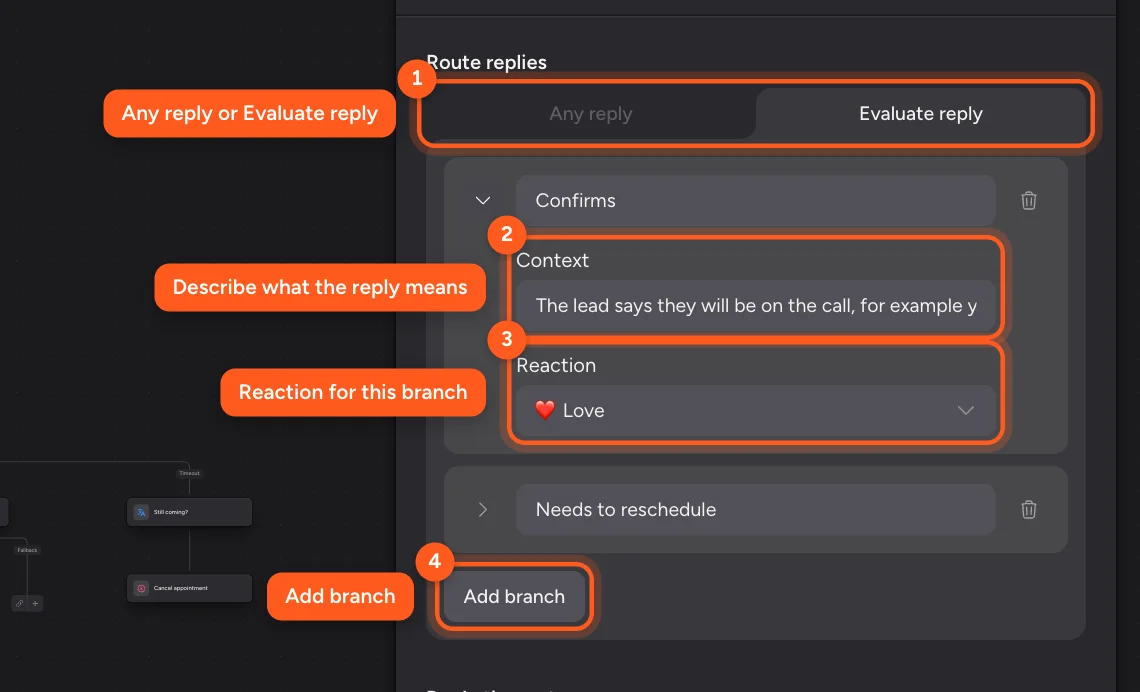
If reply branches already have connections, move or disconnect those connections on the canvas before choosing Any reply. The existing Fallback path becomes Reply, so connect the continuation you want to keep there. Changing modes does not delete downstream steps. Switching back while editing restores your routing rules; Discard changes restores the node's previous settings.
For ordinary text, if ShowBoss cannot confidently choose a branch, the workflow pauses for manual review in Inbox. In Workflow Action, use Continue workflow on to choose the branch that fits the conversation. Ordinary text does not take Fallback automatically. Choose the option marked Fallback path if none of the other branches fit. Resume workflow continues the next steps on that path. Timeout is not a manual-review choice.
In Evaluate reply mode, routing uses the meaning of the lead's reply. Write distinct intent descriptions, rather than a list of keywords. For example, an Interested branch could say “The lead asks to book a call or wants to proceed.” A Pricing question branch could say “The lead asks about cost, payment plans or discounts.”
Avoid contexts that both describe the same response. Reply evaluation can be uncertain; checking realistic replies helps you refine the rules.
Incoming reactions
ShowBoss interprets a lead's added reaction using its type, positive or negative meaning, and the content of the exact message it targets. The same reaction can mean different things on different messages. A clear answer can select a matching branch. A reaction to an unrelated message or one sent by your team does not answer this wait. Removing a reaction is not a negative answer.
When the target content is known but the reaction's meaning is ambiguous, ShowBoss uses the configured Fallback path. Without a configured fallback, it pauses for manual review. Missing, deleted, inaccessible, or incomplete target content stays unresolved for manual review; ShowBoss does not guess the target or treat it as an affirmative answer or automatic fallback.
Choose a reaction for each reply branch
When Reaction is available for your account, use it in Evaluate reply mode:
- Expand a reply branch using the arrow beside its label.
- Under Reaction, choose No reaction, Love, Like, Dislike, Laugh, Emphasize, or Question. Each branch has its own choice; branches without a choice send no branch reaction.
- Apply the node and save the workflow draft. Publish when ready to use the settings in new runs.
When ShowBoss automatically selects a configured branch, AI chooses one incoming message from the reply being evaluated. For a reply sent across several messages, the reaction goes on the message that best supports the selected branch. You choose the reaction type; AI chooses its target.
Reactions may arrive about 30 seconds to 20 minutes after the branch is selected, or sooner before the next outgoing message. Delivery is best effort. Unsupported messaging, an unavailable target, an uncertain AI target, or a delivery failure can leave the message without a reaction. ShowBoss continues the selected branch and does not choose another message to compensate. If that message already received an automatic acknowledgement, the branch may leave it unchanged.
Any reply, Fallback, timeout, and manually chosen continuations do not send a branch reaction. An interruption such as an opt-out also prevents the branch reaction. Switching back from Any reply while editing restores your branch settings; Discard changes restores the previous settings.
Decide what happens without a reply
Under Reply timeout, choose a tab other than Off: After this step, Time of day, or in an appointment flow Before appt. Fill in the sentence below it, such as Stop waiting after 4 hours, then connect the timeout path to the next action. Choose Off to remove the timeout.
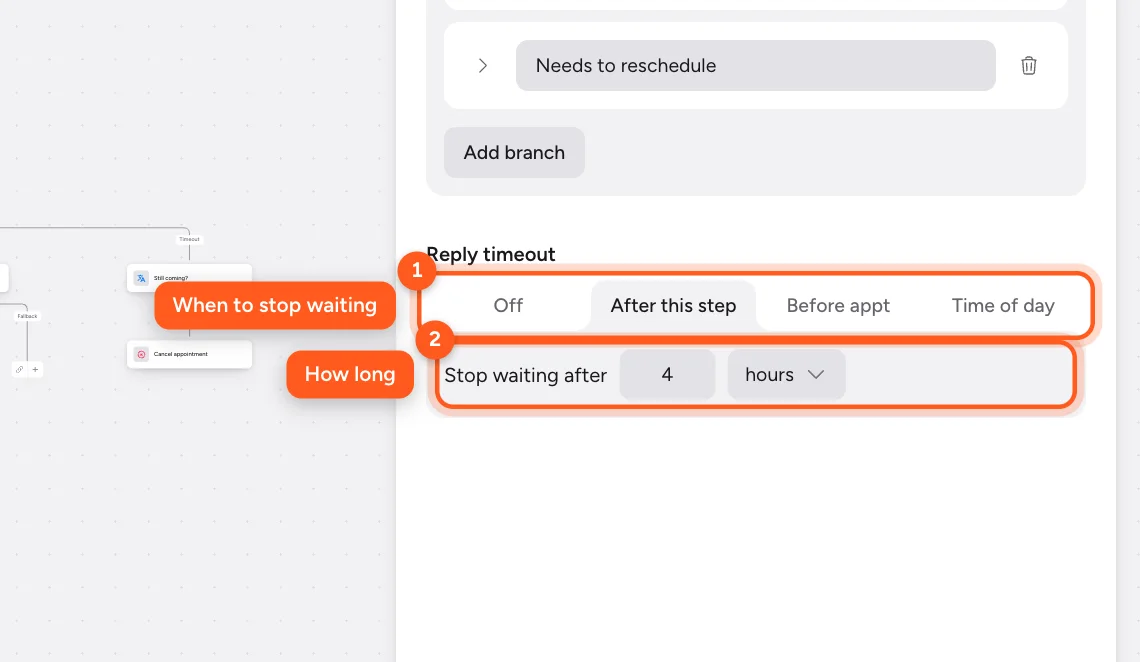
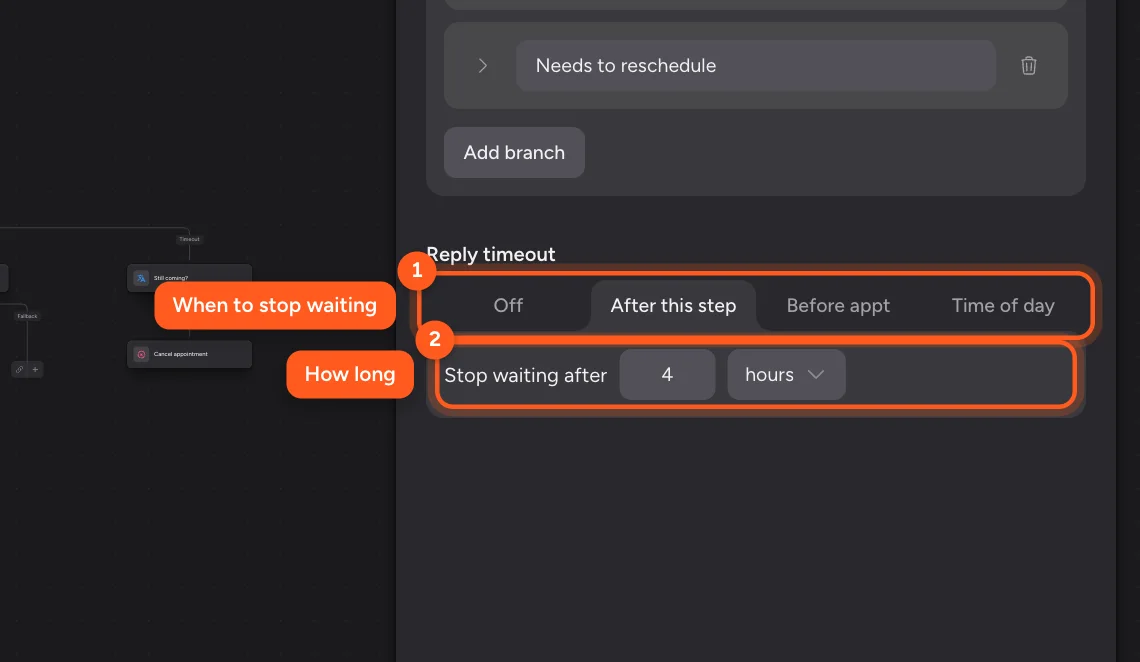
Time of day stops waiting during a part of the day, such as Stop waiting in the afternoon (01 PM - 04 PM) 1 day after this step. That reads as "if there's no reply by tomorrow afternoon, take the timeout path." Pick the part of the day, the number of days, and whether to count after this step or before the appointment. Outside an appointment flow, a time of day always counts from this step.
A timeout measured from the preceding Messages starts at their final complete handoff to the messaging provider. It does not wait for a Sent, Delivered, or Read update. Appointment-based deadlines retain their configured appointment timing. A qualifying reply received after the nominal deadline can still be evaluated if neither the reply nor timeout path has committed; it cannot route the wait again after either path has committed.
In an appointment flow, an enabled reply timeout cannot wait past the appointment time. If its configured deadline would be later, the timeout path becomes due at the appointment. Resolve any timing conflict shown by the editor before publication.
With timeout disabled, the node waits indefinitely. Fallback does not replace a timeout. An unresolved reply pauses for manual review, where you can choose the Fallback path. A known but ambiguous incoming reaction can use configured Fallback automatically, as described above.
Lead requests still apply
Accepted opt-out and explicit channel requests still apply after a reply deadline, after reply or timeout routing, and when automation is paused, ended, or absent. An opt-out stops pending automated follow-up for the lead across Personas in the organization. Messages already handed to the provider may still arrive.
A channel request records the lead's preference, but switching requires an available route. If that route is unavailable, ShowBoss keeps the stated preference without claiming a successful switch. If the lead explicitly rejects the current route, pending automated messages on that route stop even when no replacement is available. A channel request does not restart ended automation or bypass a manual or billing pause. An opt-out still takes priority when the same reply also requests another channel.
Try the rules, then save
Choose Try it out, at the bottom left of the editor, to open Test AI Logic. Check clear examples, ambiguous replies and unrelated replies. This evaluates routing without creating a live lead conversation.
The test sends no reactions and does not show which message would receive one.
The editable automation messages start with the nearest three preceding Messages in the current draft that have text or an available audio/video transcript. Typed text and spoken content appear together; variables are shown by name. Wait for attached transcripts to load before evaluating. Review or edit the bubbles to match the conversation you want to test. If media cannot be loaded or has no transcript, the test tells you; it does not invent spoken content. Close and reopen the test to refresh available transcripts.
Enter representative lead replies, choose Send, then Evaluate. The result shows the selected branch, Manual review with a short explanation, or an interruption such as Opt-out, Question, or Reschedule request. Manual review means the workflow would pause for a person to decide how to continue. For ordinary text, the test does not take the Fallback branch automatically. This text test does not verify incoming reaction handling. If evaluation takes too long, choose Evaluate again to retry with the same replies.
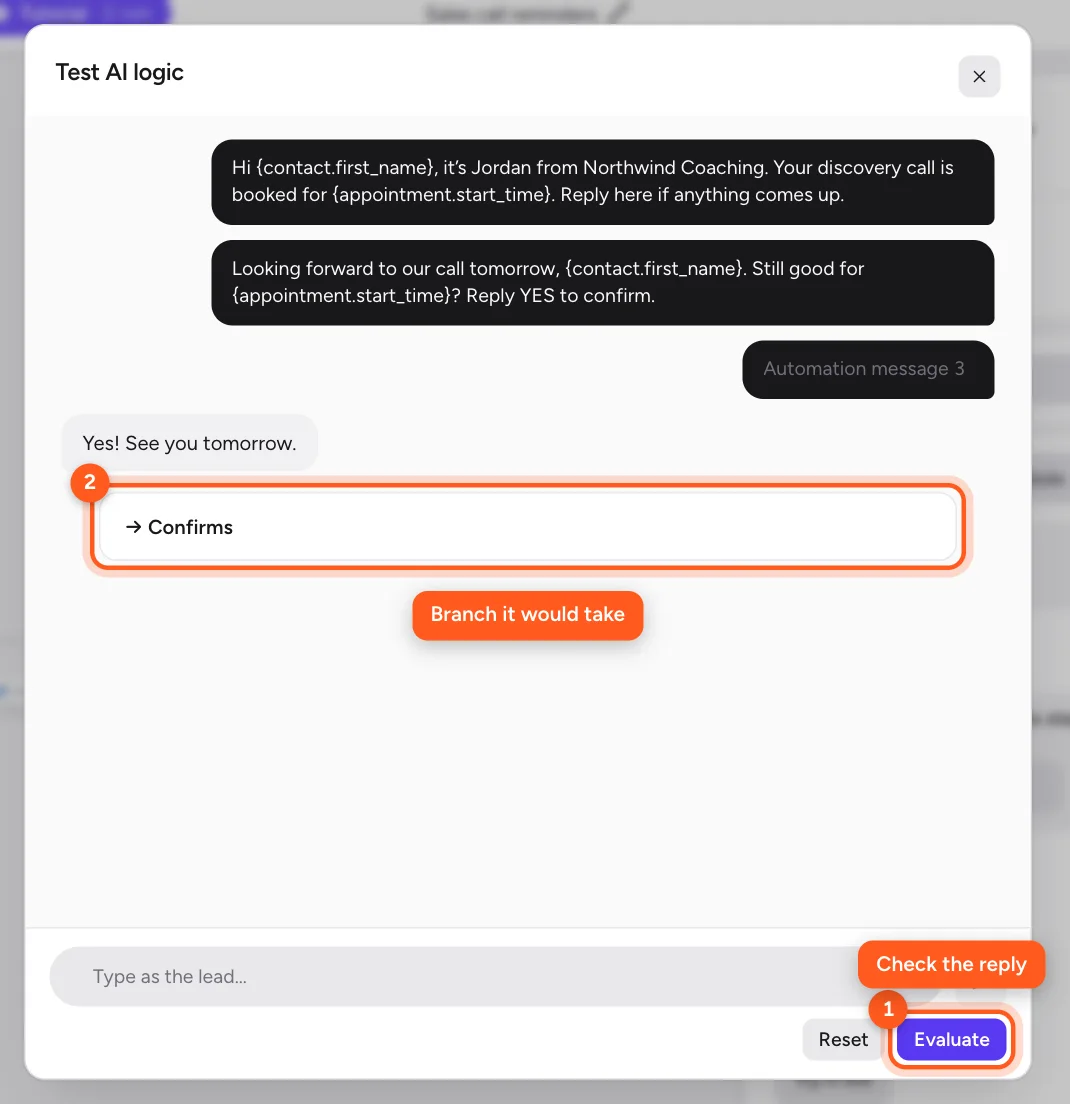
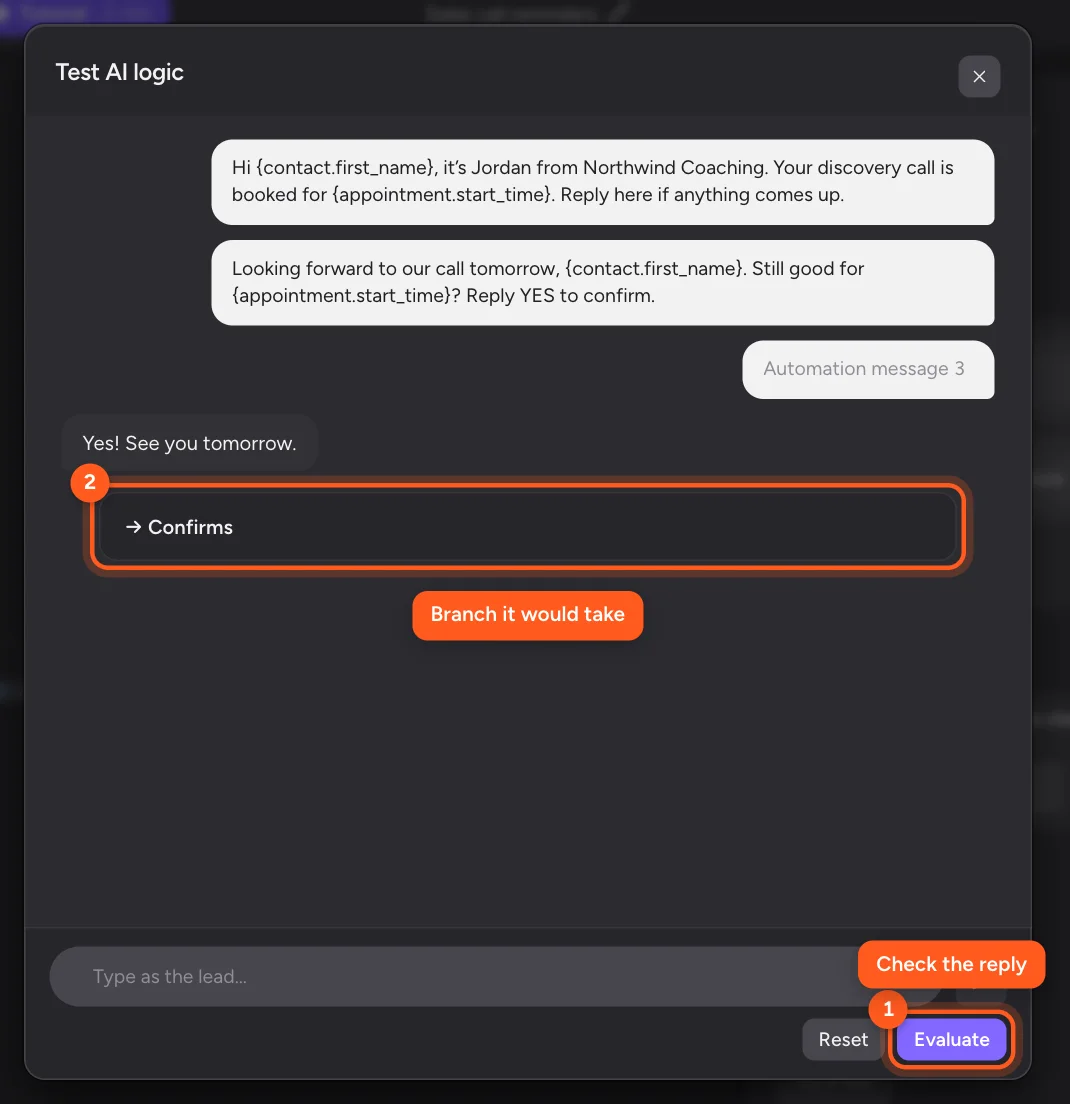
A newly added Wait for reply node must be saved before it can be tested. If it is not saved yet, ShowBoss asks Save before testing? Choose Save and test to save the workflow draft and open the test, or Cancel to keep editing. If the node has changes you haven't applied, ShowBoss first asks whether to apply or discard them.
Apply the node, save the workflow draft and publish when ready. Testing the rules alone does not publish the flow. See Manage workflows.
Read the reply decision
In Lead history, choose a lead and then ? on this step. While the step waits, it shows Waiting for a reply. Once the lead moves on, it shows Replied, No reply in time or Moved on by a teammate, which path they took and when they moved on.
If the lead's number changes
When a workflow is waiting at this node and a teammate moves the booking to the lead's new number from the Inbox, the node does not keep waiting on its own. Earlier messages went to the old number, so the wait is held on the new chat and Workflow action in Lead Details shows a card:
- Waiting for your message: send the lead a message from the new chat. Once ShowBoss confirms it, the node waits for the lead's reply again with its full configured window, measured from your message. A reply timeout, if enabled, is measured from the same point and still cannot wait past the appointment time.
- Choose where the workflow continues: pick a branch under Continue workflow on and choose Resume workflow, as in manual review. The Fallback path option is for replies that fit no other branch.
The card lets you switch between the two. A reply the lead sends to the old number does not satisfy the wait. If neither a message is confirmed nor a branch is chosen within 7 days of the change, the workflow stops; the timeout branch is not taken. This applies only when the number-change feature is enabled for the account. See Change a lead's phone number.
Troubleshooting
Nothing happens when a lead stays silent
Check whether the timeout branch is enabled and has a next action. With timeout disabled, waiting is expected.
Replies take an unexpected branch
Make the branch contexts more distinct and try the same wording in Test AI Logic. Use a Condition when you want to branch on known data rather than the meaning of a new reply.
The branch continued without a reaction
Check that the branch has a reaction selected and that the workflow used Evaluate reply to choose it automatically. Allow time for delivery. A missing reaction does not mean routing failed; reactions are best effort. Check the conversation before adding a reaction yourself in Inbox.
The workflow stopped a week after a number change
A wait held after a number change ends 7 days after the change. If no message was confirmed and no branch was chosen by then, the workflow stopped and the card shows Hold expired. Start a new workflow for the lead if follow-up is still needed.