Before you start
Open the workflow editor with access to edit it. A Wait for time node generally needs an intervening Message so there is a customer-facing action before the delay. The explicit exception is a Wait placed after a Wait for reply response branch.
Choose a duration
- Choose Add action > Wait for time, then select the Duration tab.
- In the sentence under the tab, enter a whole-number amount, choose the unit, and select the available anchor.
- Connect the Wait node to the next action, such as a follow-up Message node.
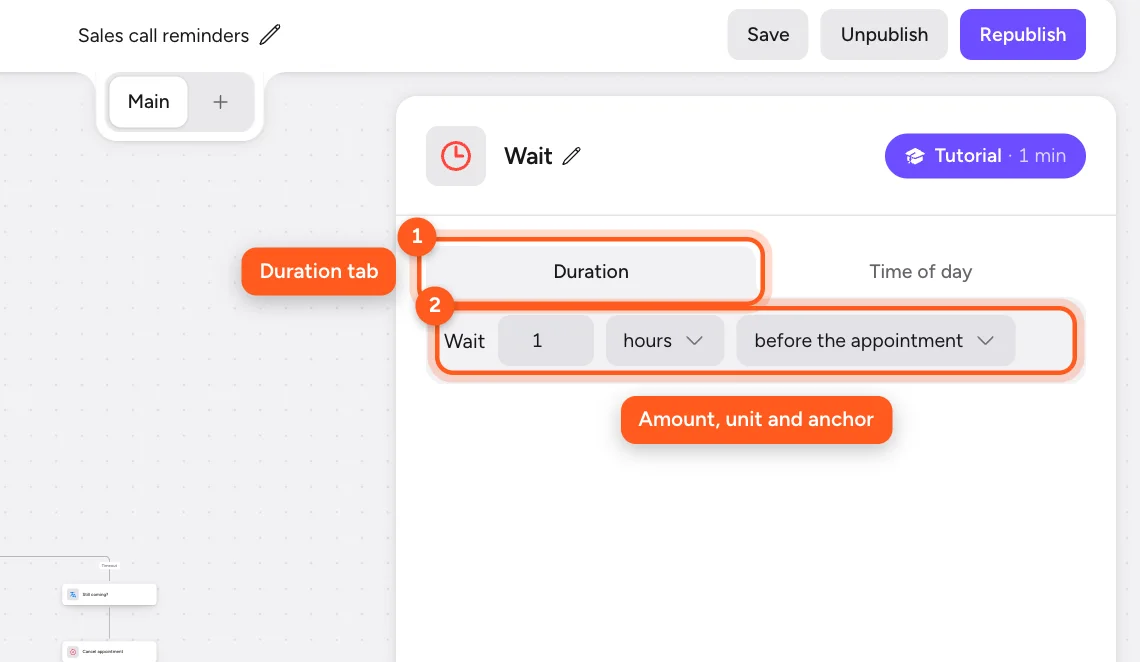
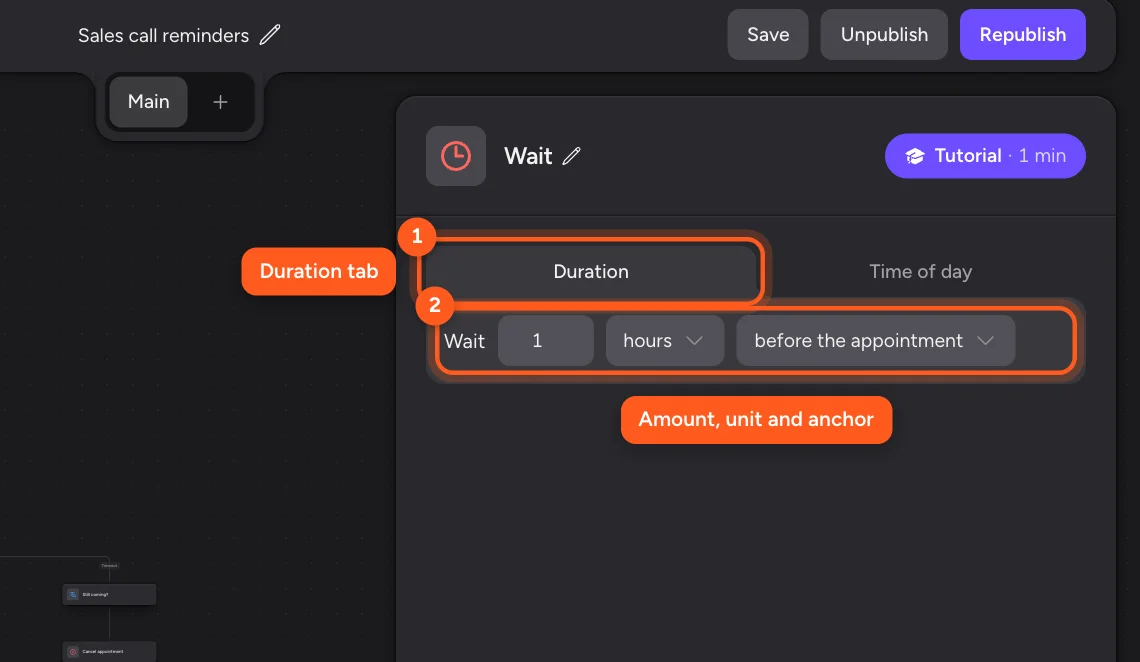
Duration and before-appointment waits accept whole-number totals from 1 to 180 minutes. In an appointment workflow, an available anchor can relate timing to the appointment; other workflow types expose only applicable anchors.
After consecutive Messages, a duration measured from the previous step starts from the last message's complete handoff to the messaging provider. If that message reaches a final result in ShowBoss without a handoff, that outcome supplies the starting time. Delivery updates such as Sent, Delivered, and Read do not move this starting time. If submission remains uncertain, the next action can still wait for a handoff or final result in ShowBoss.
An appointment-based anchor remains tied to the appointment. Time-of-day and fixed appointment windows use their selected calendar timing; they do not turn into a fresh delay when a delivery update arrives.
For example, enter 30 with minutes, choose an anchor from the previous action, and place a follow-up Message after the Wait.
Choose a time-of-day window
- Select the Time of day tab.
- In the sentence under the tab, choose a time of day: morning, midday, afternoon, evening, or night.
- Choose the day, such as today, else tomorrow, tomorrow, or a day from 1 to 7. Set the anchor when the sentence shows one.
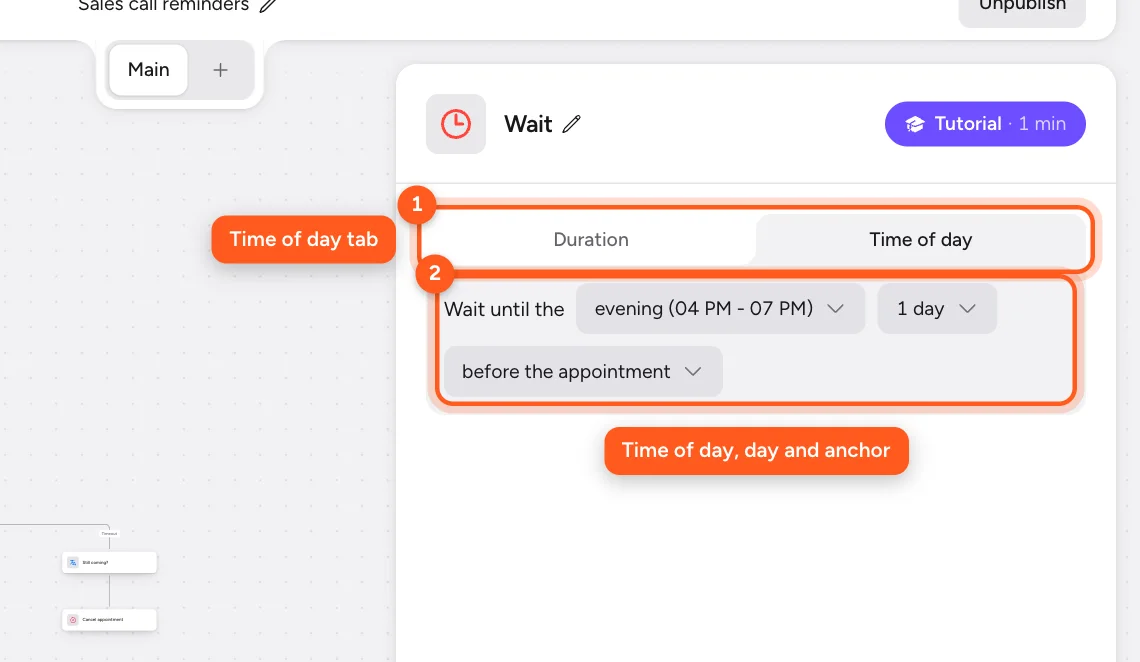
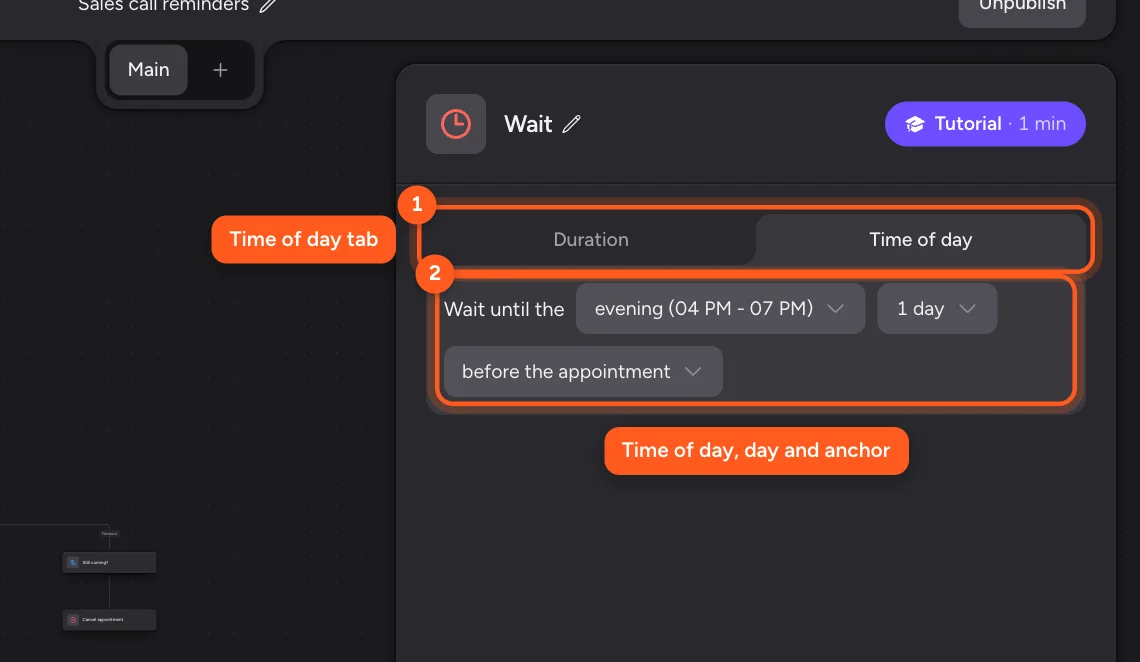
These choices are windows or dayparts rather than exact minute promises. The selected daypart must overlap the workflow send window. Today else tomorrow uses today only when that window remains available; otherwise it uses tomorrow. Appointment timing can also support a fixed day offset.
For a time-of-day Wait measured from the previous action, the selected window still applies if the previous message finishes late. Wait day is evaluated from when that action actually finishes. For example, Tomorrow means the day after the previous action finishes, even if that action was delayed.
For a time-of-day Wait measured from the previous action, a follow-up that is late or still queued after its window closes waits for the next matching window of the same time of day, which may be the next local day. Message expiry and appointment deadlines can still prevent it from sending.
Appointment-day time-of-day choices keep their appointment timing and are not moved to a later window.
No quiet time removes general quiet hours but does not override a Time of day window for a Wait measured from the previous action. Instant execution only removes the startup wait; it does not override this window.
Save the timing
Choose the node-level Apply, then save the workflow draft and confirm Save is greyed out. A saved Wait does not publish the flow; choose Publish separately. Compact recovery, reschedule, and ghost-busting editors save the child flow with their own Save control.
Check your result
The Wait card should describe the chosen duration or window, and a valid next action should be connected. Review the send-window constraint before publishing.
Read the Wait outcome
In Lead history, choose a lead and then ? on this step. Waiting shows when the lead moves on; Waited shows when they did. A time in the past doesn't by itself mean the wait ended: only Waited confirms it.
Troubleshooting
The Wait value is rejected
Use a whole-number duration within the displayed range. Duration and before-appointment waits must be 1–180 minutes; fixed appointment windows allow the offsets shown by the editor, from zero to seven days.
I cannot connect this Wait after another Wait
Add an intervening Message. A Wait after a Wait for reply response branch is the documented exception.
The action did not happen at the exact time I entered
Review Time of Day, Wait day, and the workflow send window. Time-of-day settings select an available delivery window, not a guaranteed minute.
Next step
Use Manage existing workflows to review saved and published versions, or add a Condition node to route the next action.