Before you start
Open the workflow editor with access to edit it. Review trigger mappings and the values available to the flow. An integration variable mapped for only some active calendars can produce a partial-coverage warning.
Build a branch
- Choose Add action > Condition.
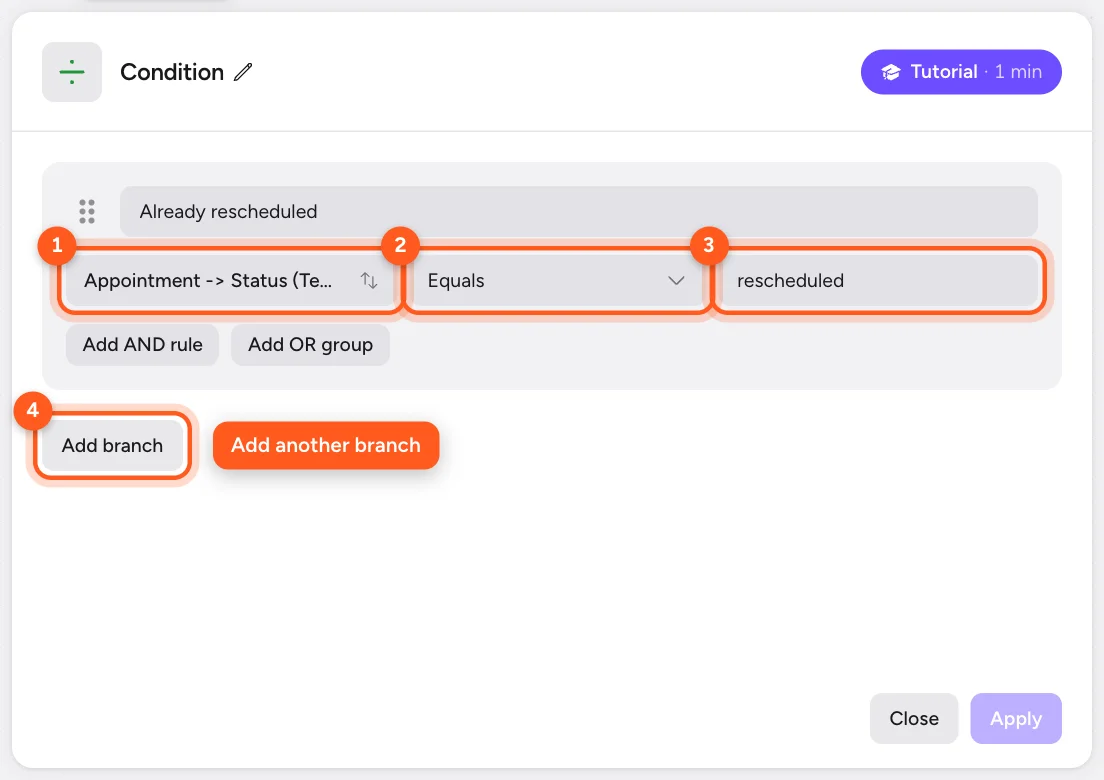
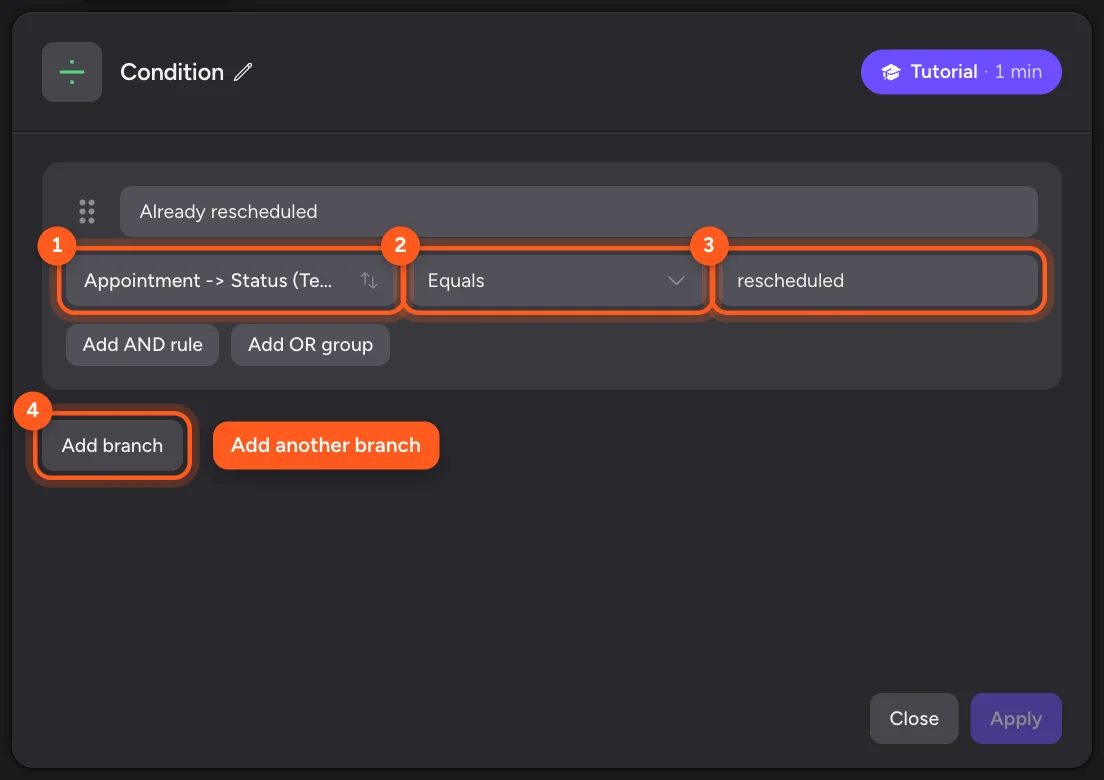
- Choose Add branch and give the branch a short, meaningful name.
- Under Choose a field, select the value to test.
- Choose the operator for that value type and enter a comparison value when the operator requires one.
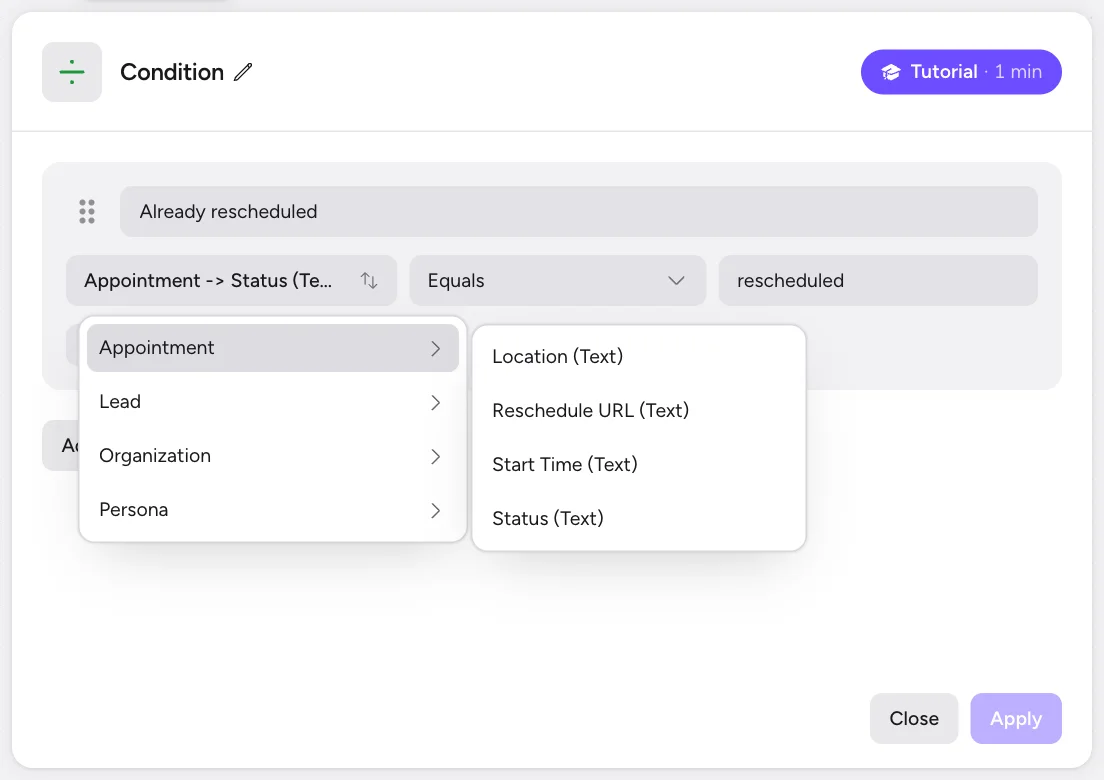
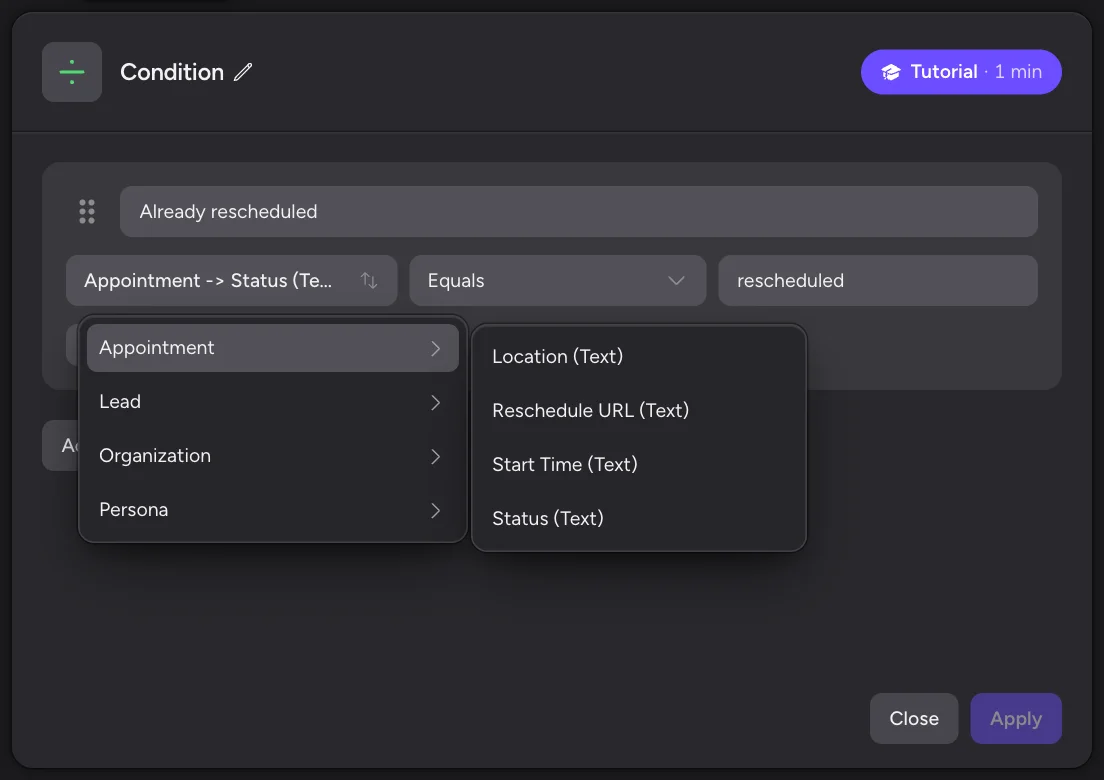
String operators include Is missing, Is present, Contains, Does not contain, Equals, and Does not equal. Other value types provide type-appropriate operators. In an appointment workflow, date and time rules can use Absolute date/time value or Relative to appointment time, with Minutes, Hours, or Days and Before appointment or After appointment. Is between and Is not between use start and end values.
Text comparisons ignore capitalization and spaces at the start or end of both values. For example, Equals Confirmed matches confirmed and CONFIRMED, but not confirmed!; spaces within the text are compared as typed.
Choose Appointment > Appointment Date for date comparisons such as Is on or Is before, or Appointment > Appointment Time for time comparisons such as Is at or Is after. These presets use the appointment's local date and time in its booked timezone, falling back to the organization timezone. Time comparisons use 24-hour values, such as 15:30. Appointment Day uses text comparisons, such as Equals Monday.
Use Add AND rule when every rule in the group must match. Use Add OR group when any group can match. Add more outcomes with Add branch.
Order and connect the paths
When rules overlap, put narrower branches before broader ones. Connect every visible branch to its next action. A Condition also has a fallback for leads that match no branch; connect it to the default action. A connected branch cannot be deleted until disconnected, so its delete button is hidden. Rule groups open by default; select a group's name to collapse it.
For example, put “Existing lead” first with Was contacted before Is true, then “Has email” with Contact email Is present. Connect each branch and fallback to its intended follow-up.
Save and publish
Choose the node-level Apply, save the workflow draft, and confirm Save is gone from the top bar. Saving a Condition does not publish the flow. Choose Publish separately after resolving displayed validation or mapping warnings. See Manage existing workflows for saved versus published versions.
Check your result
Every branch and fallback should have a next action, with order reflecting your priority. Confirm selected variables cover the active entry points before publishing.
Read the Condition result
In Lead history, choose a lead and then ? on this step. Checked shows which path the lead took, such as Took the Yes path, including the fallback path when no rule matched. If a rule needed a detail the lead didn't have, it says Some of the lead’s details were missing.
Troubleshooting
A branch never receives a lead
Check branch order and rule overlap. A broader earlier branch can match before a narrower later branch. Move the narrower branch first and review its variable, operator, and value.
The editor warns about partial variable coverage
Review the trigger mappings for every active calendar. Map the selected integration value where it is needed, or choose a value available across the flow's entry points.
When a calendar maps appointment.time, both appointment.start_local and appointment.start_utc are available for conditions without separate mappings. The local value uses the appointment's booked timezone, falling back to the organization timezone; the UTC value uses UTC.
I cannot delete a branch
Disconnect the branch's next action first, then return to the Condition and remove the branch. A Condition must keep at least one branch.
Next step
Add a Message node or Wait for time node after each route, then save and publish the complete workflow when its paths are ready.