Before you start
Your account must have access to Notification in Add action. The destination is a Persona's internal SMS recipient. This is separate from the workflow's sending Persona and from the lead's phone number.
For customer-facing content, use Message.
Choose a ready recipient
- Select the Notification node and choose Recipient persona.
- Check the selected option. Each Persona shows its name and the last four digits of its verified number, such as Sam - ...2554, or Sam - no number. When the Persona has no verified number, a red warning appears below the selector; choose Add a number to fix it in settings. A red warning also appears when Global SMS isn't turned on.
- Use Manage personas at the bottom of the Recipient persona dropdown if you need to change the recipient's setup. See Configure notifications for the required settings.
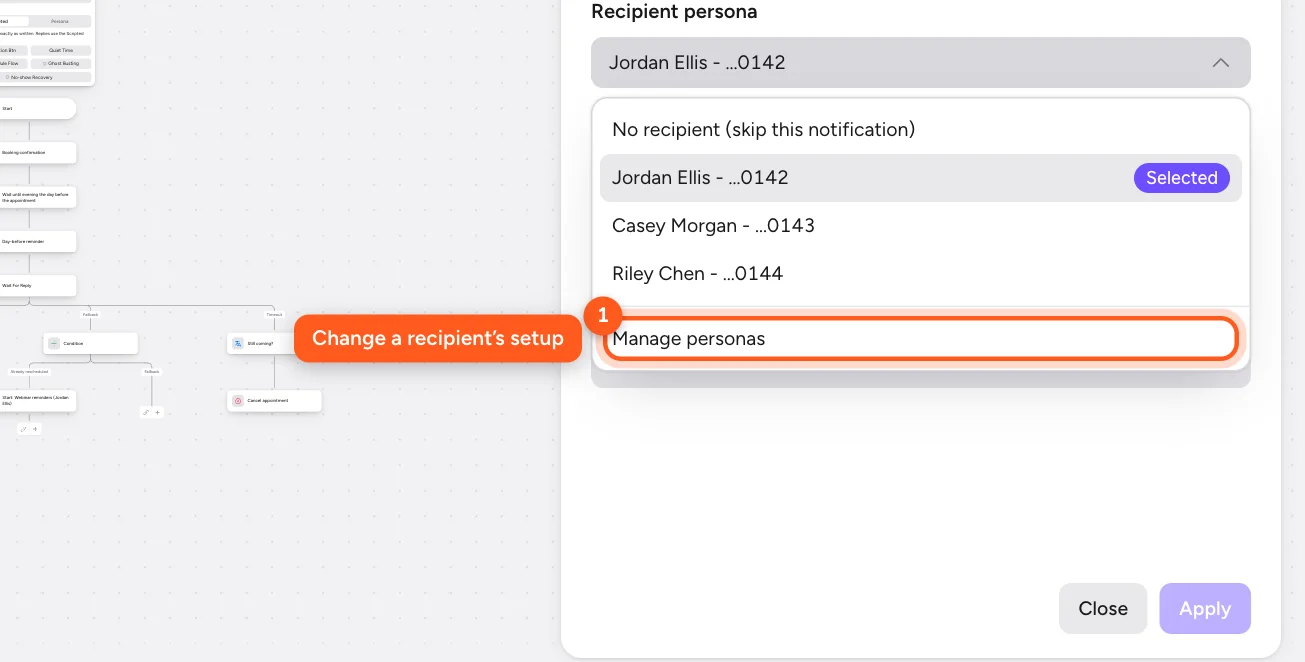
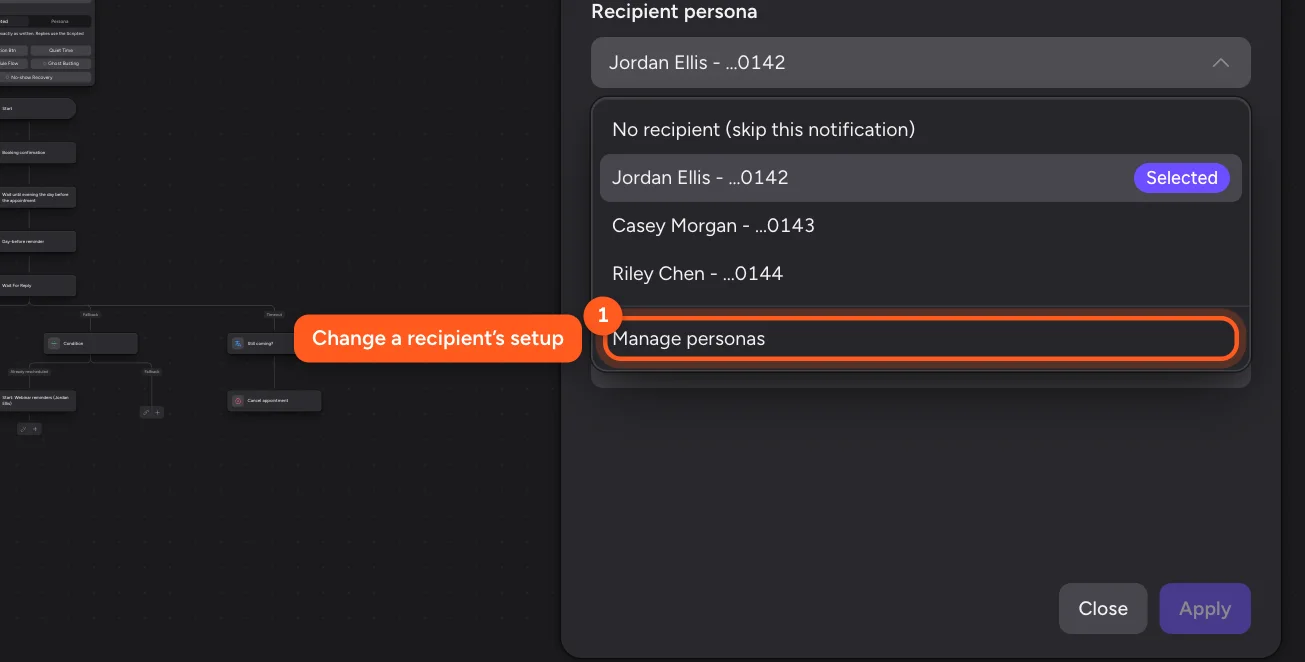
The option No recipient (skip this notification) leaves this node without a recipient. If readiness changes after publication, an unavailable recipient also causes the notification to be skipped.
Write the alert
Enter the SMS message and use the notification variable picker for relevant context. The message is required: until it has text, the node shows a warning triangle on the canvas. For example: “A lead replied to the appointment follow-up. Check the Inbox,” with the lead's name inserted from the picker.
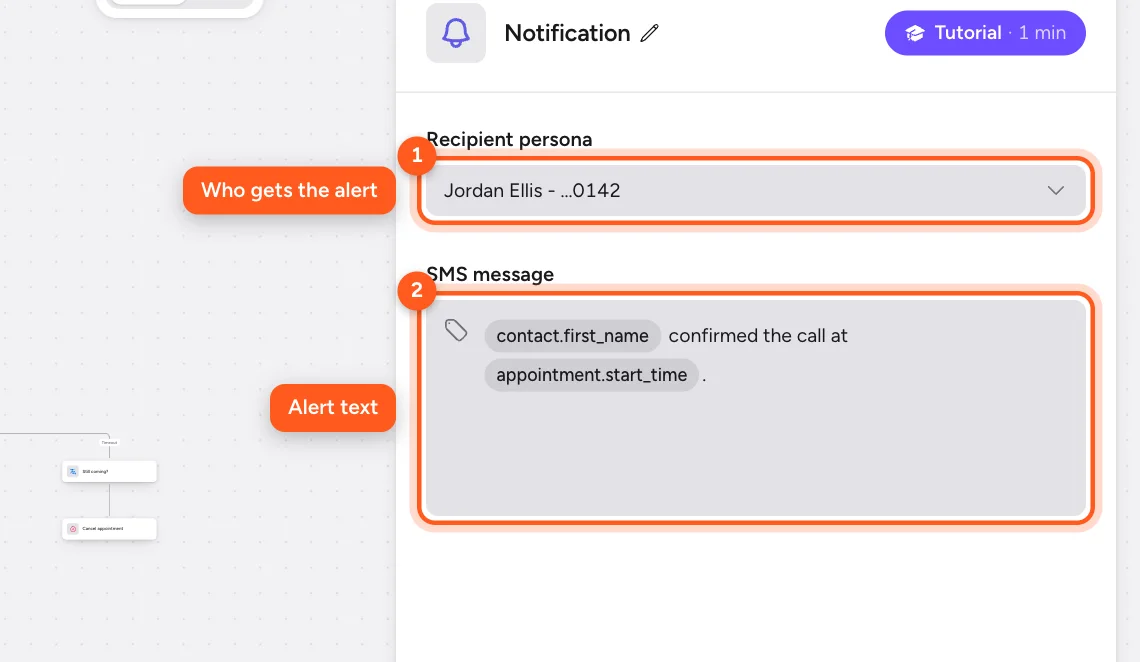
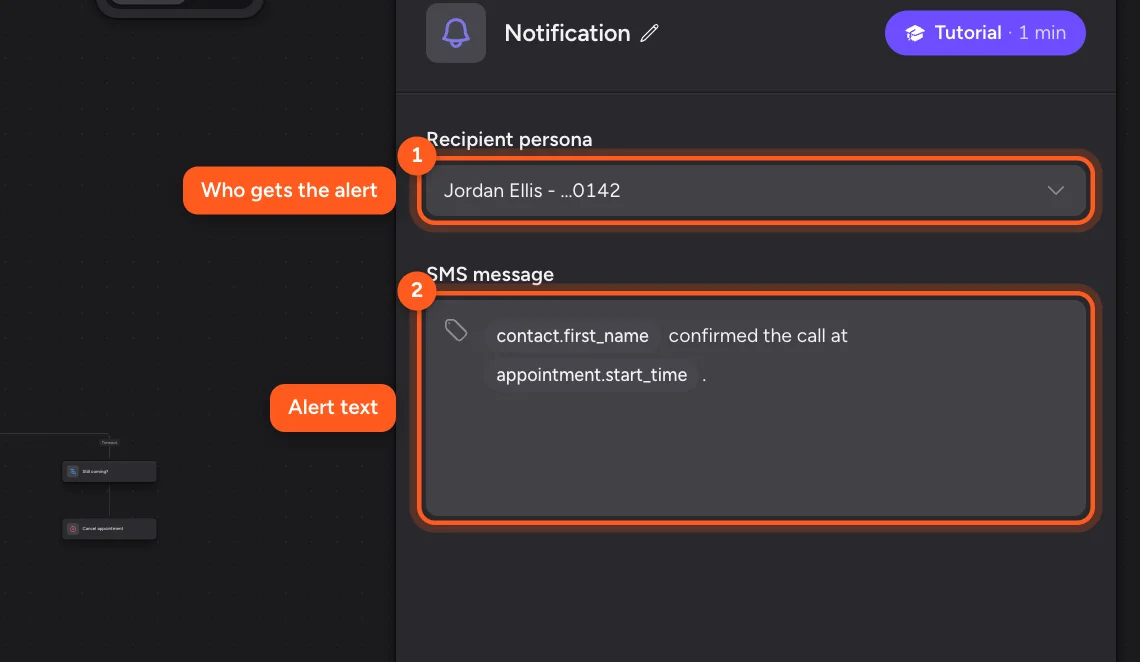
Keep the alert short. The editor estimates SMS segments from the text, but inserted values can change the final length. Notifications are limited to three rendered segments; longer messages are shortened when sent. A Too long warning appears when the text alone is already over three segments.
Apply the node, save the workflow draft and publish when ready. The notification runs when the lead reaches this node; writing or saving the text does not send it immediately.
Read the Notification outcome
In Lead history, choose a lead and then ? on this step. Sent means the text was handed to the SMS provider; delivery isn't guaranteed. The details show who it went to and the masked number. If sending had to be retried, you see how many times it was tried and, while it's still trying, when it tries again.
Troubleshooting
The alert did not arrive
Check the selected Persona, its current readiness and the notification settings. Also confirm that the lead actually reached this node. Selecting a recipient does not guarantee that it will remain ready later.
The node is read-only
An existing Notification node can be preserved when account access is unavailable. Help remains available, but editing requires the relevant access.
The end of the message is missing
Shorten the text and account for the possible length of inserted values. Put the most useful information first.