Before you start
Select the organization whose workflows you want to manage and make sure you can open Workflows. An assistant cannot delete workflows. Published flows can affect live appointment entry points, so review the current state before changing one.
Find and open a workflow
- Open Workflows and search the list by name.
- Open a folder when you need to narrow the list, or choose Back to all workflows to return to the full list.
- Select the workflow name or row to open its editor.
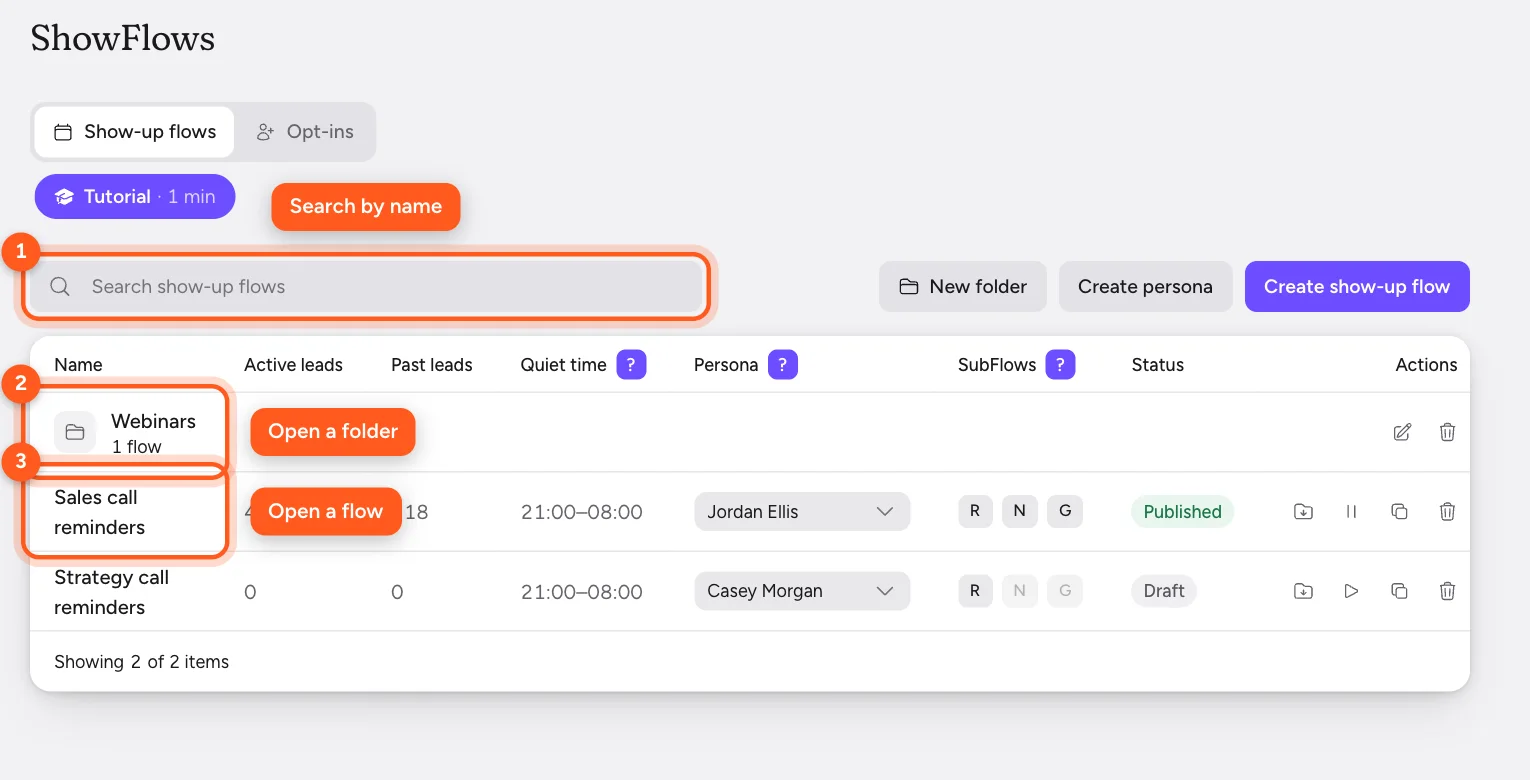
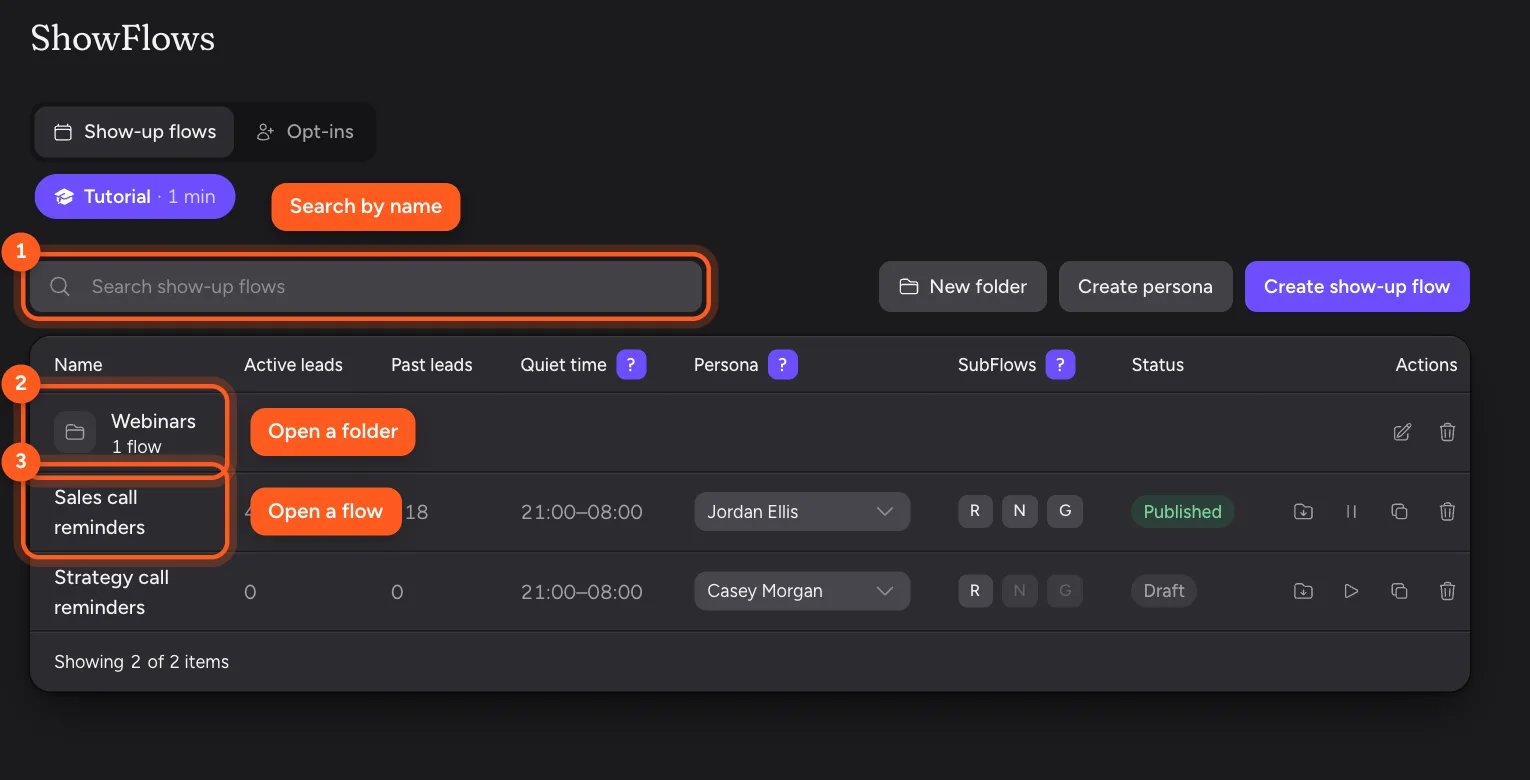
The list identifies appointment flows as Show-up Flow and shows each flow's publication state. Folders organize the list; they do not publish or run flows.
Edit and save a workflow
- Open the workflow you want to change and edit its available steps or settings.
- Save the draft changes and confirm Save is gone from the top bar before leaving.
Save and Discard changes appear in the top bar only while you have unsaved changes. Ctrl+S (or Cmd+S on a Mac) also saves. If a node is still open in the editor with changes you haven't applied, Save and Publish apply them for you without asking.
If you leave with unsaved changes, review Save changes before leaving? and choose Save and leave, Leave without saving, or Stay according to your intent. Either choice also covers an open node with changes you haven't applied: Save and leave applies them, Leave without saving discards them, and the node doesn't ask separately. Subflow changes you already saved stay saved. If the node is missing something required, or the workflow can't be saved (for example a timing conflict), the dialog closes and you stay in the editor with the reason shown.
On a published workflow, if you choose Back after changing something on this visit and those changes aren't live yet, Republish before leaving? lists each New and Changed node; What's this? beside the title explains what republishing does. If you had unsaved changes, the dialog shows two steps: Save first, then the same republish step. Choose Republish to review and publish before you leave, Leave without republishing to leave with your changes still saved as a draft, or Cancel to stay. Cancel briefly highlights those nodes on the canvas so you can review them. If you didn't change anything, Back just leaves, even when earlier changes are still waiting to be published.
Publish saved changes
Saving updates a draft only. The editor keeps the saved draft and published version distinct.
- Open the workflow editor and confirm Save is gone from the top bar.
- Choose Publish.
- If Publish changes? appears, review its displayed impact.
- When the option appears, choose whether to use the new version for eligible people already in the workflow through Use these changes for … already in this workflow.
- Choose Publish to confirm, then check the resulting publication state.
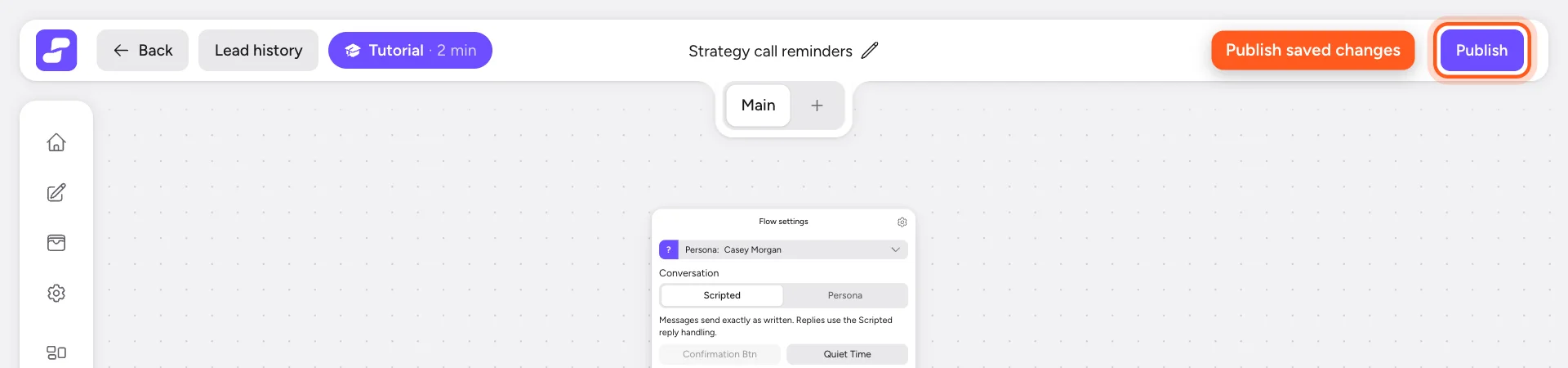
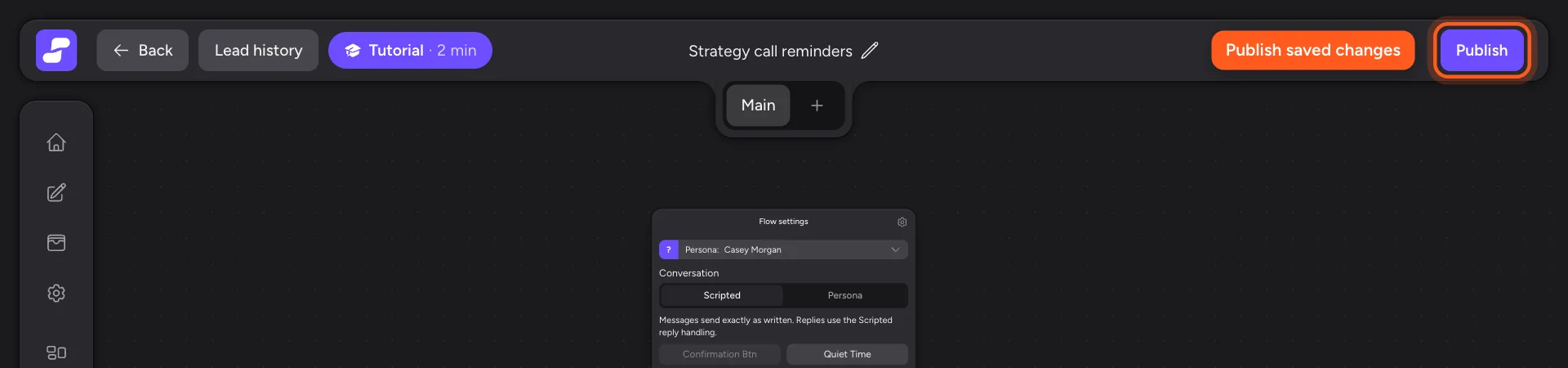
The workflows list also has a direct Publish action for a draft. It does not offer the impact choice or move existing people to the new version. Use the editor when you need to review that choice.
People who are locked into the current version finish without the new changes. The impact choice applies only to the eligible people described in the dialog.
An appointment workflow may publish without a calendar trigger. Its Start node warns when no entry method is configured. Check the Start node for calendar triggers and incoming workflow links. Linked workflows publish independently. A Start/End Workflow step whose target is unpublished shows that in its own editor, not in the publish dialog. Publish only opens the Publish changes? dialog when there's something to review. It doesn't warn about a missing trigger when a published workflow starts this one. When the only workflows that start it aren't published yet, it names them so you know to publish them.
Unpublish a workflow
In Workflows or its editor, choose Unpublish. This action does not open a confirmation dialog.
Unpublish deactivates the published version. Linked callers and targets keep their own publication status. If a caller later reaches an unpublished target, its handoff node is skipped and the caller continues. Executions already in progress keep their published versions.
Duplicate a workflow
- In the Workflows list, find the source flow.
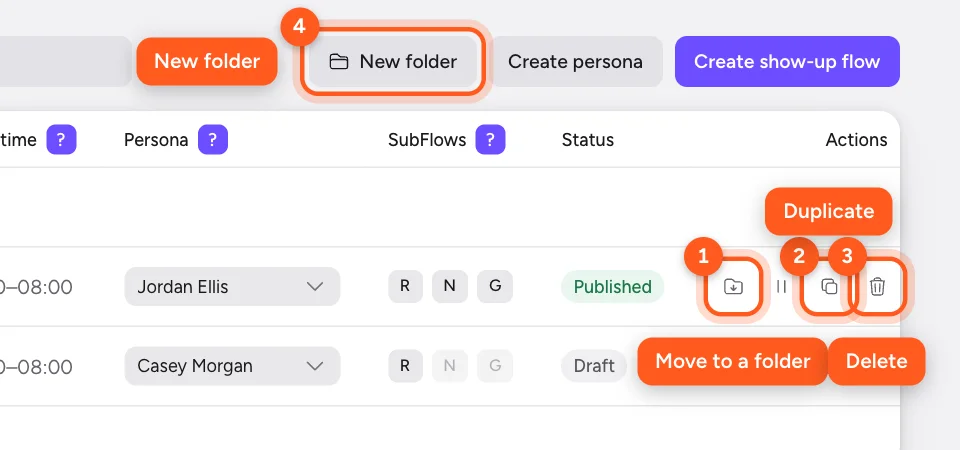
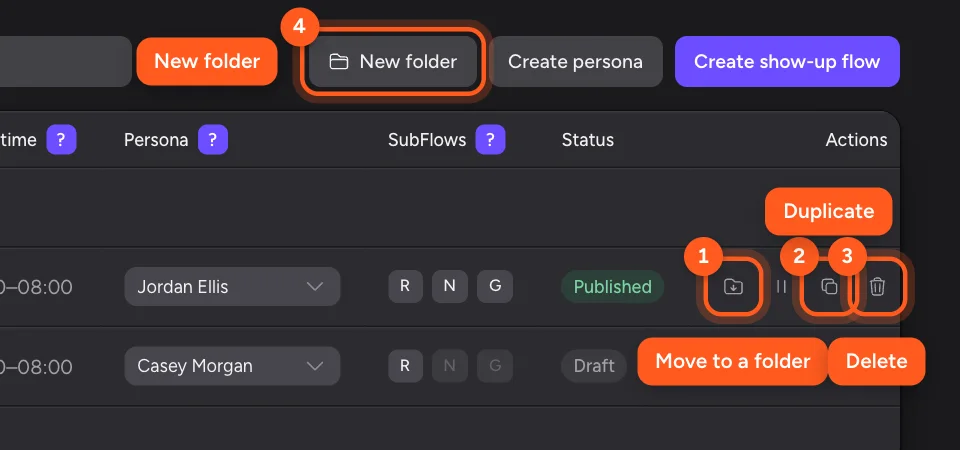
- Choose Duplicate.
- Open the copy and review its name, steps, calendar or trigger settings, Personas, and notifications.
- Save the copy and publish it only after it passes the displayed checks.
Duplicate creates an unpublished copy. It does not make the copy live automatically.
Organize flows with folders
- Choose New folder and enter a folder name.
- Use folder options for Rename folder or Delete folder.
- Drag a workflow into a folder, or use the folder button on its row to move it to another folder or choose Remove from folder.
A workflow in a folder appears only inside that folder, though a search still finds it. Folders organize the list and do not publish or unpublish flows. Deleting a folder returns its workflows to the root list.
Delete a workflow
- Find the flow in Workflows and choose Delete.
- Review Delete workflow.
- If the dialog lists published or draft workflows that use the flow, review those references before continuing.
- Choose Delete only when the removal is intended.
Deleting a flow does not rewrite existing Start/End Workflow references. If another flow refers to the deleted flow, future executions skip that Start/End Workflow node and continue. Resolve or replace those references before deleting when they are still needed.
Check your result
For an edit, confirm Save is gone from the top bar and verify whether the flow remains Draft or needs publishing. For a published appointment flow, confirm the intended calendar remains under Active calendar triggers. For a duplicate, confirm the copy is Draft until you deliberately publish it.
Read node counts and Lead History
On a published flow, active counts distinct runs with outstanding work at that node. Done or passed counts distinct runs with a successful node exit. Retries do not add another run. A run that revisits a node can appear in both counts. A later failure or cancellation does not erase an earlier successful exit. Counts belong to the current published version. Node cards on the canvas show only their names, so counts don't appear there; a node added or edited in the draft has a New or Changed bar on top of it until you republish.
Open Lead history on the canvas. Active lists leads still in the flow; Finished lists leads who have left it, including failed or canceled runs. Type a name under the tabs to find a lead; each tab's count shows how many match. Each lead shows a colored dot and a short status, such as Now at Day-before reminder, Completed or Failed.
Choose a lead to see one line per step they took, with the time. A step that didn't simply pass says how it ended, such as Failed or In progress. Choose ? on a step to see what happened there, for example when a message was delivered or which path a lead took. The lead's route also lights up on the canvas, and each step on it has a Details tab beside it with the same facts. The route shows only while Lead history is open.
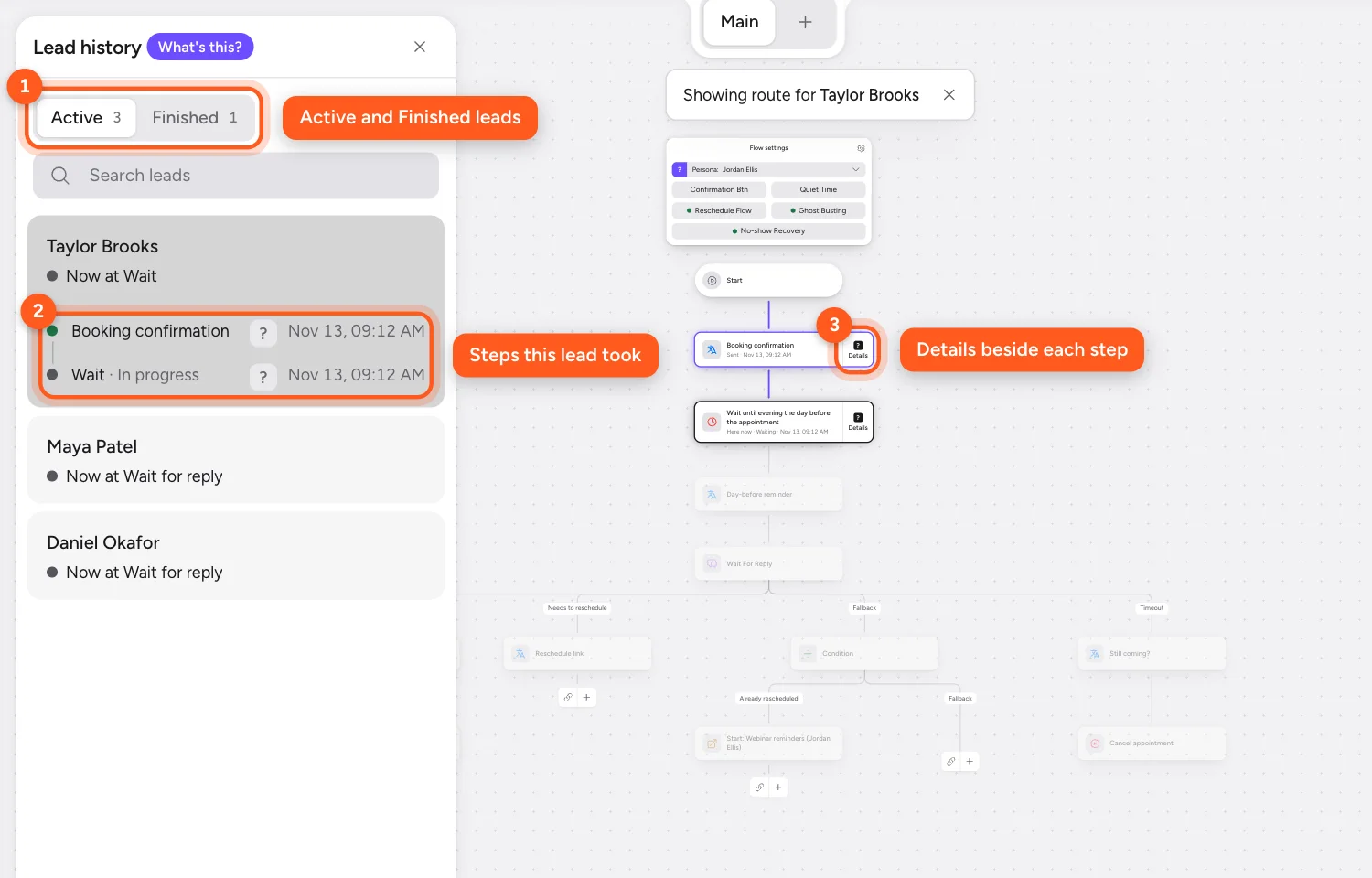
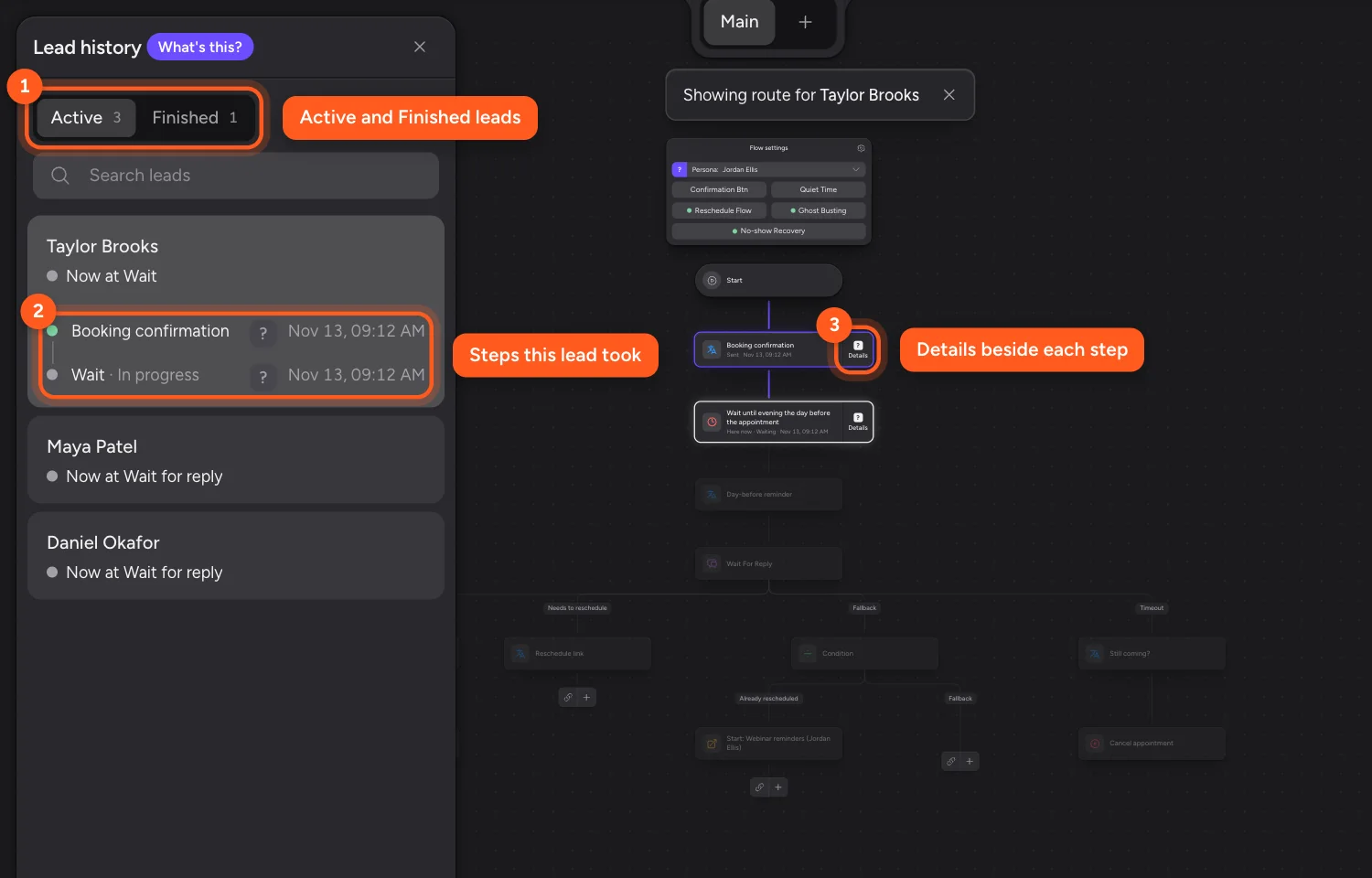
A lead can be at more than one step at once. Choose Show more when a lead has more steps to load. While Lead history is open, nodes can't be copied or deleted; close it to edit the flow again.
Troubleshooting
The workflow is not listed
Confirm that you selected the intended organization, clear or revise the search, and choose Back to all workflows if you were inside a folder. Ask an account owner or admin to review Workflows access if the page is unavailable.
My edit is not in the published flow
confirm Save is gone from the top bar, then open the editor and choose Publish. If Publish changes? appears, review its impact choice. A saved draft is separate from the published version until publication is accepted.
People in the workflow did not receive the new version
Review Publish changes? and the option Use these changes for … already in this workflow. Eligible people can receive the new version only when that option is accepted. Locked people finish without changes.
What happens when I unpublish a linked workflow?
Its linked callers and targets keep their own publication status. A caller that reaches this unpublished target skips the handoff node and continues. Runs already in progress keep their published versions.
I cannot delete a workflow
Assistant accounts cannot delete workflows. Ask an owner or admin with the required access to review the flow and its references.
The delete dialog lists other workflows
Review the listed published and draft workflows before deleting. Existing Start/End Workflow references are not rewritten, and future executions skip a reference to the deleted flow and continue.
The duplicated flow is not running
That copy is unpublished until you complete its review and choose Publish. Check its calendar or trigger, Persona, readiness messages, and active entry point before testing.
Next step
For repeat bookings through the same appointment workflow, see Add fallback workflows for repeat bookings. For the mini-workflows attached to an appointment flow, see Reschedule Flow, Ghost Busting, and No-show recovery. Each guide explains its trigger and setup controls.
For a new or duplicated flow, continue with Set up and publish your first workflow. If a published flow still does not run, use My first workflow did not run.