Before you start
Open the appointment workflow that should own the recovery sequence. It needs a Message and sender Persona, and Ghost Busting must be available for the account. The compact flow's content becomes live when you publish the parent workflow.
Build and publish the sequence
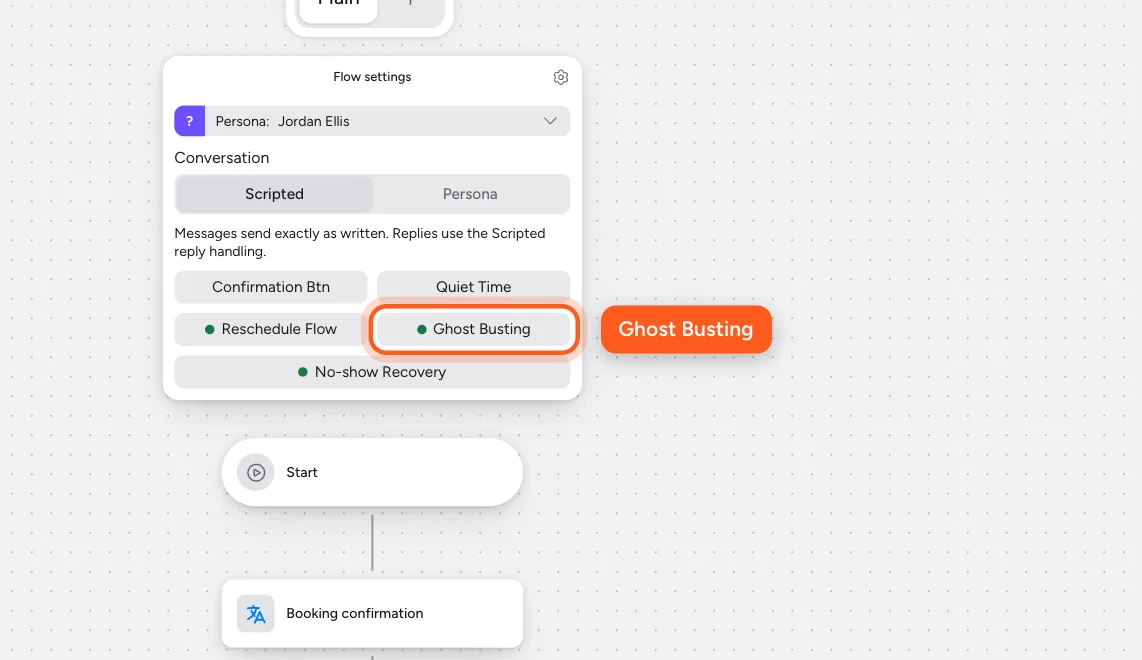
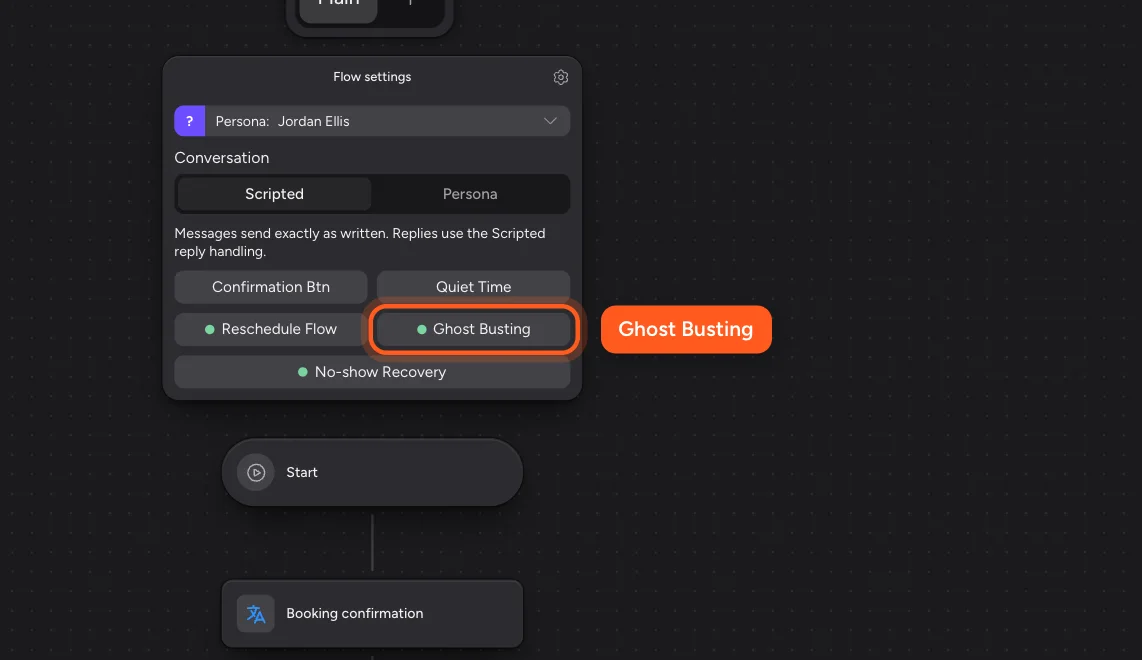
Under Flow settings, choose Ghost Busting.
The first Message opens in the editor when the popup opens; select another node to edit it. Choose Preview to see it as the lead will, and Apply to keep your changes and close the editor; choosing Close or another node first asks whether to apply or discard them. You can combine text, selfie video, voice note, other media, and a call link. Add SMS fallback text when required for attached media.
Use Add action (the + under the last node) and choose Message or Wait for time to insert Messages and Waits. To add one between two nodes, point at the line between them and choose the + that appears. The flow must be one straight path that starts and ends with a Message. It allows up to five Messages, three Waits, and 30 total wait minutes. Each Wait reads Wait n minutes, from 1 to 30. Two Waits cannot be adjacent.
Choose Save at the top right, next to close. It shows once you change something (the switch saves itself and doesn't count), saves the sequence and keeps the popup open. If a node is still open in the editor, Save applies its changes too. A short note says the changes won't take effect until you publish; choose I understand.
Reopen Ghost Busting and turn on Enable Ghost Busting on the tab above the popup. Right under the switch, a status says where it stands: green Published and enabled while it's live, amber Draft only or Workflow needs to be republished while it waits on the parent's Publish, and red while it's off.
Close the popup, save the parent workflow, and choose Publish.
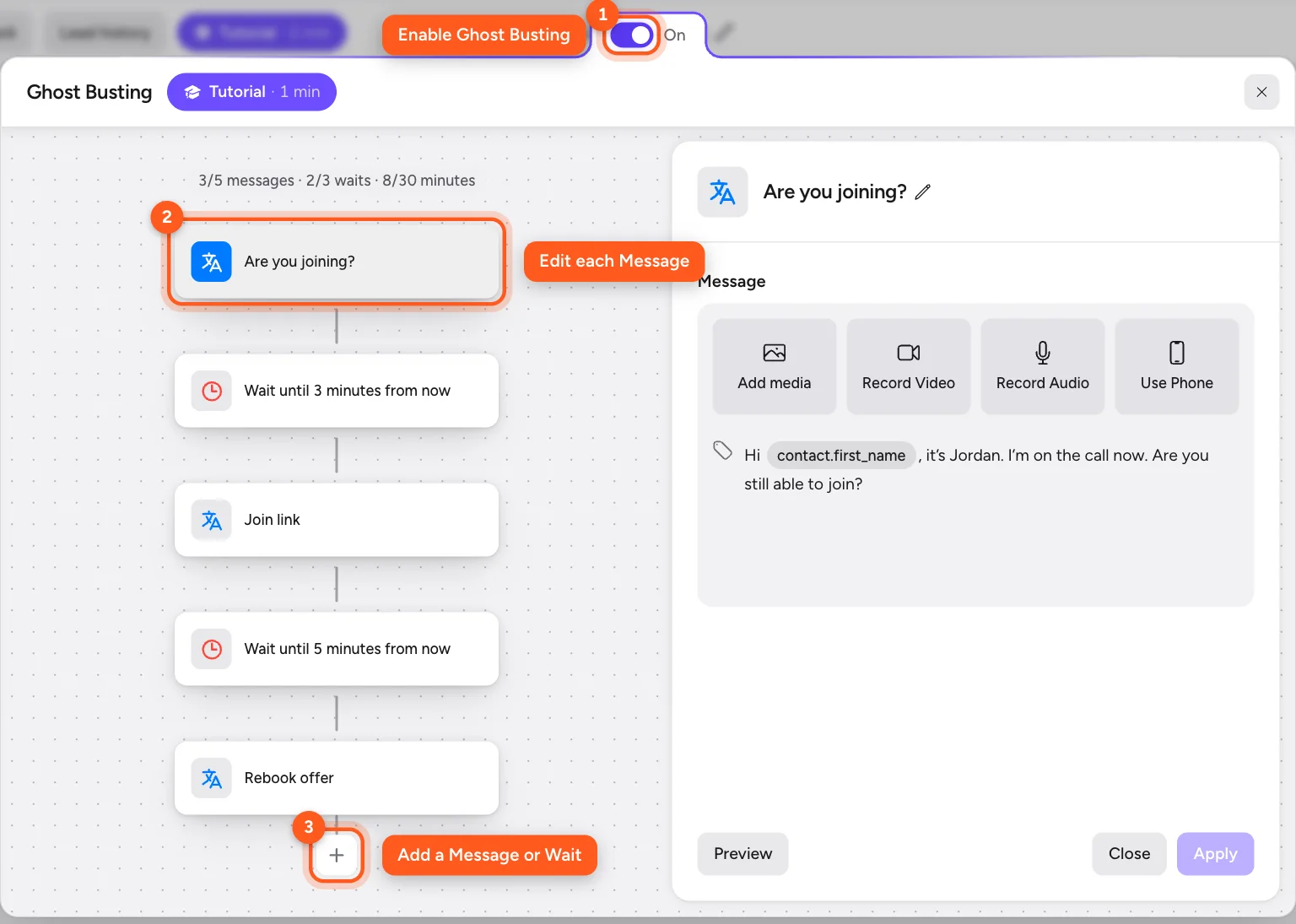
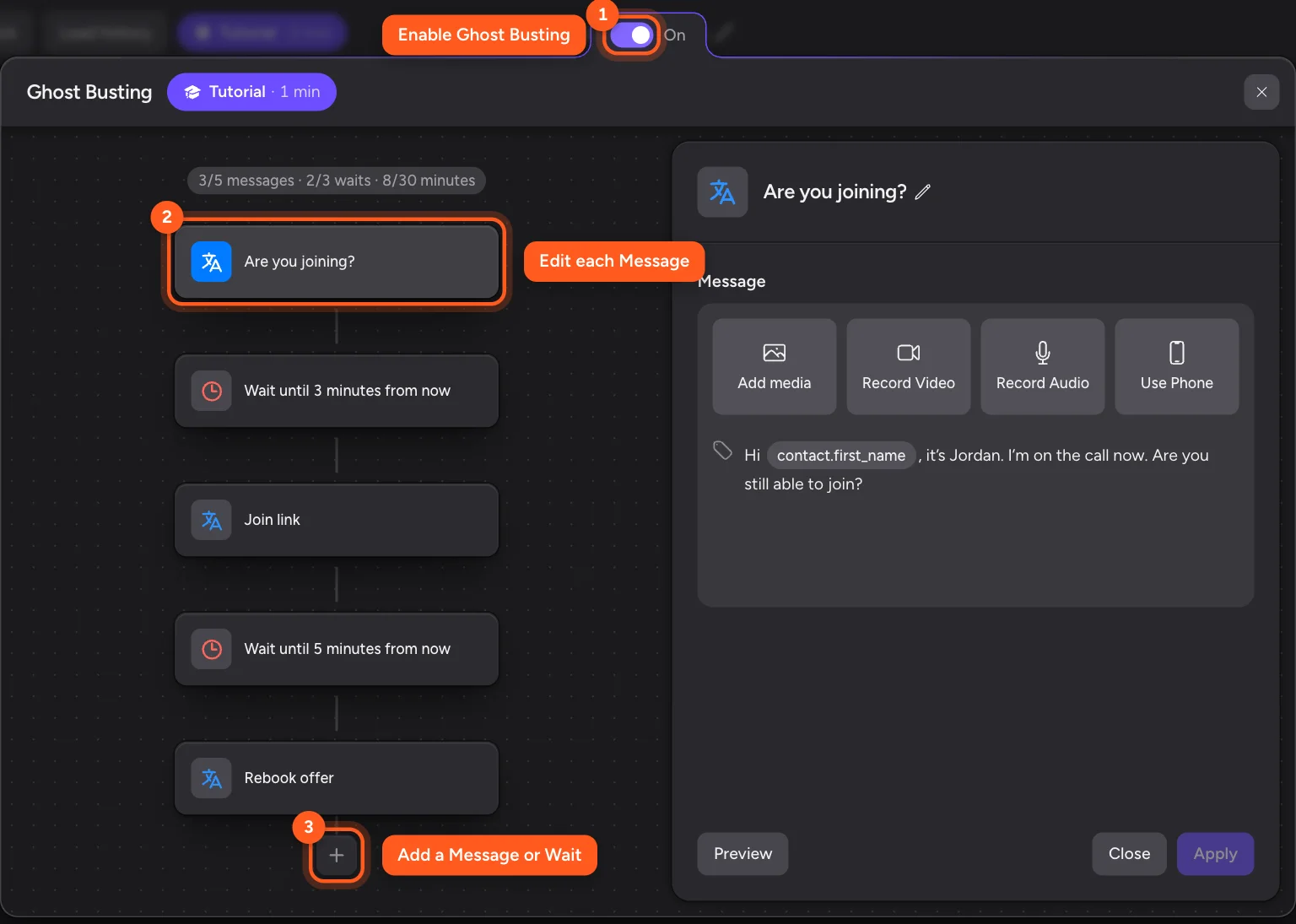
The activation switch is live and saved separately. Turning it off asks you to confirm, then stops new activations immediately. If the child already has a published version, turning it back on can take effect immediately. A first-time or edited sequence still needs the parent Publish action before that content is live.
Start and stop Ghost Busting
At appointment time, open the lead's conversation in Inbox. If the lead has not joined, choose Start Ghost Busting and accept the confirmation. Start it before 10 minutes have passed; for best results, act within 60 seconds.
Starting Ghost Busting marks the appointment No show, cancels the current runnable workflow lane, and starts the published Ghost Busting sequence. When the lead joins, choose Stop Ghost Busting and accept the confirmation. Pending Ghost Busting messages are canceled, while the appointment remains No show until you change its outcome.
Ghost Busting does not start when another valid appointment is already waiting for the lead in the same workflow. If that later appointment arrives after Ghost Busting was offered or started, ShowBoss stops the competing Ghost Busting follow-up.
If the sender Persona has an eligible verified notification phone, ShowBoss can send an appointment-time SMS prompt. Reply with the exact NO command shown to start, or the exact BUSTIN OFF command to stop. A two-digit code is included when more than one appointment is open.
Troubleshooting
The start control is missing
Confirm the current time is within 10 minutes after the appointment start, the parent and Ghost Busting flow are published and enabled, and the appointment has a usable conversation and sender Persona.
The flow did not stop when the lead joined
Joining is not detected automatically. Choose Stop Ghost Busting, then record the correct appointment outcome. Marking the appointment Showed up, Canceled, or Ignored also stops an active run.
Next step
Use Record appointment outcomes to correct the final attendance result.