Before you start
Open the appointment workflow that should own the follow-up. It needs a Message and sender Persona, and No-show Recovery must be available for the account. The recovery editor saves a child draft; the parent appointment workflow owns publication.
If the lead already has another valid appointment waiting in the same workflow, ShowBoss holds No-show Recovery so it does not compete with that appointment's follow-up. If the later appointment is canceled before it runs, the original No-show Recovery can become eligible again while its recovery window is still open.
Build and publish the recovery
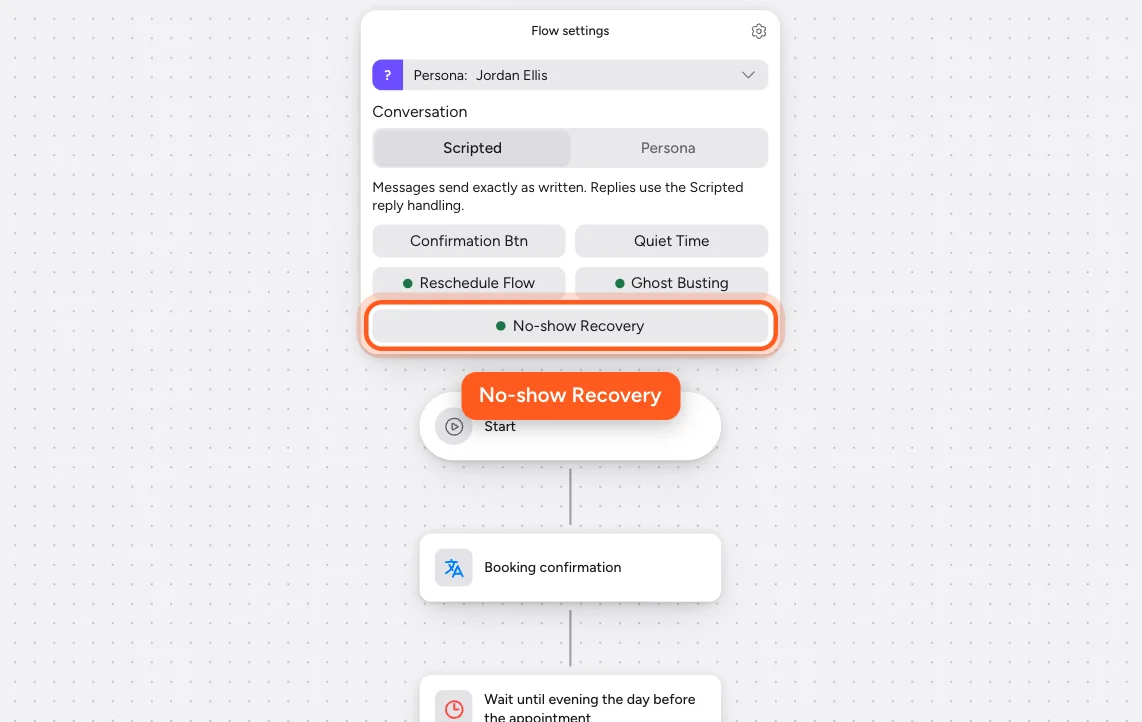
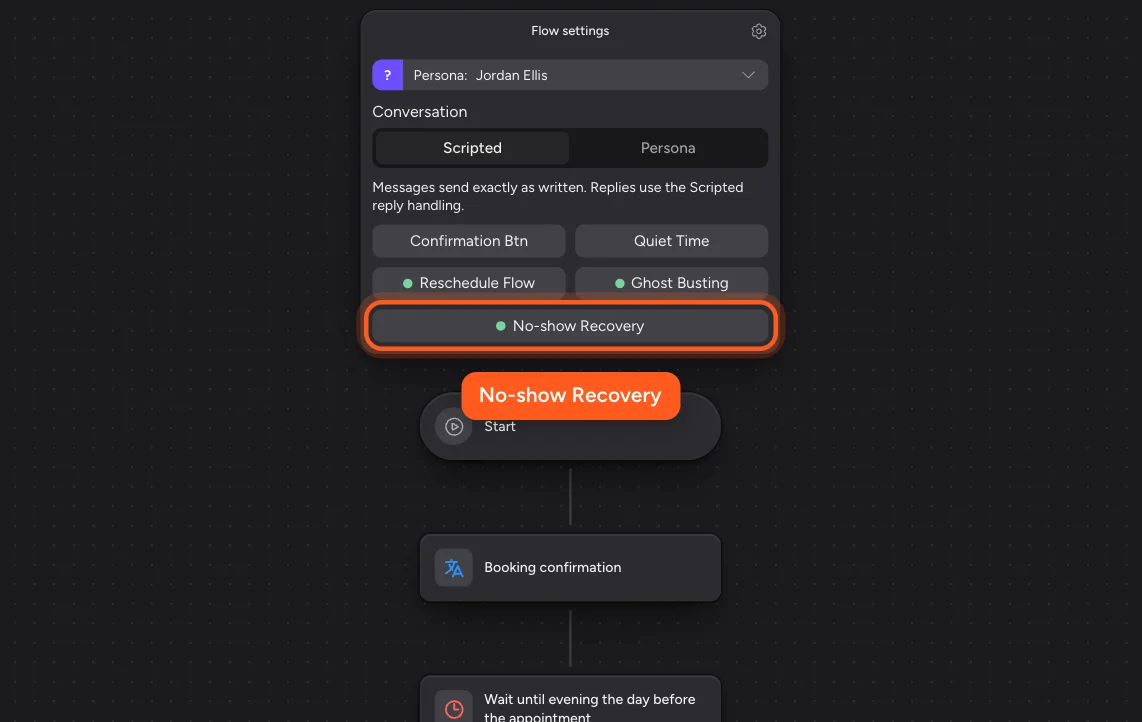
Under Flow settings, choose No-show Recovery.
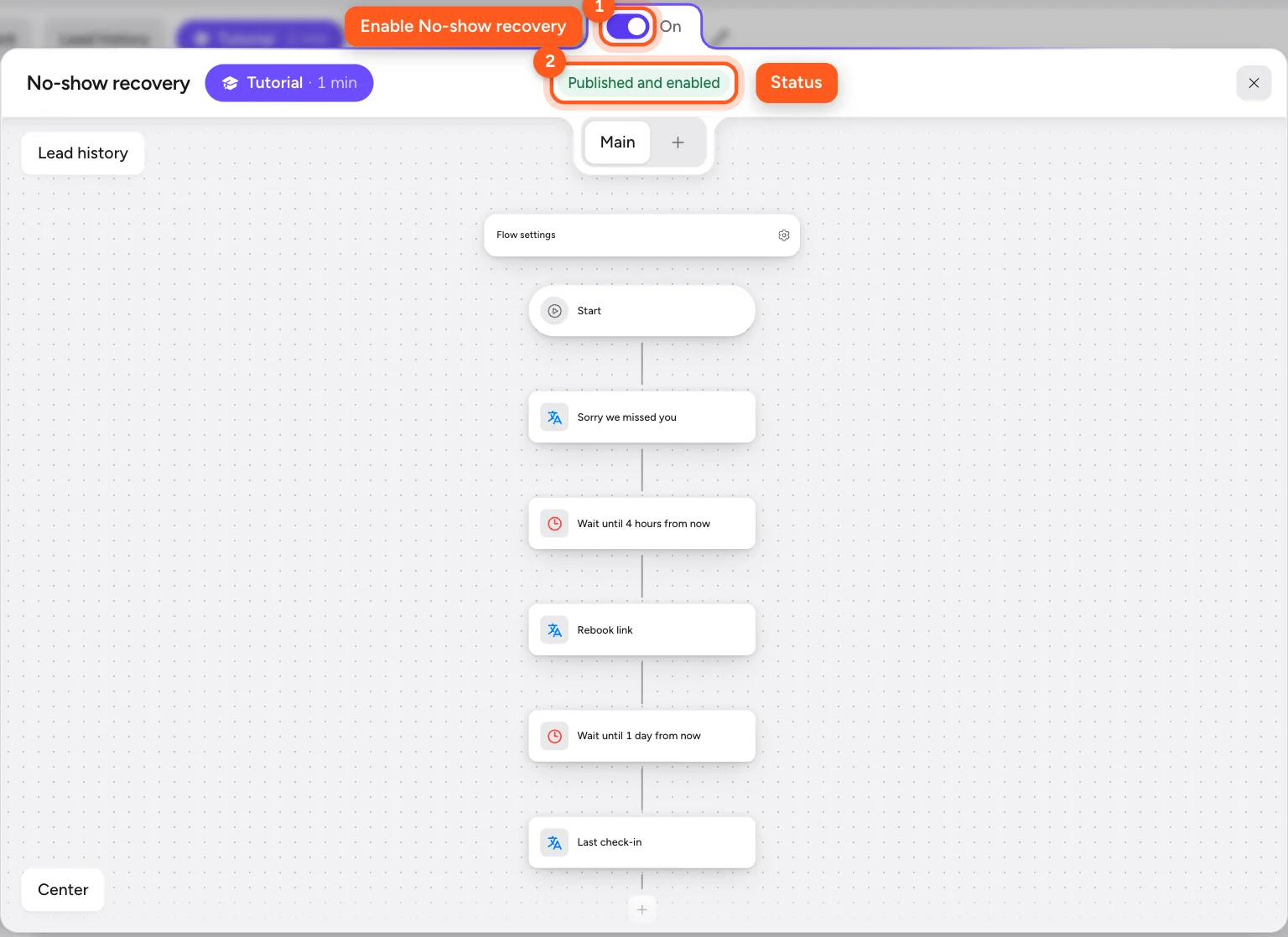
Build the sequence from its Start node. Its automatic trigger is fixed: the parent appointment is marked as a no-show. To add or switch between fallbacks, use the Main and + tabs under the top bar, as in the main builder.
Configure each node and use its node-level Apply control.
Choose Save at the top right of the recovery editor, next to close. It shows once you change something (the switch saves itself and doesn't count), saves the recovery and keeps the popup open. If a node is still open in the editor, Save applies its changes too. A short note says the changes won't take effect until you publish; choose I understand. Resolve any displayed validation issue before enabling the flow.
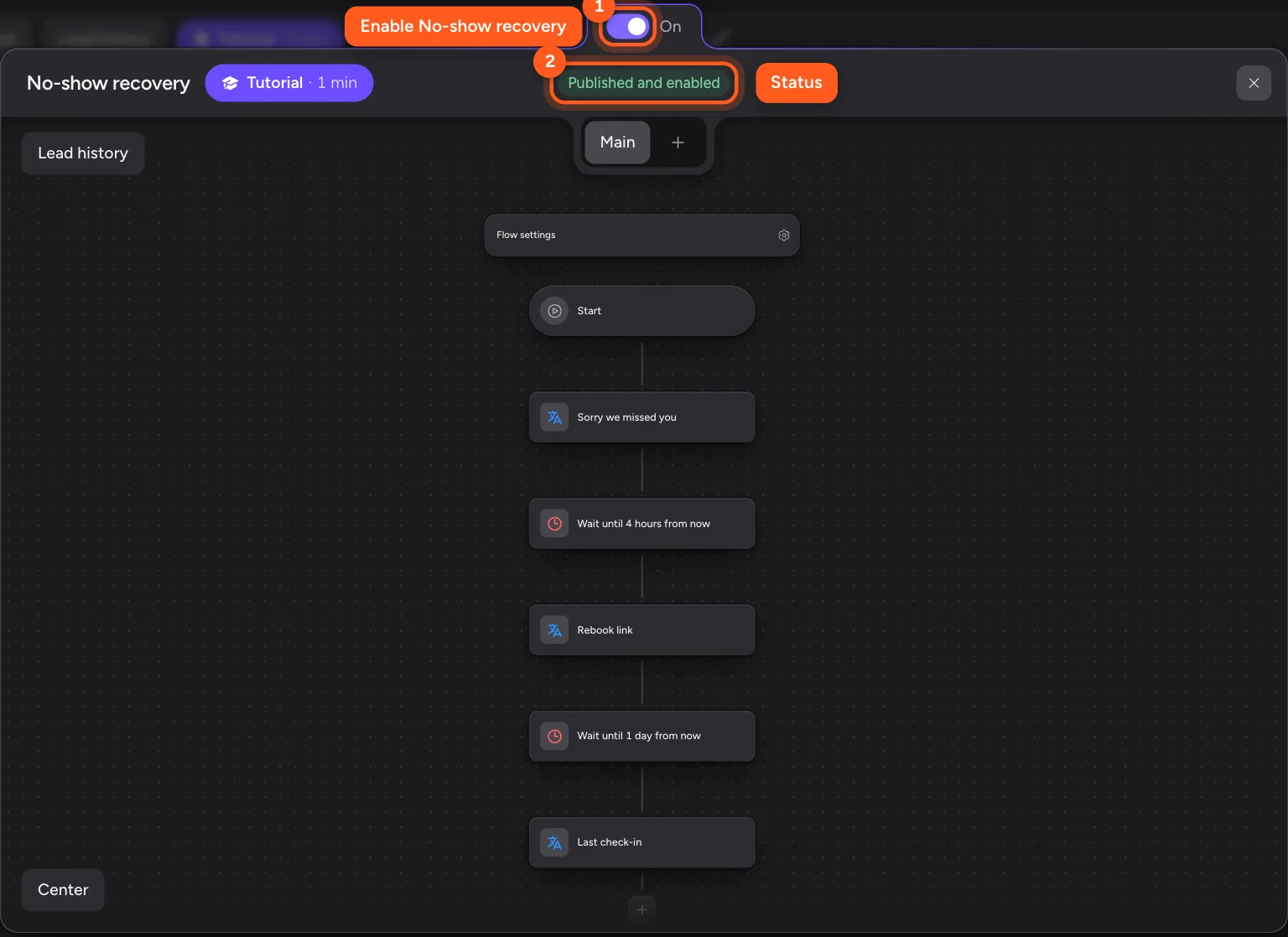
Turn on Enable No-show recovery.
Close the recovery editor with X, save the parent workflow, and choose Publish.
The switch sits on a tab above the popup. Right under it, the status can show Disabled, Draft only, Published but disabled, Workflow needs to be republished, or Published and enabled. Use that status to distinguish saved content from live content. It shows red while recovery is off, amber while it waits on Publish, and green while it is live; point at it to read what it means and what to do next. The switch is live: turning it off asks you to confirm, then gates new recovery immediately. If the child already has a published version, turning it back on can take effect immediately. A first-time or edited recovery still needs the parent Publish action.
Recovery actions
Use Message, Wait for time, Condition, and Wait for reply to build the follow-up. When enabled for your account, Notification can alert a teammate and Send webhook can send data to a CRM or another service. See Send webhook setup for configuration, credentials, and testing. Publish recovery changes through the parent workflow.
You can zoom out to 20% to see more of the canvas. Use Center to fit the workflow back into view.
Reply handling
In the recovery editor, choose Settings to configure replies independently from the parent workflow:
- Pause on questions pauses recovery when a reply contains a question.
- Pause on reschedule requests pauses recovery when a lead asks to reschedule.
- Pause on any reply pauses recovery for every inbound reply, regardless of intent.
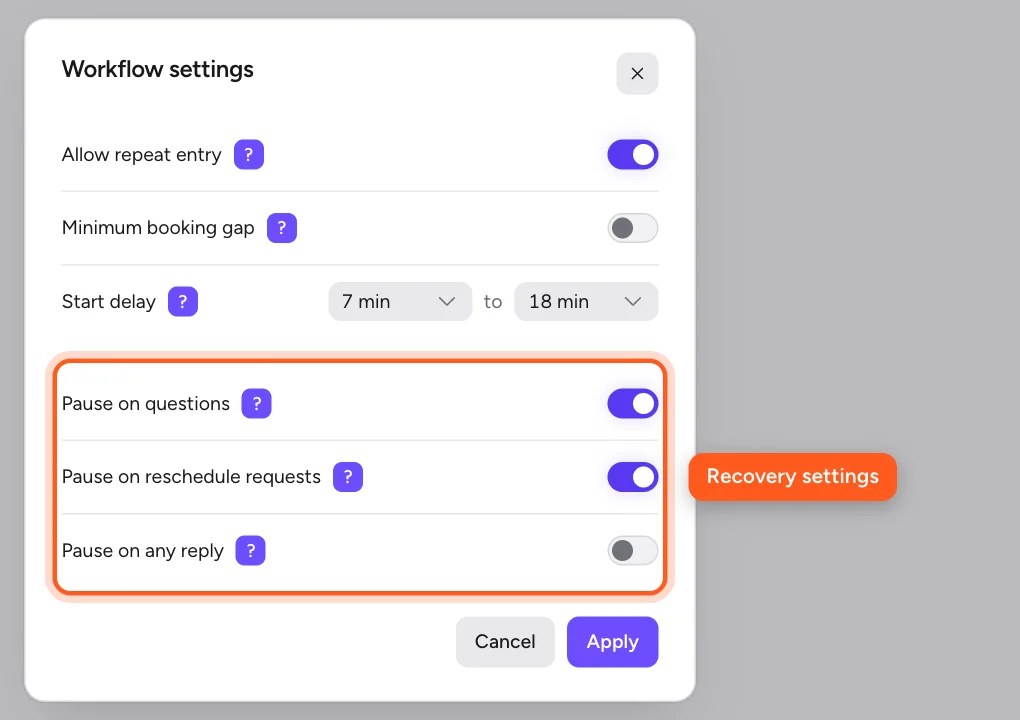
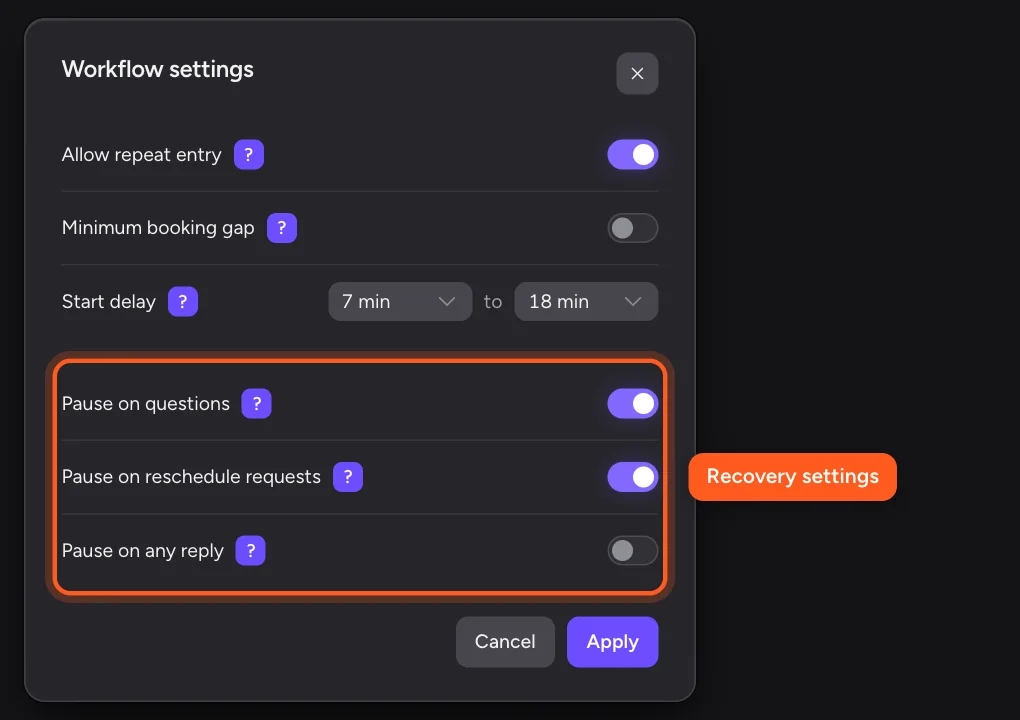
Choose Apply, then Save in the recovery editor, which keeps it open. Close it, save the parent workflow, and choose Publish to publish these settings with the recovery. A recovery already running keeps the settings from the version it started with.
A reply that does not trigger a pause lets recovery continue and refreshes its response window and automated message allowance. A reply that pauses recovery does not let automated messages continue while it is paused. Opt-out detection is always on and cannot be disabled; an opt-out stops recovery.
Trigger and stop recovery
After a missed appointment, open Show up tracking, find it under Pending, and choose No show. You can also update the appointment outcome from its context in Inbox. The outcome saves immediately.
If you record No show before the scheduled time, recovery waits until the appointment starts. It runs only after the parent appointment workflow has completed and when the published recovery, sender, conversation, account plan, and messaging eligibility checks pass.
Recovery stops when the lead books a future appointment, the missed outcome is corrected, the lead opts out, the sequence completes, or the recovery window expires. The base window is four weeks after the missed appointment. Responses can keep an active recovery eligible for at least one week after the latest response. Automated message allowances depend on the account plan.
Troubleshooting
No-show Recovery is unavailable
Add and save a Message in the parent appointment workflow and select its sender Persona. If the control is still absent, the feature is not available for the account.
The appointment is No show but recovery did not start
Confirm the appointment time has passed, the parent workflow completed, and the recovery status is Published and enabled. A future booking, messaging suppression, an unusable sender or conversation, or another active workflow in that conversation can prevent recovery.
My edited recovery is still using older content
Save the recovery, close its editor, save the parent workflow, and choose Publish. Existing active versions continue until the parent publishes the child draft.
Next step
Review Record appointment outcomes for the exact attendance controls.