Before you start
Open the appointment workflow that should respond to changed bookings. It needs a customer Message, and Reschedule Flow must be available for the account. Message edits update a draft; publish the parent workflow before expecting them to run. The Enable reschedule flow switch, on the tab above the popup, is different: it applies as soon as you change it.
Configure the flow
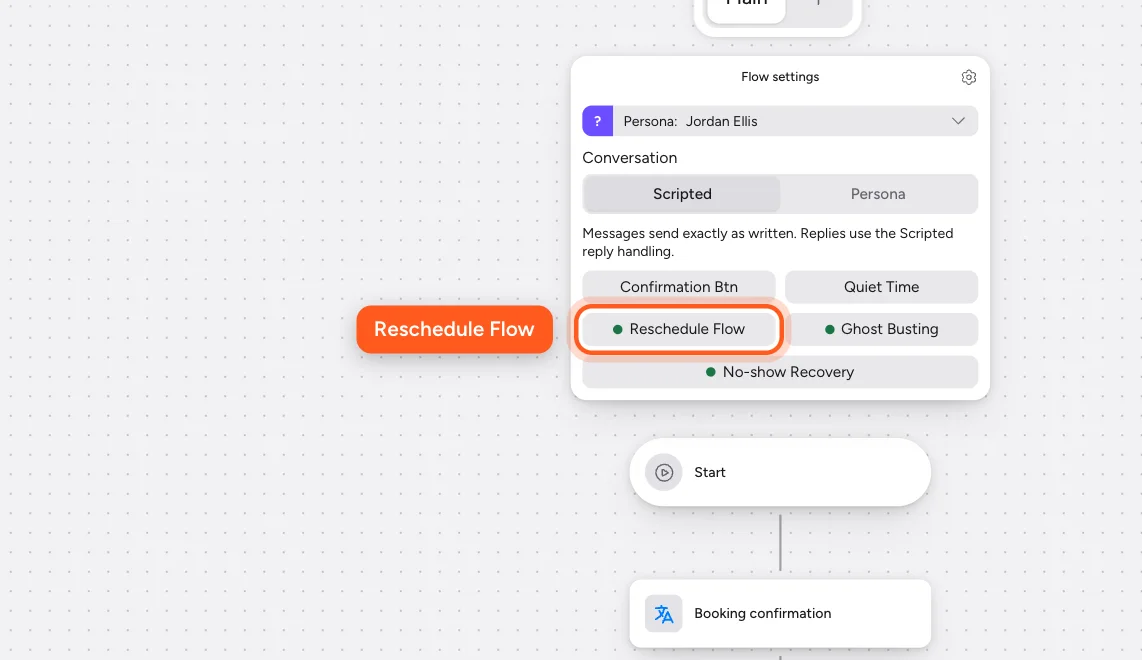
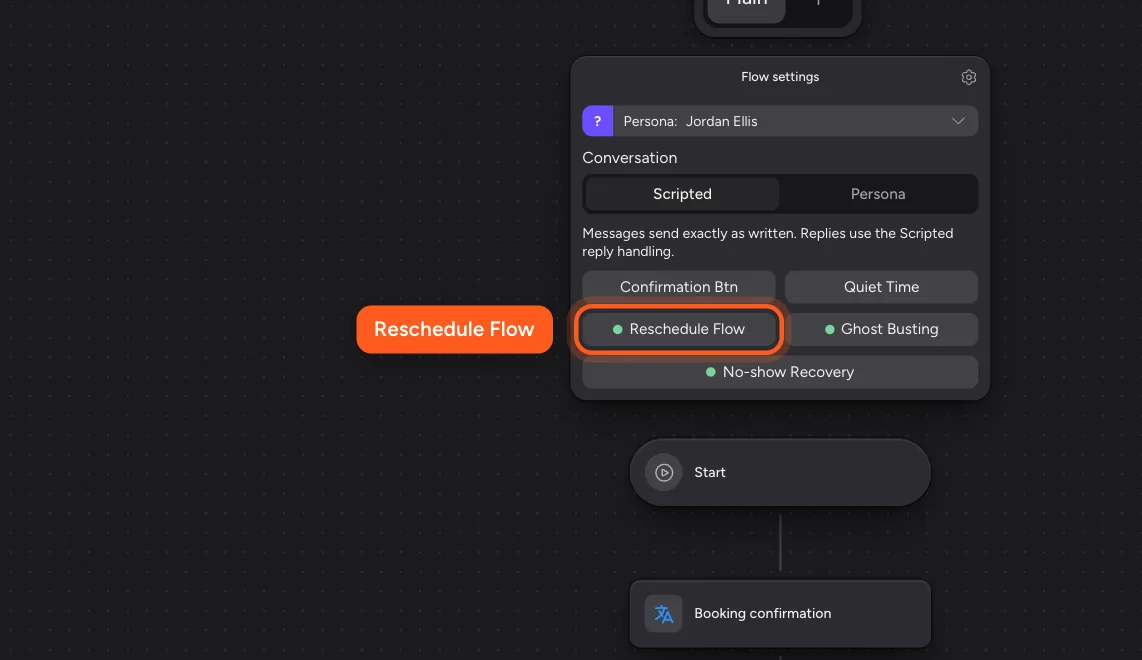
In the workflow editor, find Flow settings above the Start node and choose Reschedule Flow.
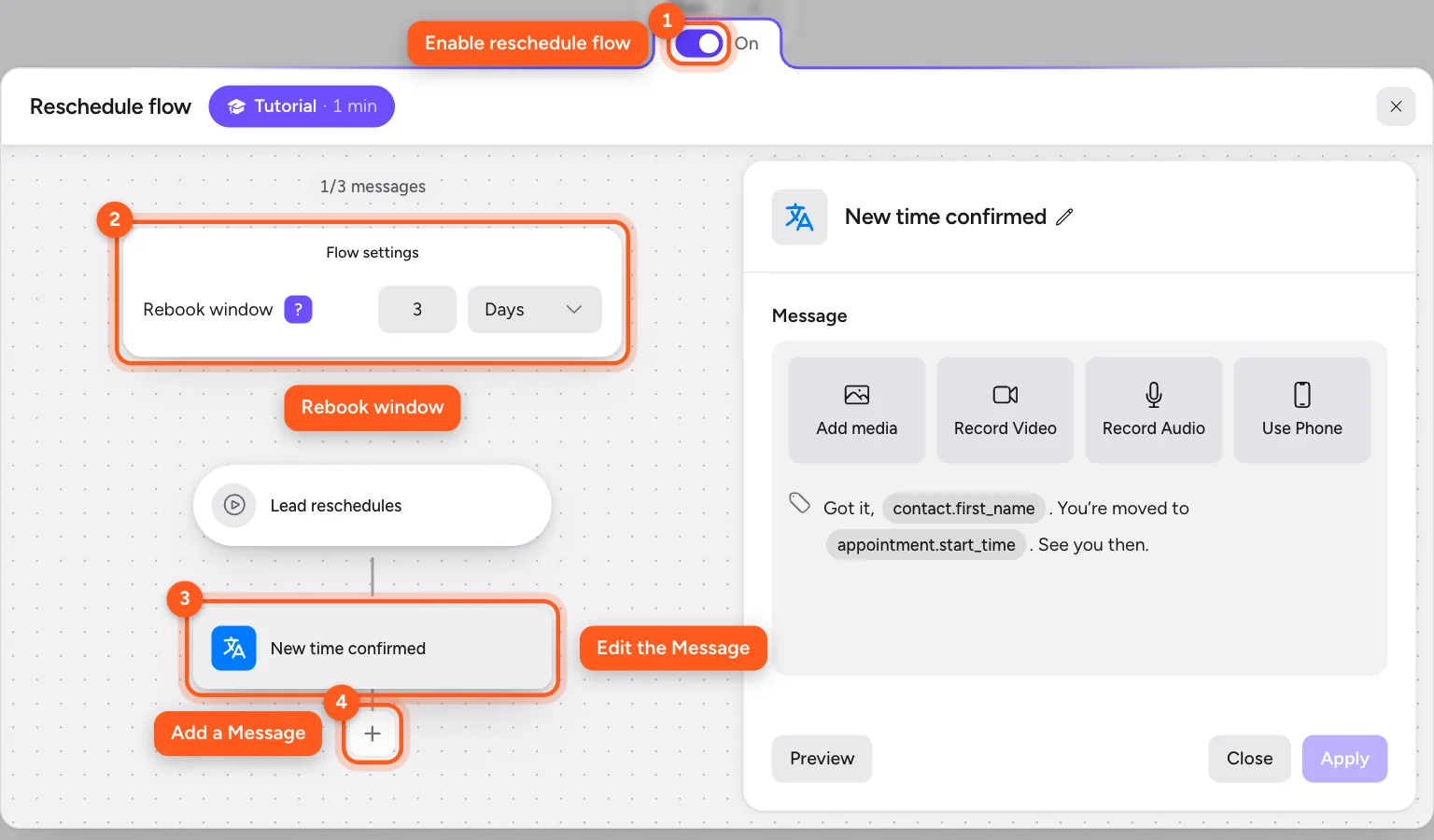
In the Flow settings card above Lead reschedules, set the Rebook window. When the same lead rebooks on the same calendar within this window after canceling, ShowBoss treats it as a reschedule. The allowed range is 6 minutes through 30 days.
The first Message opens in the editor when the popup opens; select another node to edit it. Write the confirmation under Message. Variables such as the appointment date and time can confirm the new booking. Choose Preview to see it as the lead will, then Apply to keep the changes and close the editor. If you choose Close or select another node first, ShowBoss asks whether to apply or discard them.
Add, copy, or remove Messages as needed. Reschedule Flow supports one to three Messages. Choose + under the last Message to add one at the end; to add one between two Messages, point at the line between them and choose the + that appears.
When a Message includes media, open its SMS fallback tab and fill it in.
Choose Save at the top right, next to close. It shows once you change something; the switch saves itself and doesn't count. Save stores the flow straight away, even if you leave the parent workflow without saving its other changes, and keeps the popup open. If a Message is still open in the editor, Save applies its changes too.
A short note says the changes won't take effect until you publish. Choose I understand, close the popup, then choose Publish (or Republish) on the parent workflow.
Reopen Reschedule Flow and turn on Enable reschedule flow. This takes effect immediately and uses the Messages from the published workflow.
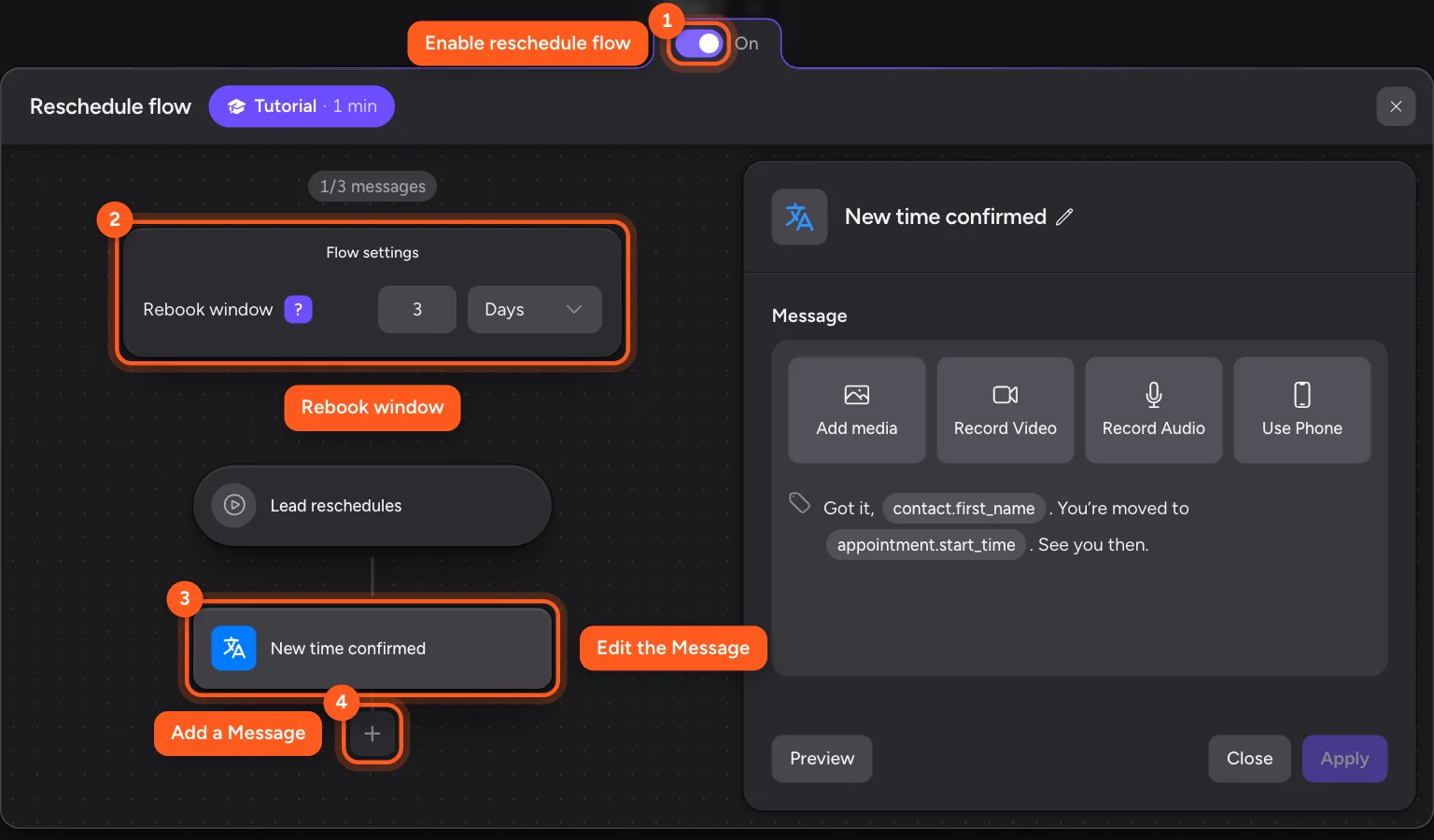
To stop sending confirmations, turn off Enable reschedule flow and choose Turn off. This also takes effect immediately, including for confirmations that are already waiting to send.
To see how the flow runs, select Lead reschedules; the editor explains it.
When a provider reports a reschedule, ShowBoss retimes remaining unsent messages in the parent workflow around the new appointment. Messages in the parent workflow timed for the last 24 hours before the appointment send again for the new time, even if the lead already received them. For example, a Message after a 1 hour before the appointment Wait goes out again 1 hour before the new time. The Reschedule Flow confirmation messages are scheduled together 7–20 minutes after the event. If another reschedule arrives first, pending confirmations from the earlier event are replaced. These confirmation messages do not use billable message credit.
The Rebook window also protects calendars that report a reschedule as two updates: a cancellation followed by a new booking. ShowBoss stops unsent work for the canceled time immediately, but waits through this window before moving an already-waiting appointment into its place. If the replacement arrives during the window, it can continue the same workflow run without another appointment follow-up charge.
Check your result
Reopen Reschedule Flow and confirm the switch is on. The switch shows what is running now. Right under the switch, a status says where the flow stands: green Published and enabled while it's live, amber Workflow needs to be republished when Message changes are waiting on the parent's Publish, and red while it's off. Save only shows while you have unsaved changes; Message changes still need Publish.
Troubleshooting
Reschedule Flow is unavailable
Add and save a customer Message in the parent appointment workflow. If the control is still missing, the feature is not available for that account.
I cannot enable the flow
Resolve any displayed validation message, then choose Save and reopen Reschedule Flow to enable it. Every Message needs text or media, and attached media needs SMS fallback text.
My changes are saved but are not running
Choose Publish (or Republish) on the parent workflow. Running workflows send the published Reschedule Flow Messages, not an unpublished draft. Only the on/off switch applies without publishing.
Next step
Review Manage existing workflows for the difference between saving and publishing.