Before you start
Check these prerequisites in order before making another live booking. Use a controlled lead: each live test can create real sends and consume paid usage.
Check the account and provider
- Confirm the selected account and organization are correct and that you have the permission for the page. A wrong scope can show an access-denied message.
- In Integrations, confirm the provider is authenticated. Choose Connect or Reauthenticate when shown, and follow the popup or setup flow.
- Confirm the intended calendar row shows Mapped or Mapped +. Unmapped and Remap required are not ready states. Needs setup is a filter label for calendars that need attention.
- For Calendly, read Booking readiness on the card. The green connection dot shows only that ShowBoss can reach Calendly. Booking readiness: no open issues means no mapped Calendly calendar with an intended workflow Entry point is waiting for confirmation or repair.
If the provider shows Connection needs attention, choose Reauthenticate using the same account and, for HighLevel, the same location. This keeps your calendar mappings. Do not deactivate the integration to repair authentication. HighLevel and Calendly also allow reauthentication if their saved status still appears connected.
When the Calendly card shows booking issues, it names the first affected calendar and one of these reasons. Saved Entry points need confirmation means Calendly was deactivated and reconnected with the same account; choose Review saved setup, select the paused calendars, and choose Restore selected. Reconnecting alone does not route bookings. Entry point needs repair means the saved route cannot be restored as it was; open the named workflow's Entry points, choose a supported calendar, and publish or enable it deliberately. Required fields need mapping needs a current sample mapped. Calendly could not verify this calendar needs a check of the event type in Calendly and its History. Group event type is unsupported needs a single-invitee event type or a disabled Entry point. See Calendly booking readiness and Deactivate and reconnect Calendly.
If the Calendly card states that Calendly is not receiving bookings right now, the integration is deactivated. Its mappings and Entry points are paused, not deleted. Bookings made while it is deactivated are not accepted or recorded. Choose Connect with the same Calendly account, then confirm the saved setup. If the card instead shows Connection needs attention and says bookings resume after you reconnect, the connection failed and nothing was paused; choose Reconnect with the same account and follow any booking issues still listed, with no saved setup to confirm for that failure. Calendars listed under Saved for a different Calendly account or Calendly account not recorded cannot be restored; set the calendar up again from the current Calendars table and add it to a published workflow deliberately.
ShowBoss retains the original authenticated appointment webhook for up to 30 days. After reconnecting the same provider account and location, open History on the integration. An event with a result of Error shows Ready to re-enter when it is safe to try again. Reconnect provider first, Original webhook expired, Original webhook was not retained, and Different provider account connected explain why the action is unavailable. For HighLevel, Calendly, Acuity, and iClosed, Re-enter reads the appointment's current booked or canceled state, date and time, and lead phone from the provider. Current workflow scheduling safeguards still apply. A past appointment or a booking too close to its start time may not send a missed message. Re-entry is available only once per appointment. If the appointment was updated in ShowBoss after the failed event was received, choosing Re-enter changes nothing and the row shows This webhook can no longer be re-entered. If the provider's current details already match ShowBoss, re-entry changes nothing and the row shows Re-entry failed.
Calendly rows have extra limits. A Not routed result with No active workflow is using this calendar for this event. means no active Entry point used that calendar when the booking arrived; it cannot be re-entered. An Unsupported result is a Calendly group event type; it created no appointment and cannot be re-entered. Re-entry requires the same Calendly account that received the original booking. Rows marked Account not recorded come from calendars whose original Calendly account ShowBoss did not record; they stay readable but cannot be re-entered or restored by reconnecting. After fixing the route, make a new controlled booking instead of waiting for the old one.
HubSpot works differently. ShowBoss keeps no original HubSpot message. After a mapping error, add a valid phone number to the HubSpot contact if it is missing, save a real change to the meeting link's mapping, then choose Re-enter on the Error row. ShowBoss reads the current meeting from HubSpot once and reports the result in History, normally within a few minutes; the row shows Reading current HubSpot meeting until then. While History stays open, Recovery results above the table keeps the queued message and reports the outcome even when that row is on another page or outside your filters. Choose Refresh above the table if the page has stopped checking; it also checks those pending recoveries. See Recover a meeting after a mapping error for each Re-entry label.
For mapping or authentication help, see Connect your calendar.
Check the workflow
Confirm the draft changes were saved.
If the flow has reachable message steps, confirm a sender Persona is selected. See Choose a Persona.
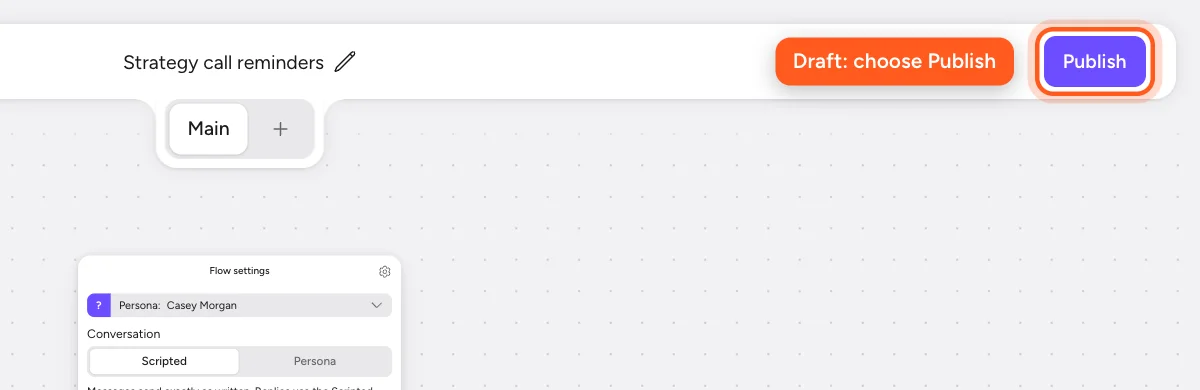
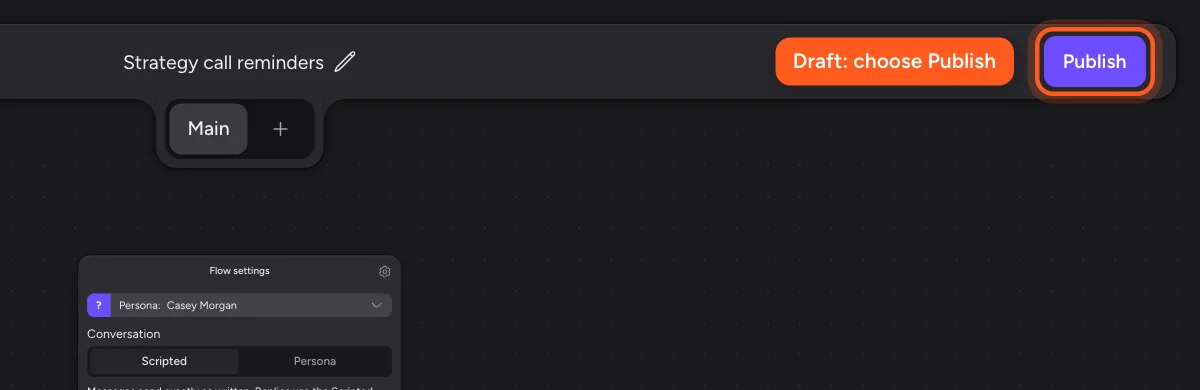
Check the header. If the button reads Publish or Republish, choose it to apply the draft. On a published workflow, a node with a New or Changed bar on top of it on the canvas is not live until you republish; point at the orange ! beside the word for a reminder. Live steps removed in the draft keep running in the published version until you republish.
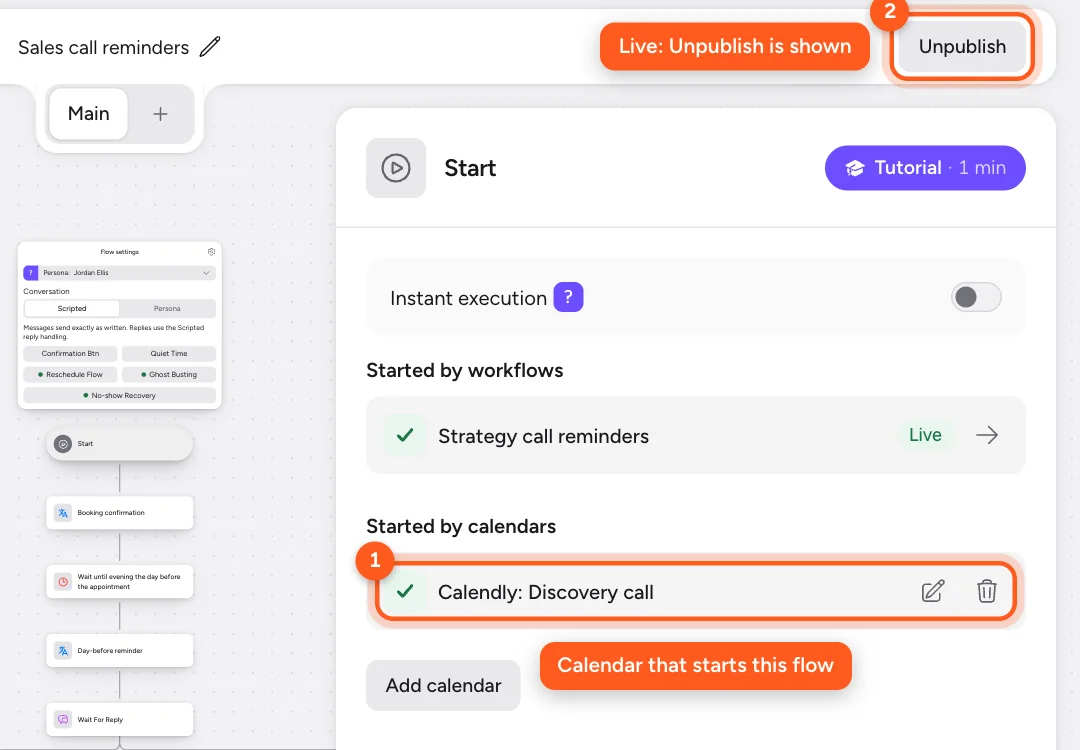
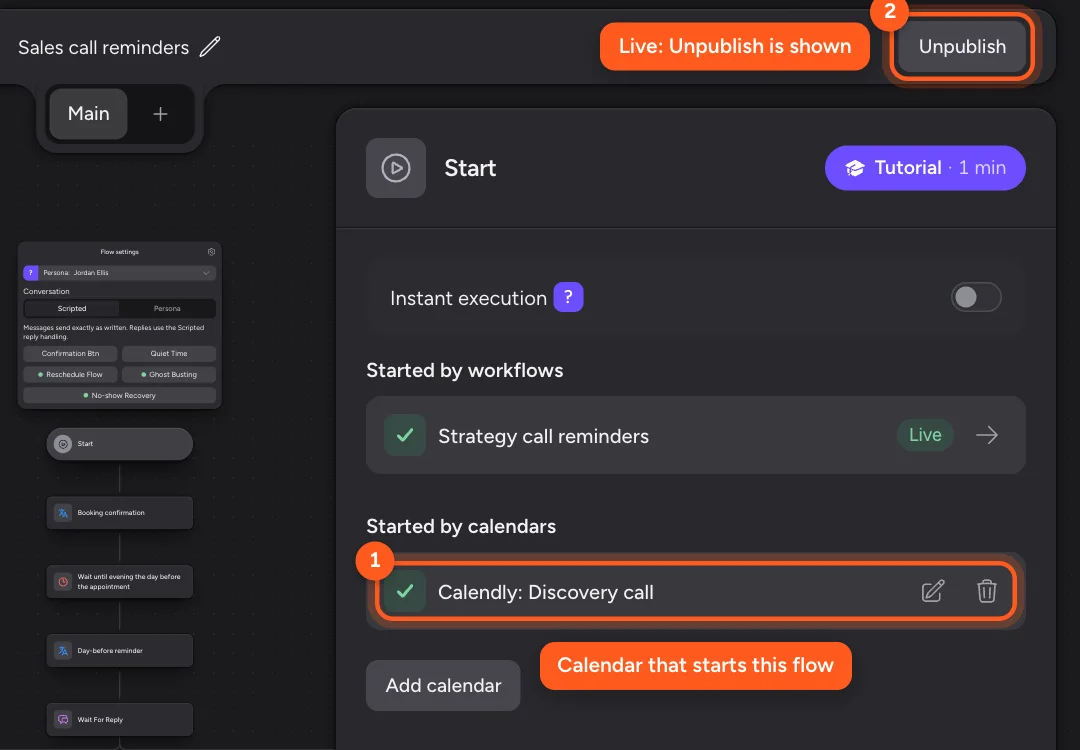
Open Entry points and confirm the intended calendar appears under Active calendar triggers. No active entry points means bookings cannot enter that flow through a calendar. A Calendly Entry point paused by a deactivation returns only after you confirm it in Saved setup; an Entry point that was disabled, deleted, or changed after the deactivation stays off until you enable or add it again.
For setup help, see Set up and publish your first workflow.
Check the booking evidence
- Confirm the booking used the intended provider and calendar and occurred after the setup was ready.
- Use a controlled lead when testing. Each live test can create real sends and consume usage.
- For an appointment webhook, open Integrations, then History for the calendar. For Calendly, choose Booking issues to list bookings that were not routed or failed on calendars with an intended workflow route. For an opt-in workflow's webhook, expand Incoming webhook in the workflow and review Recent webhook activity.
- A request marked Skipped because its phone number is invalid did not create a workflow execution. Correct the phone number in the source data before sending a new webhook. Older requests marked Skipped because their timezone could not be determined keep their original result; retrying the same event does not start a workflow.
- Open Inbox, select the lead, and inspect Opt-Ins & Appointments and the conversation timeline for actual execution, message, or displayed failure evidence. Workflow skipped — Booked too close to the appointment means the booking arrived closer to the appointment than the workflow's Minimum booking gap; lower or turn off the minimum in Flow settings > Settings if those bookings should run.
- Follow any user-visible billing or readiness error exactly as shown. Account eligibility and charges can vary.
Missing timezone information alone does not skip new bookings or opt-ins with a valid phone number. For scheduling and delivery, ShowBoss uses the lead's valid known timezone, or infers one from the phone number when allowed. If neither is available, it uses your organization's valid timezone, then UTC if the organization timezone is missing or invalid. Using a fallback does not change the lead's saved timezone. Previously timezone-paused runs remain paused.
For a controlled test, see Test your first booking. For replies and timeline actions, see Use the Inbox.
When one channel is delayed
Open Message details in the message footer in Inbox to view Message status. Check each channel separately: Partial delivery can mean the healthy channel has continued while another is retrying or has stopped. Checking delivery and Delivery unknown do not prove the message failed, and unknown messages are not resent automatically. Future scheduling and normal message preparation are not technical failures.
An ordinary message failure does not automatically cancel later eligible messages. Consecutive messages can proceed once the earlier message is handed to the provider or reaches a final result in ShowBoss, subject to their scheduled delays and current sending permissions. Sent, Delivered, and Read updates can arrive later.
If submission is still uncertain and no handoff or final result in ShowBoss is established, later messages can wait while ShowBoss checks. Continuing does not resend a message whose delivery is unknown. A stopped workflow or deselected channel can still cancel pending messages; opt-out, recipient restrictions and sender unavailability keep their own stopping or waiting effects.
Messages are composed and submitted one at a time per sending phone, across its channels. Typing or recording indicators vary by provider, and remote delivery times can differ.
See Understand channel delivery for the improved states being rolled out to new workflows.