Before you start
Variable coverage shows only calendars marked Mapped or Mapped +. Calendars marked Unmapped or Remap required and integrations without mapped calendars are excluded.
You need access to the selected organization and permission to open Integrations. Only an account owner or admin can change calendar mappings. Other roles can review mappings and should ask an owner or admin to configure them.
Connect a provider
- Select the organization you want to configure.
- In the sidebar, choose Integrations.
- On the Integrations page, find the provider card for HighLevel, Calendly, or iClosed.
- Choose Connect.
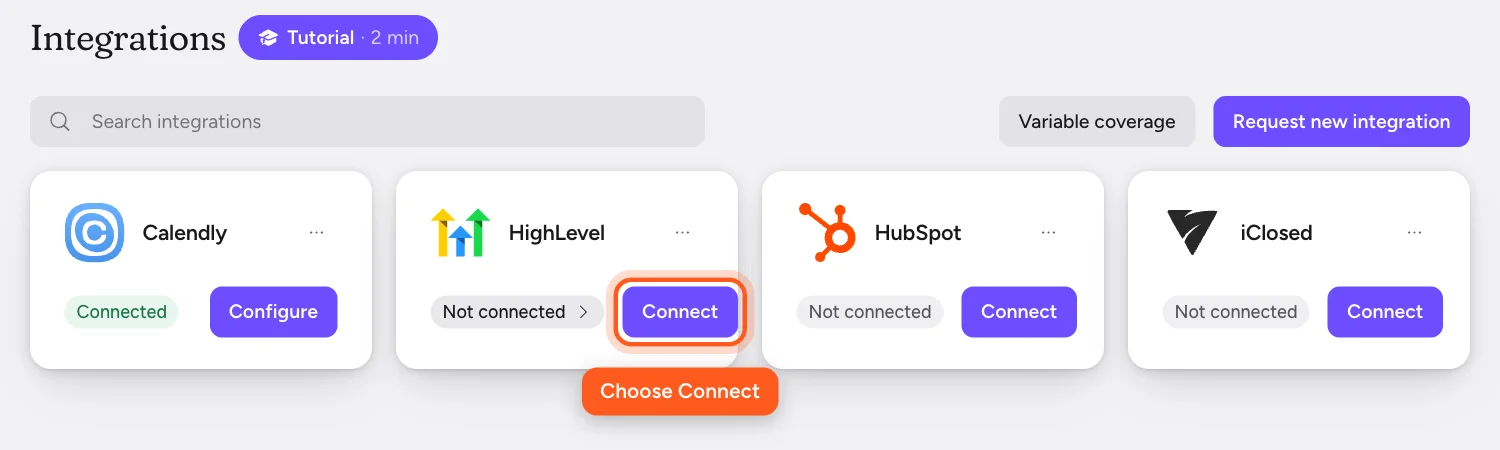
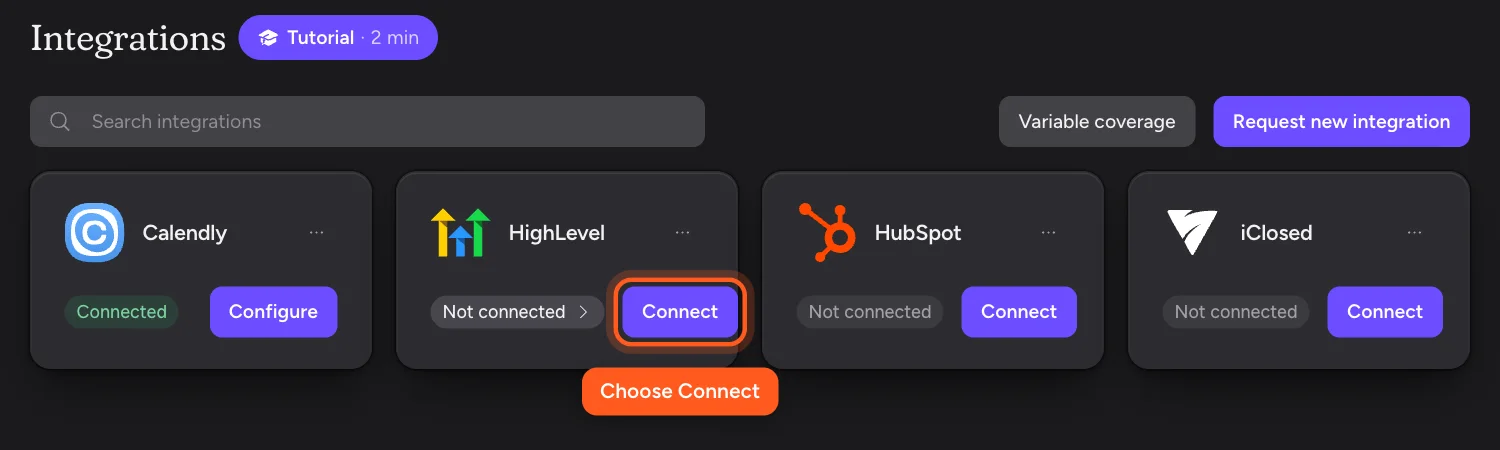
For a short, step-by-step guide, open the card's ⋯ menu and choose Setup guide. It slides in on the right of Integrations and stays open while you use the page or the Connect popup. Choose X to close it.
HighLevel or Calendly
When the provider supports OAuth, ShowBoss opens an authentication popup. Continue the provider authentication in that popup. When it succeeds, ShowBoss displays HighLevel connected successfully. or Calendly connected successfully.
iClosed
- Choose Connect on the iClosed card.
- Connect iClosed walks you through two steps. First, in iClosed, go to Settings › Developer, create an API key and copy it. iClosed may only show it once. Choose What you need to see the iClosed plan and access required: an iClosed Business or Enterprise plan and Super Admin access. Webhooks are in beta in iClosed; if you don't see them, ask iClosed support (in-app chat) to turn them on.
- Paste the key into API key under Paste it here. Need more help? Choose the purple Setup guide button above the popup to open the full guide beside it.
- Choose Save and connect.
- Follow the separate Webhook registration instructions. The card can show Webhook pending until that manual registration is complete.
HubSpot
HubSpot is a limited release that is enabled per account and follows selected meeting links instead of mapped calendars. It has its own setup, so skip the mapping steps below and follow Connect HubSpot meetings.
Provider authentication screens and their controls are provided by the provider. Follow the instructions shown in the authentication popup or setup guide.
Find a calendar
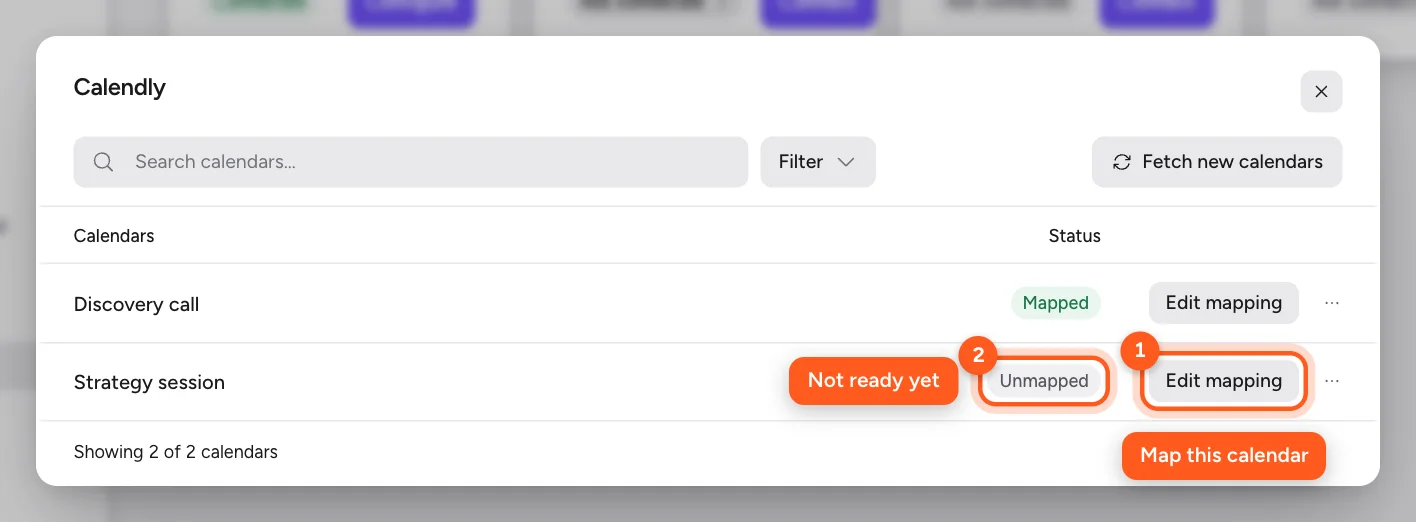
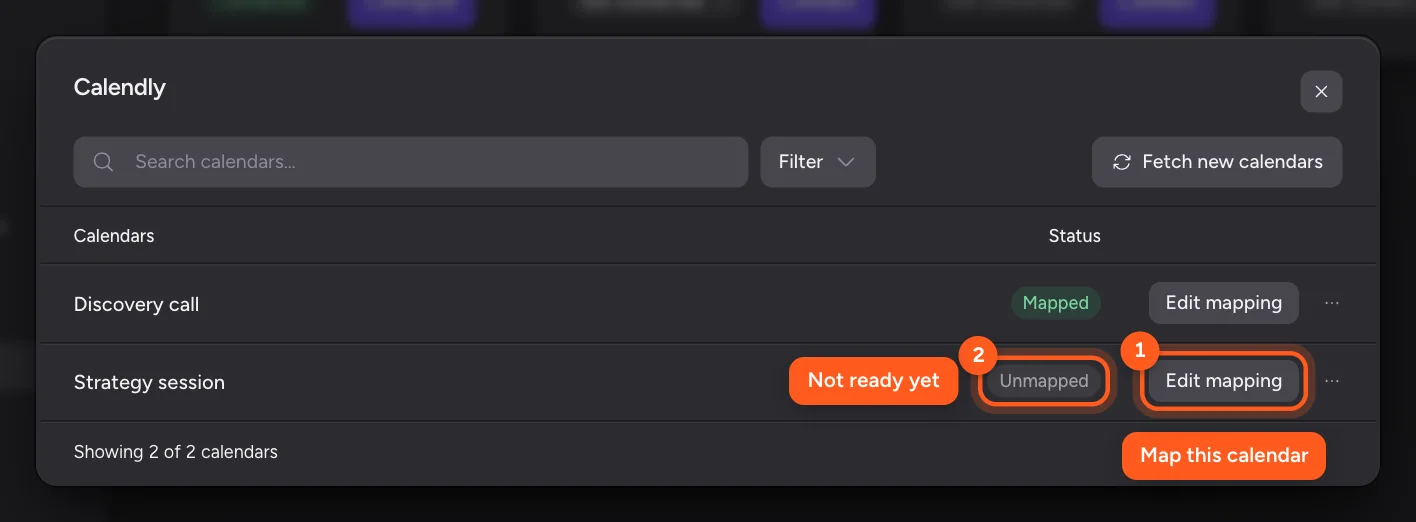
After an authenticated provider supports calendar listing, its card shows a Calendars table with Status and Actions. If no calendars are listed yet, ShowBoss displays Connected successfully. Calendars will appear here after the next sync. You can choose Fetch new calendars to reload the page.
Map a calendar
- In the calendar row, choose Edit mapping. Match your calendar data opens with the data from the calendar's latest appointment.
- Check each field shown under Required Variables. The required fields depend on the calendar provider. A green Mapped label means the variable already reads the right calendar data, and you do not need to change it.
- For each other variable you want, open its dropdown under Received data and choose the calendar data it should use. Choose Clear next to a variable's name to remove its data, or Add a variable when ShowBoss has no variable for some of your calendar data.
- Choose Save mappings. You can choose Edit mapping again later to change them.
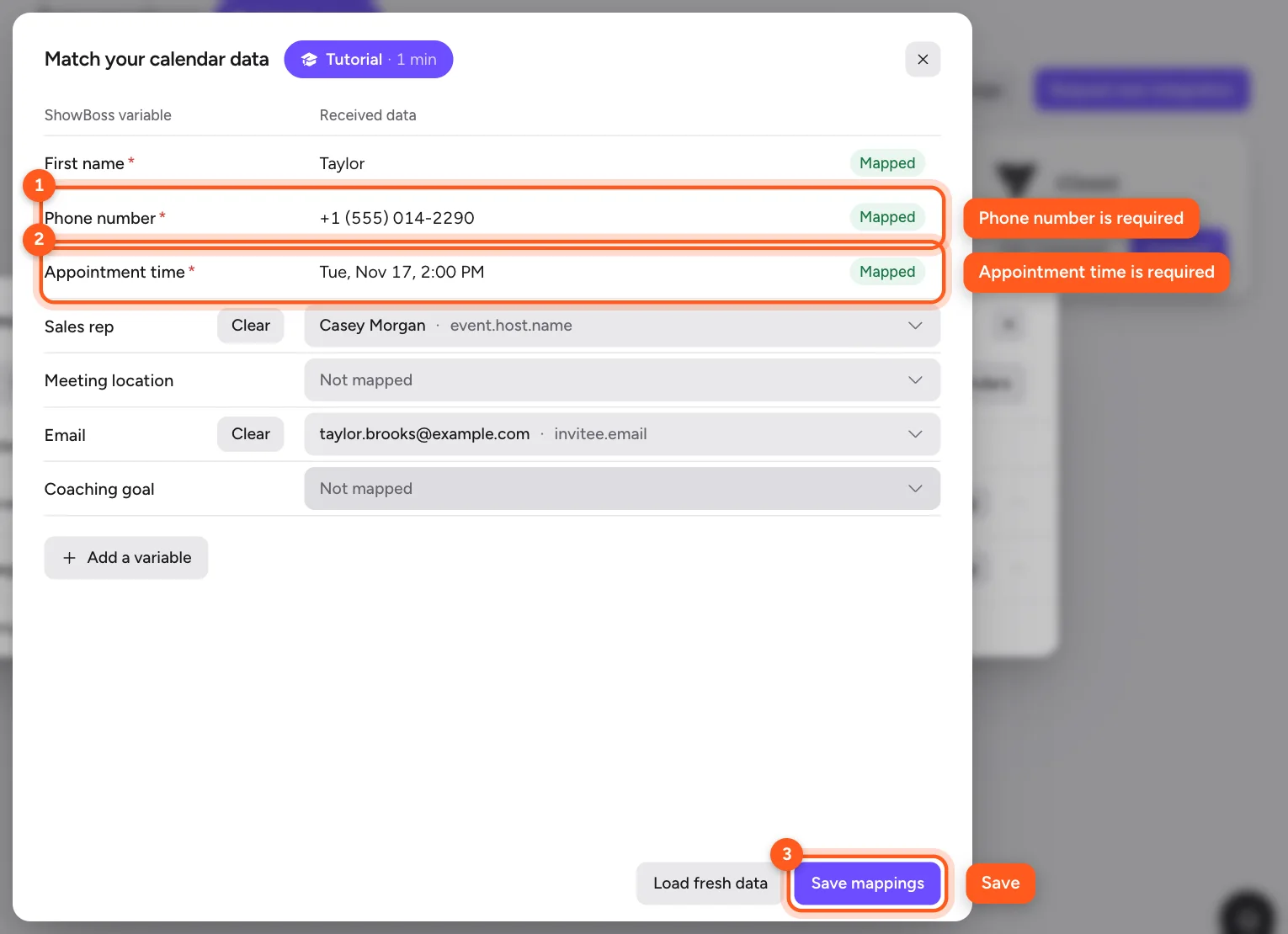
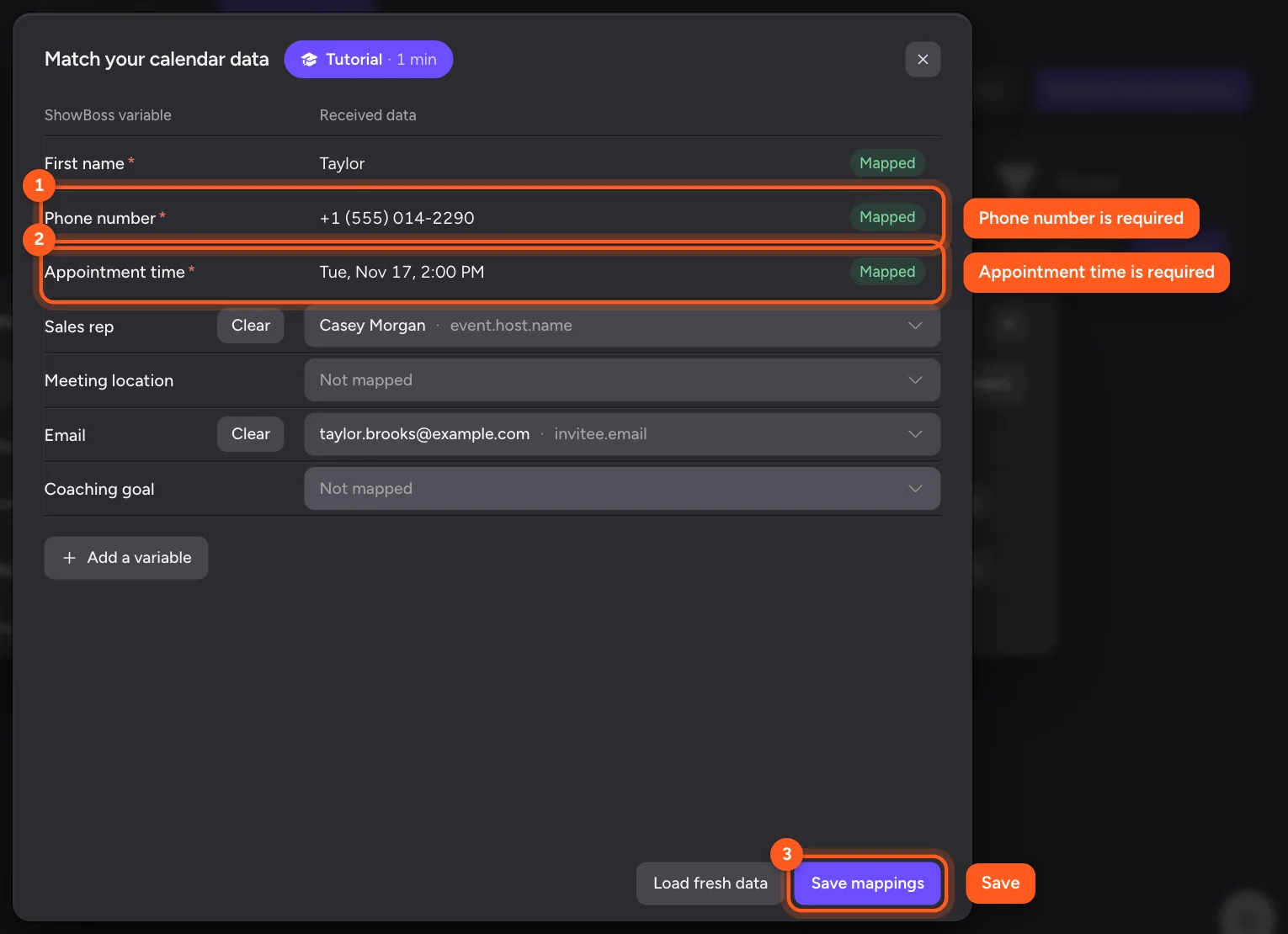
If the calendar has no appointment yet, make a new booking in the connected calendar using contact details you control, then choose Load fresh data. Choose Load fresh data again after you correct an appointment's details. Save mappings stays unavailable until each required variable has valid data; choose Review required fields to go to the first one that needs attention.
Check calendar readiness
After saving, check the calendar's status in the Calendars table:
- Mapped means the required variables are configured.
- Mapped + means the required variables and at least one optional or custom variable are configured.
Unmapped is not ready for workflows. You can use the Needs setup filter to find calendars that need attention. A green provider connection alone does not show that a particular calendar's required fields are ready. Connecting and mapping also do not publish or attach a workflow; continue with Set up your first workflow.
When a workflow uses Message Us, its confirmation page must pass the same phone field used by this mapping. The lead then sends the prepared message from that phone. Message Us verifies the lead phone directly and does not match the incoming text to an appointment. See Add Message Us to an appointment workflow.
Calendly booking readiness
The Calendly card shows Booking readiness separately from the connection status. The green connection dot means ShowBoss can reach Calendly. Booking readiness: no open issues means no mapped Calendly calendar with an intended workflow Entry point is waiting for confirmation or repair.
When a calendar needs attention, the card shows Booking readiness with the number of booking issues and affected calendars, names the first calendar, and shows one of these reasons with the next step:
- Saved Entry points need confirmation: you reconnected the same Calendly account after a deactivation. Choose Review saved setup and confirm the paused calendars. See Deactivate and reconnect Calendly.
- Entry point needs repair: the saved route cannot be restored as it was. Open the named workflow's Entry points, choose a supported calendar, and publish or enable it deliberately.
- Required fields need mapping: choose Edit mapping on the calendar and map the required fields from its latest appointment.
- Calendly could not verify this calendar: check the event type in Calendly, then review History for that calendar.
- Group event type is unsupported: use a single-invitee event type or disable that Entry point. See Group event types are unsupported.
Choose Review booking issues to open History filtered to Booking issues: bookings that were not routed or failed on calendars with an intended workflow route. In the Calendars table, a calendar with booking issues shows a warning icon; its history button opens the same filter. The Integrations entry in the sidebar also counts Calendly booking issues, separately from mapping errors.
An issue clears only when ShowBoss verifies the recovery: a confirmed restore, a repaired and published route, a supported booking on that calendar, or removal of the Entry point that intended to use it. Reconnecting Calendly or a successful booking on a different calendar does not clear it.
Organizations receive an email for new Calendly booking issues when Calendar Booking Issues is enabled in Configuration > Organization notifications. It is enabled by default. See Configure notifications.
Deactivate and reconnect Calendly
Use Deactivate on the Calendly card only to stop Calendly bookings on purpose. To repair an expired or failing connection, choose Reconnect or Reauthenticate instead; that keeps everything active. A connection failure, such as Connection needs attention after Calendly rejected a token refresh, pauses nothing new: the card says bookings resume after you reconnect the same account, and reconnecting adds no restore step of its own. Booking issues that were already open stay listed, and saved Entry points that were already waiting for confirmation, for example after an earlier deactivation, still need it after you reconnect.
What Deactivate keeps
- On the Calendly card, choose Deactivate.
- Read Read Before Deactivating, type Deactivate Calendly, and choose Deactivate.
Calendly stops sending bookings to ShowBoss. Your calendar mappings and workflow Entry points are kept, but paused. Nothing is deleted. Future appointment reminders for Calendly calendars do not run; reminders that are already scheduled finish their automations. The card then states that Calendly is not receiving bookings right now and offers Review saved setup.
Confirm saved setup after reconnecting the same account
Reconnecting alone does not route bookings. ShowBoss requires your confirmation before paused calendars route again. You need owner or admin access to confirm; other roles can review the saved setup and should ask an owner or admin.
- On the Calendly card, choose Connect and sign in to the same Calendly account: the same Calendly user in the same Calendly organization.
- After Calendly connected successfully., the card shows Booking readiness with Saved Entry points need confirmation.
- Choose Saved setup in the card header, or Review saved setup.
- In Saved Calendly setup, under Connected Calendly account, each calendar reads Active or Paused with the number of saved Entry points. Select the paused calendars you want to route bookings again, or choose Select all paused. Up to 25 calendars can be confirmed at once.
- Choose Restore selected.
ShowBoss checks each selected calendar with Calendly before restoring it: the event type still exists in the connected account, is active, is a single-invitee event type, and the mapped Calendly questions have not changed. The workflow must still be published. Each calendar then shows its result, for example Restored 1 Entry point. New bookings route again. Entry points that were active before the deactivation come back. Entry points that were disabled or deleted, or changed after the deactivation, stay off; enable or add them from the workflow deliberately.
A calendar that cannot be restored stays paused and shows the reason beside it, for example a group event type, an inactive event type, an unpublished workflow, a changed Calendly question, or a calendar conflict with another published workflow. Fix the named condition, then confirm again. If Calendly did not answer in time, nothing changed for that calendar; try again.
Repeating a confirmation for an already active calendar changes nothing and reads Already active. Nothing to confirm. If the Calendly connection or saved setup changed while the review was open, ShowBoss refreshes the review and clears the selection; check it and confirm again.
While Calendly is deactivated, ShowBoss does not accept its bookings; they are not recorded in History and cannot be recovered later. Bookings that arrive after you reconnect but before you confirm are not routed; History shows them as Not routed, and they cannot be re-entered. Make a new controlled booking after confirming.
Connect a different Calendly account
Signing in to a different Calendly account, or to the same Calendly user in a different Calendly organization, starts with fresh configuration. Calendars from the earlier account appear in Saved Calendly setup under Saved for a different Calendly account. They cannot be restored or used by the connected account, and the new account inherits none of their routes, history, or re-entry eligibility. Their history stays readable through History for <calendar> in that dialog. Map the new account's calendars and add them to workflow Entry points as for a new connection.
Calendars whose Calendly account was not recorded
Calendly setups saved before ShowBoss recorded the owning Calendly account appear under Calendly account not recorded. ShowBoss did not record which Calendly account and calendar these belonged to, so reconnecting cannot restore or verify them, and ShowBoss does not report a lost route for them. To use such a calendar again, choose it from the current Calendars table, choose Edit mapping, map the required fields from its latest appointment, add it to a workflow's Entry points deliberately, and publish.
Their results stay readable in Calendly History, where those rows read Account not recorded; the history button beside such a calendar in Saved Calendly setup opens that provider-level history, because ShowBoss cannot filter it to one unrecorded calendar. Those results cannot be re-entered, and bookings that arrived without a route cannot be recovered from History. If you believe bookings were missed, contact ShowBoss support through Help.
Group event types are unsupported
ShowBoss supports single-invitee Calendly event types only. A booking on a Calendly group event type creates no appointment and starts no workflow. History records it as Unsupported with Calendly group events are unsupported. Use a single-invitee event type; this booking cannot be re-entered. Reconnecting or re-entry does not change this. Point the workflow Entry point at a single-invitee event type, or disable that Entry point. Booking readiness reports Group event type is unsupported only while a workflow Entry point intends to use that calendar.
Troubleshooting
The organization is wrong or access is denied
Return to the correct organization context. ShowBoss may display Organization not found or access denied or Access denied for this organization.
The authentication popup does not open
Allow popups for ShowBoss, then choose Connect or Reauthenticate again. ShowBoss may display Popup was blocked. Please allow popups and try again.
The provider is connected but no calendars appear
Wait for the next sync, then choose Fetch new calendars to reload the list. ShowBoss does not display a guaranteed sync time.
The calendar says Unmapped
Choose Edit mapping on the calendar and complete each mapping shown under Required Variables.
Calendly says Remap required
Choose Edit mapping, choose Load fresh data if the latest appointment is out of date, confirm the question mappings, and choose Save mappings before using the calendar for workflows again.
A connection needs attention
The provider card tells you what recovery is required. Choose Reconnect for an expired OAuth grant, Update credentials for a rejected API key, check the provider account when permissions, subscription, or billing restrict access, or contact ShowBoss support when the application configuration needs review. Mapping edits are unavailable until authentication is restored, but you can still choose View mappings for <calendar> to review the current mappings.
Connection retrying means ShowBoss saw a temporary provider failure and will retry automatically; no action is required yet. Connection needs attention means the failure is durable and the card shows the required recovery. Sign in to the same provider account; for HighLevel, select the same location. Your calendar mappings stay saved. Mapping edits become available again after authentication is restored.
For HighLevel and Calendly, you can also choose Reauthenticate when the connection still appears green but is not working. Deactivate is not a reauthentication step. For HighLevel and iClosed, it removes calendar mappings and workflow calendar connections as ordinary provider teardown. For Calendly, it keeps them paused until you reconnect the same account and confirm them; see Deactivate and reconnect Calendly. HighLevel and legacy LeadConnector removal may remain pending or unconfirmed before local teardown. Read the owning card’s result and follow Disconnect HighLevel safely. For an old LeadConnector connection, choose Connect on HighLevel and select the same location instead.
When an authenticated appointment webhook could not be processed, ShowBoss keeps its original body for up to 30 days. HighLevel automatically waits for authentication recovery for seven days. After reconnecting the same account and location, open the integration's History to see whether an event is still recovering, ready to re-enter, expired, unavailable from older history, or tied to a different provider connection. Calendly re-entry also requires the same Calendly account that received the original booking; otherwise the row reads Different provider account connected.
Calendly is connected but bookings do not start workflows
Read Booking readiness on the Calendly card; a green connection does not prove bookings route. Follow the reason shown, then open History and choose Booking issues. Not routed means no active workflow Entry point used that calendar when the booking arrived; confirm the saved setup or add the calendar to a published workflow, then make a new controlled booking. See Calendly booking readiness.
Saved Calendly setup cannot be confirmed
If Saved Calendly setup says to reconnect the same Calendly account, the connection is missing or belongs to a different account; choose Connect with the original account first. If the Restore selected button is missing, you are not an owner or admin, or no calendar is paused. If a calendar shows a reason instead of a restored result, fix the named condition in Calendly or the workflow and confirm again. See Confirm saved setup after reconnecting the same account.
iClosed bookings are skipped, failed, or canceled
Open the iClosed integration's History first. Check the Result, Message, and Re-entry columns.
- Error with The current appointment could not be verified with the provider. means ShowBoss could not read the call from iClosed. iClosed may be temporarily unavailable, the API key may have been rejected, or the call may not be visible yet.
- Error with The provider sent an invalid webhook payload. cannot be re-entered.
- Skipped with Workflow skipped because the contact phone number is invalid. cannot be re-entered. Correct the phone saved on the iClosed contact/call. ShowBoss uses the invitee or contact phone that iClosed returns for that call. A phone found only in booking-form answers, custom contact fields, or other webhook data is not used as the message recipient. Mapping one of those fields does not change the recipient.
A new booking skipped for an invalid phone does not start a workflow. ShowBoss reads the corrected phone the next time iClosed sends an update for that call, such as a reschedule, or for a new booking. If an existing appointment's iClosed phone becomes invalid, ShowBoss keeps the previously saved phone and does not start new automation from that update.
If the iClosed API key is rejected, choose Update credentials on the provider card. iClosed has no automatic seven-day authentication wait. After you update the credentials, eligible failed events within the 30-day retention show Ready to re-enter. Choose Re-enter only for an Error row showing Ready to re-enter. Re-entry uses the call's current details and current workflow scheduling safeguards; it does not guarantee a missed message will be sent. See My first workflow did not run for re-entry limits.
When iClosed reports a call as canceled, ShowBoss cancels the existing appointment and stops its unsent automation, even without a cancellation workflow. A cancellation workflow runs only if one is configured. A canceled iClosed call is final: later updates for that call do not restore the appointment or restart automation. If iClosed does not yet show the call as canceled when the cancellation arrives, ShowBoss leaves the appointment unchanged and records an Error in History. Check the cancellation in iClosed, then review Re-entry for any available action.
Next step
Choose a Persona and then Set up your first workflow after the calendar shows Mapped or Mapped +.
Request another integration
On Integrations, choose Request new integration. Enter the integration name and, optionally, the vendor website and additional details, then choose Send request. A confirmation means the request was sent. If sending fails, keep the window open and retry; resending uses the same request. If the message says the request was sent with different details, close the window and open a new request.