Before you start
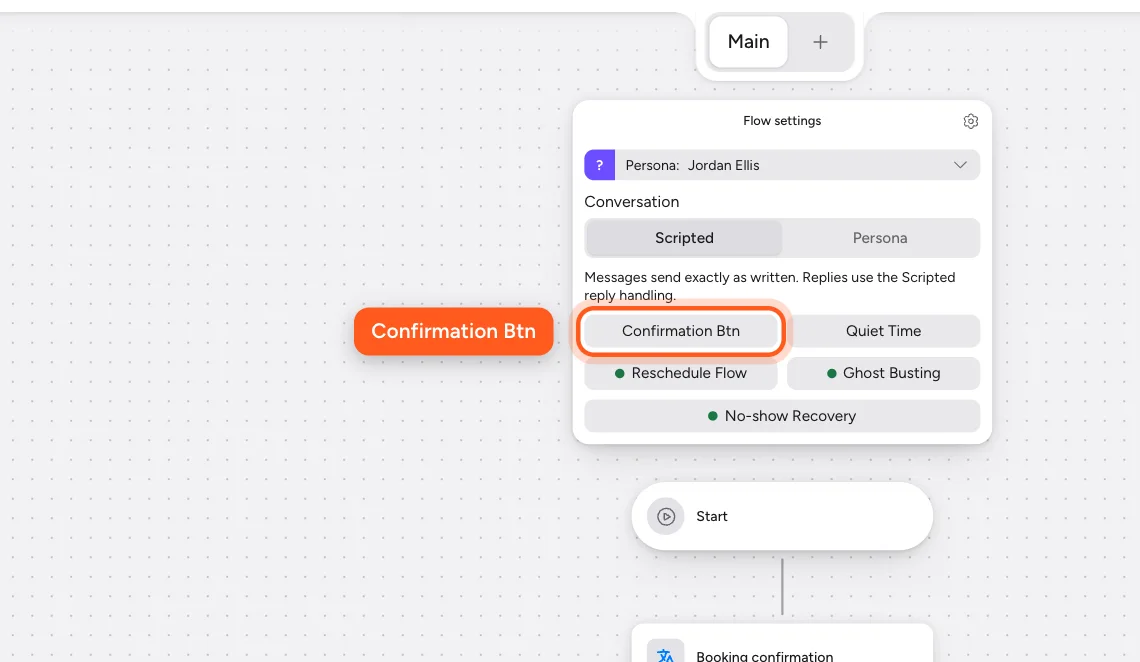
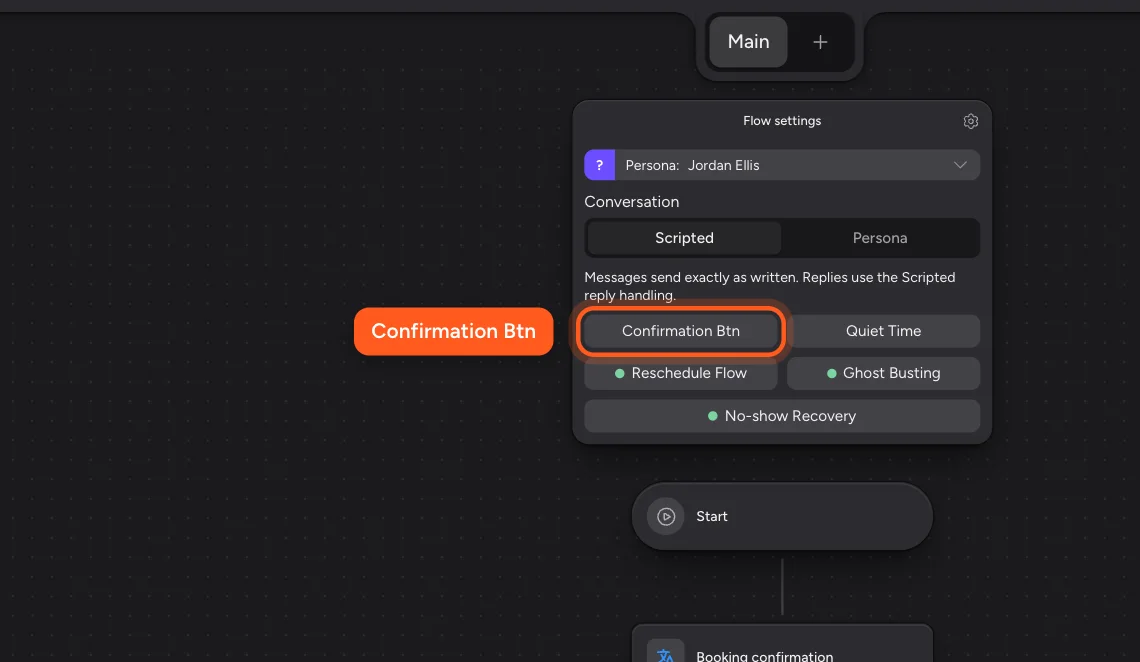
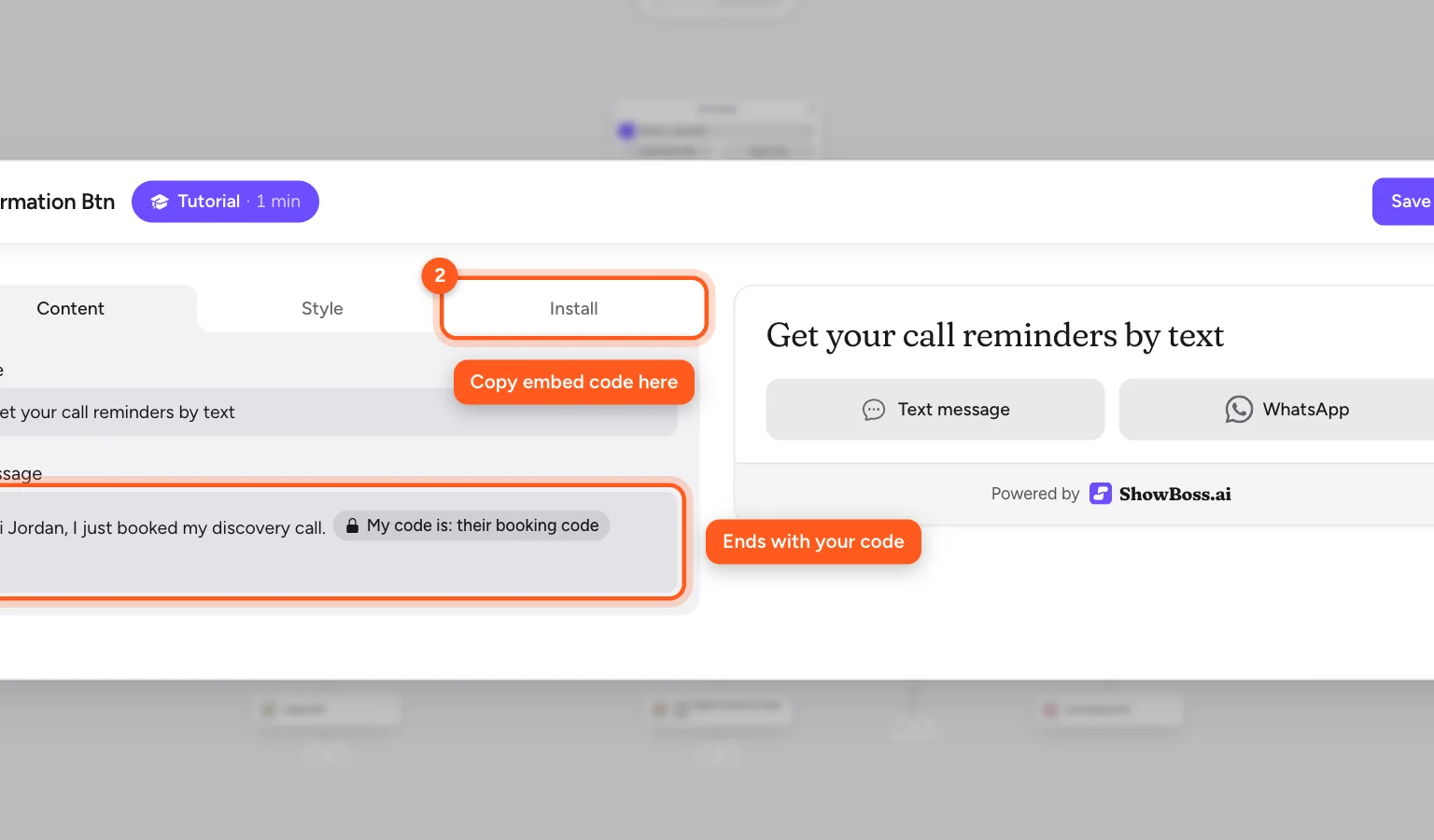
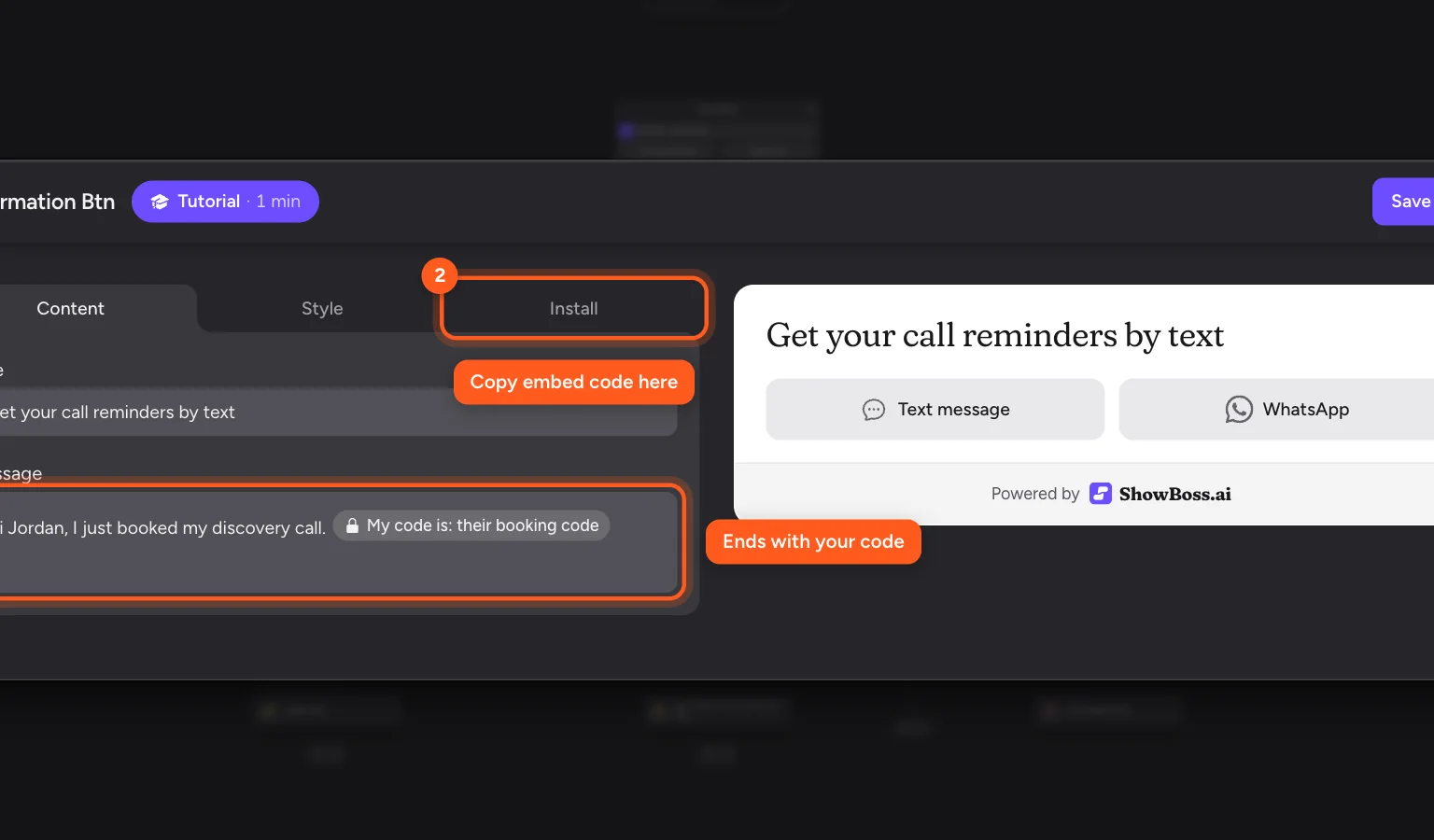
The appointment workflow must be published with a sender Persona and exactly one active mapped Calendly or iClosed booking trigger. Open Flow settings → Confirmation Btn to configure its message and copy the generated embed. The message always ends with My code is: and a code ShowBoss adds, which it replaces with a booking-specific code when the appointment is ready. That ending is locked, so there is nothing to keep track of.
The generated embed belongs on an external booking thank-you page that accepts custom HTML and scripts. The provider must forward its booking reference into that page's URL. The embed reads that reference automatically and does not ask the lead for a phone number.
Calendly external redirect
- In the relevant Calendly event type, choose Redirect to an external site for the confirmation page and enter your thank-you-page URL. This redirect requires an eligible Calendly plan.
- Turn on Pass event details to your redirected page. Calendly documents
invitee_uuidamong the forwarded URL parameters. - Paste the full copied Message Us snippet into a custom HTML block on that page. Leave
data-provider="calendly"anddata-provider-reference-param="invitee_uuid"intact. - Make a controlled booking and inspect the resulting URL. Confirm that
invitee_uuidis present and contains a real value.
iClosed external confirmation page
- In the event's Confirmation Page settings, select External URL and enter your thank-you-page URL.
- Leave forwarding of event parameters enabled. iClosed documents
previewIdas the call ID on the redirect. - Paste the full copied Message Us snippet into a custom HTML block on that page. Leave
data-provider="iclosed"anddata-provider-reference-param="previewId"intact. - Make a controlled booking and inspect the resulting URL. Confirm that
previewIdis present and contains a real value.
What the visitor sees
The Message Us frame starts at zero height. It checks for the exact booking reference and waits briefly for ShowBoss to ingest the booking and prepare the existing appointment workflow. Once the booking is ready, the visitor sees the same channel choices as an opt-in visitor, without a name field: an available BlueBubbles line appears as iMessage on iPhone, iPad and Mac when the line supports iMessage, and as Text message elsewhere. WhatsApp appears separately when available. On desktop, choosing a channel reveals its link and QR code. On mobile, choosing a channel opens the prepared message. The Text link uses an sms: address for the selected appointment number; BlueBubbles handles the actual iMessage, RCS, MMS, or SMS transport. The visitor must send that message; simply opening the link does not start the conversation. The frame stays hidden if no compatible channel is available.
The phone's messaging app may deliver a prepared text message as iMessage, RCS, MMS, or SMS. ShowBoss accepts the actual transport, including WhatsApp when used, while matching the booking-specific identifier, receiving line, and sender phone. The lead should send from the number used for the booking.
If the reference is missing, ambiguous, expired, or unavailable, the card stays collapsed. Check the provider redirect settings and the matching calendar mapping if a controlled booking never displays it. Cancelled bookings do not present a new Message Us entry.
This integration follows the documented provider handoff and historical webhook fields. A booking on your actual provider account and thank-you page remains necessary to confirm the redirect, webhook timing, and complete conversation in your environment.
Calendly redirect instructions · iClosed confirmation-page instructions