Before you start
HubSpot is a limited release and is enabled per account. If the HubSpot card is not on your Integrations page, ask ShowBoss support to turn it on for your account.
You need access to the selected organization and permission to open Integrations. The HubSpot user who approves the connection needs to be a Super Admin or have Marketplace Access in HubSpot. If HubSpot does not let you approve the connection, ask someone with that access to connect.
HubSpot works differently from the calendar providers in Connect your first calendar:
- ShowBoss follows the meeting links you select, not calendars.
- There is no organization-wide default workflow for HubSpot. A booking starts a workflow only when its meeting link is selected on a workflow trigger.
Connect HubSpot
- Select the organization you want to configure.
- In the sidebar, choose Integrations.
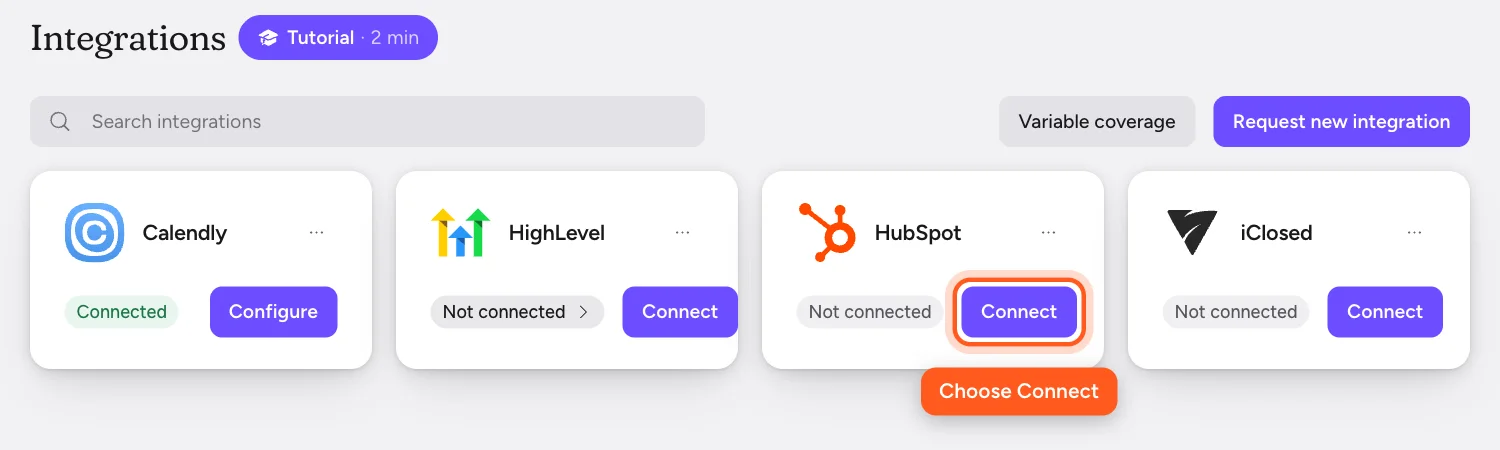
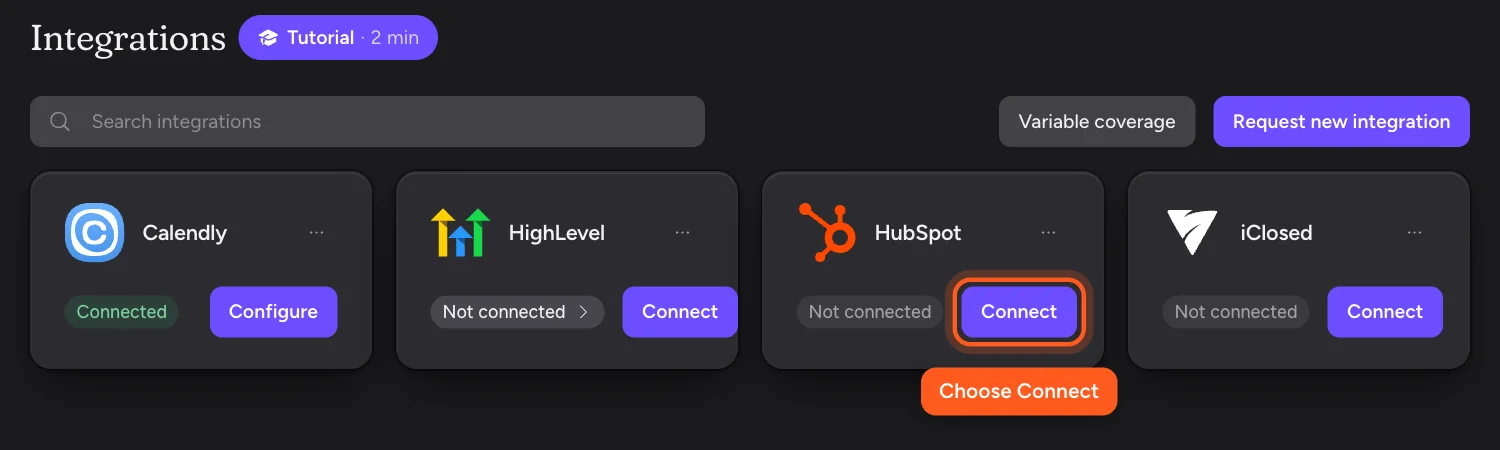
- On the HubSpot card, choose Connect.
- Sign in to HubSpot in the popup and approve the connection. Follow the instructions HubSpot shows.
For a short, step-by-step guide, open the card's ⋯ menu and choose Setup guide. It slides in on the right of Integrations, so you can follow it while you work. Choose X to close it.
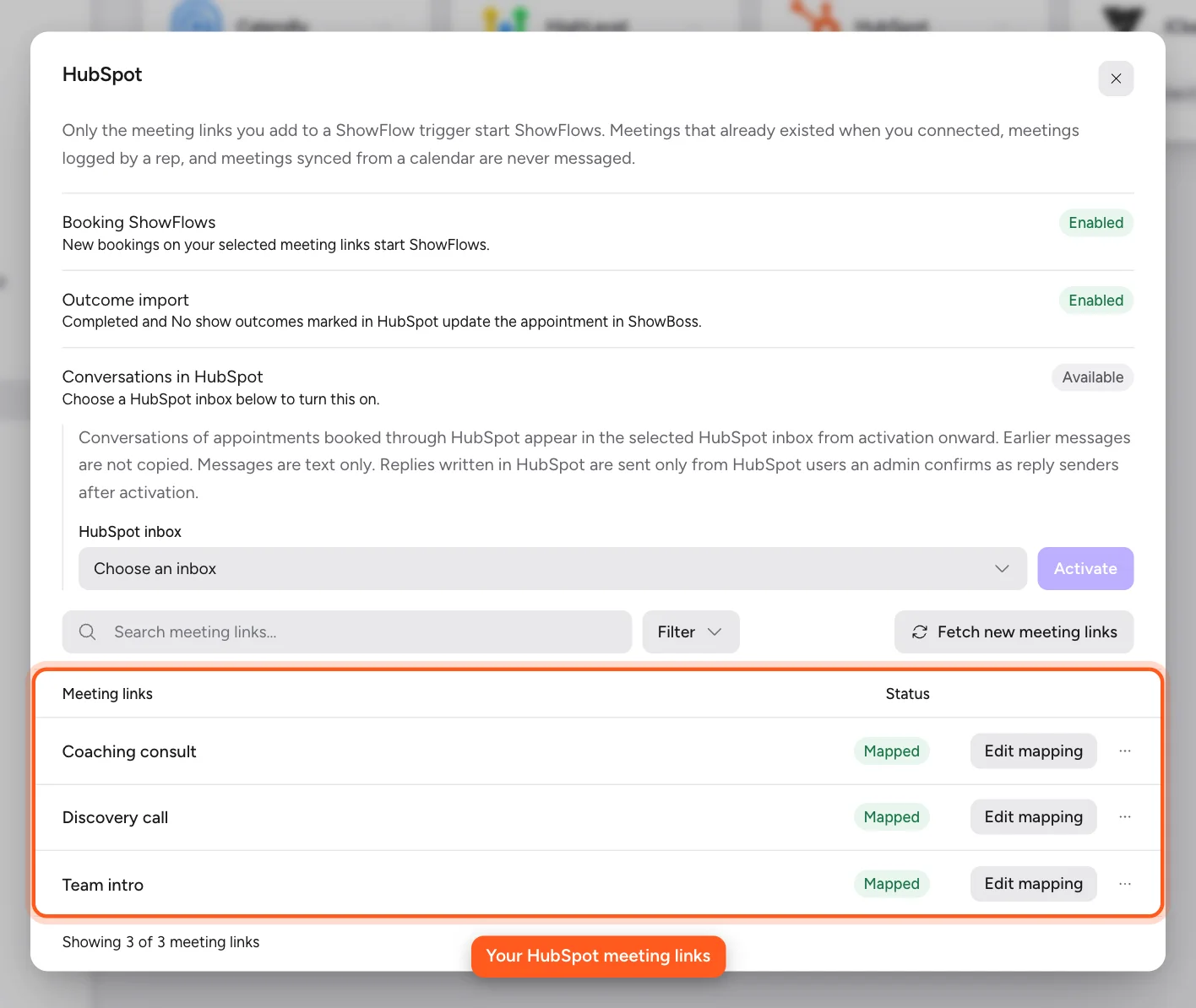
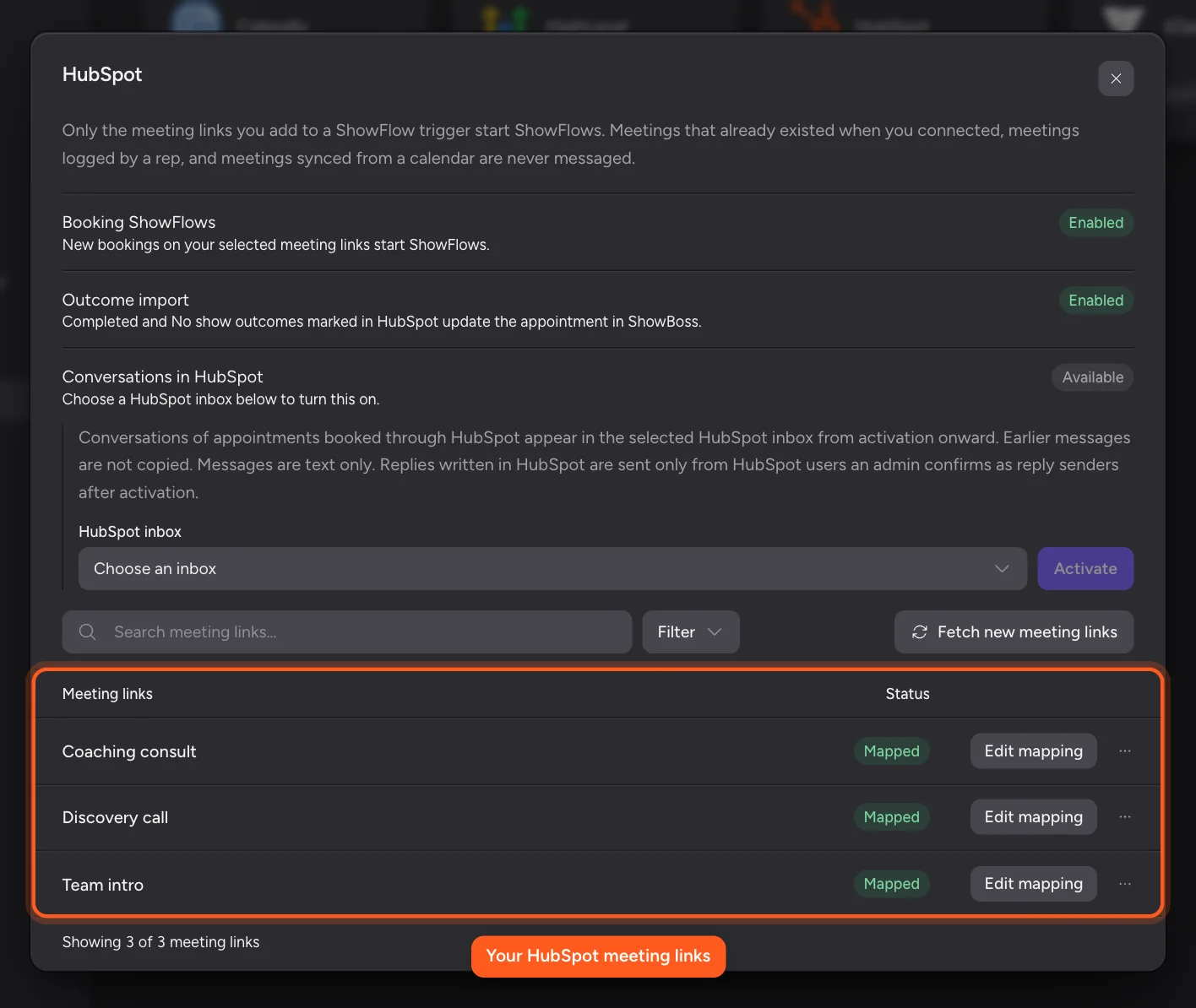
When the connection succeeds, the card shows your HubSpot meeting links. If none are listed yet, ShowBoss displays Connected successfully. Meeting links will appear here after the next sync.
Choose which meeting links start workflows
Open the workflow you want to run and add the meeting link as a trigger on its Start node. See Start for how triggers and entry methods work. Publish the workflow when you are ready.
Only the meeting links you add to a workflow trigger start workflows. Other meeting links are ignored, even when they belong to the same HubSpot account.
Which meetings start a workflow
A new booking starts a workflow when all of these are true:
- It was booked through a HubSpot meeting link that you selected on a workflow trigger.
- It was created after you connected HubSpot.
- Its start time is still in the future when ShowBoss first sees it.
- It has exactly one contact in HubSpot, and that contact has a phone number.
These meetings are never messaged:
- Meetings that already existed when you connected. Connecting never messages past bookings.
- Meetings logged manually by a rep.
- Meetings scheduled in the HubSpot CRM by a rep.
- Meetings synced from a calendar.
- Bookings through meeting links you have not selected.
A meeting with several contacts, or whose contact has no phone number, needs attention and is not messaged. Open the HubSpot integration's History to see why a meeting was skipped, and see My first workflow did not run. For a booking that failed because of a mapping error, see Recover a meeting after a mapping error.
Recover a meeting after a mapping error
A booking can fail with a mapping error, for example Required mapped phone is missing. The row in the HubSpot integration's History shows Error, and the Re-entry column says what you can do. ShowBoss keeps no copy of the HubSpot message for these bookings. Recovery reads the meeting and its contact again from HubSpot, once, after you have changed the mapping.
Recovery is a limited release that ShowBoss turns on per account. Until then the Re-entry column shows Recovery not enabled for this account.
- Fix the cause in HubSpot first. The contact's phone number always comes from the HubSpot contact; mapping a different field does not change that. If the contact has no valid phone number, add one in HubSpot.
- Open the meeting link's mapping, change a mapped field, and save. The row shows Change the mapping first until a changed mapping is saved. Saving the same settings again does not count, and restoring an earlier configuration does not count either.
- When the row shows Ready to re-enter, choose Re-enter. Your filters and page stay selected. The row shows Reading current HubSpot meeting while ShowBoss waits for the result. If the row is on another page or outside your filters, Recovery results above the table keeps its Recovery queued message and reports the outcome while History stays open. The page checks every 10 seconds for up to 5 minutes. After that, choose Refresh above the table to check again, including for recoveries outside the current page or filters.
- Read the outcome in the Re-entry column or Recovery results:
- Re-entered from HubSpot: ShowBoss recorded the appointment from the current HubSpot meeting. Current workflow scheduling safeguards and billing still decide whether a message is sent.
- Re-entry failed: the current meeting could not start a workflow, for example because its start time has passed, it was cancelled or deleted, or the contact still has no valid phone number.
- Interrupted — outcome unknown: the attempt did not finish within its time limit. Check the appointment in Inbox before booking again.
- Newer HubSpot update took over: HubSpot sent a newer update for this meeting first, and ShowBoss processed that update instead.
- Already ingested: ShowBoss had already processed this meeting.
History can track up to 25 pending recoveries at a time. At that limit, Re-enter stays disabled for other meetings until a result is reported. This does not start an attempt for those other meetings.
Each failed booking can be re-entered once. Choosing Re-enter again, or changing the mapping again after the attempt, does not start another attempt. Recovery is available for 30 days after the failed booking arrived; after that the row shows Recovery window expired. No HubSpot recovery reference means the row is older than this feature or failed for a reason recovery does not cover. Reconnect HubSpot first and Different HubSpot account connected mean the connection must be restored with the same HubSpot account first. No active workflow route means the meeting link is no longer on a published workflow trigger.
Only a meeting whose start time is still in the future when ShowBoss reads it can start a workflow.
Reschedules and cancellations
- If a meeting that has not happened yet is moved to a new time in HubSpot, including when an invitee reschedules through the meeting link, ShowBoss moves the same appointment to the new time and schedules follow-up for it.
- If the meeting has already taken place and its follow-up has finished, a new time is treated as a new appointment. The original appointment keeps its recorded outcome.
- If the meeting is cancelled or deleted in HubSpot, follow-up stops.
Note: Only cancelling or deleting a meeting in HubSpot stops follow-up. Moving it to a new time reschedules follow-up for that time, and marking a meeting Rescheduled in HubSpot without changing its time does nothing.
Appointment outcomes
Outcome import is a separate feature that is enabled per account. The HubSpot card lists it as Outcome import with an Enabled, Disabled, or Not available yet label. When it is enabled:
- ShowBoss reads HubSpot's Completed and No show outcomes and records them on the appointment.
- ShowBoss never infers attendance. A meeting that has elapsed without an outcome stays unmarked.
- Custom outcomes you create in HubSpot are not imported.
- Outcomes recorded in ShowBoss are not overwritten by HubSpot.
See Record appointment outcomes for marking outcomes in ShowBoss.
Conversations in HubSpot
Conversations in HubSpot shows ShowBoss conversations in a HubSpot inbox and lets your team reply from HubSpot. It is a limited release that ShowBoss turns on per account, separately from the connection itself. Until then, the card says Not turned on for this account yet. Contact support to enable it. Keep replying in the ShowBoss inbox at any time; it always works.
What you need
- A HubSpot portal with Sales Hub or Service Hub Professional or higher. On other portals the card says that the portal cannot use custom channels.
- An organization owner or admin to set it up.
- At least one HubSpot inbox.
- Permission for ShowBoss to create conversations and read your inboxes. If the card shows Grant chat permissions, choose it and approve in HubSpot. Your booking workflows keep running meanwhile.
Turn it on
- Open Integrations and find Conversations in HubSpot on the HubSpot card.
- Choose Grant chat permissions if it appears, and approve in HubSpot.
- In HubSpot inbox, choose the one inbox where ShowBoss conversations should appear.
- Choose Activate. Activation can take a few minutes; choose Refresh to check. If it does not finish, choose Try again.
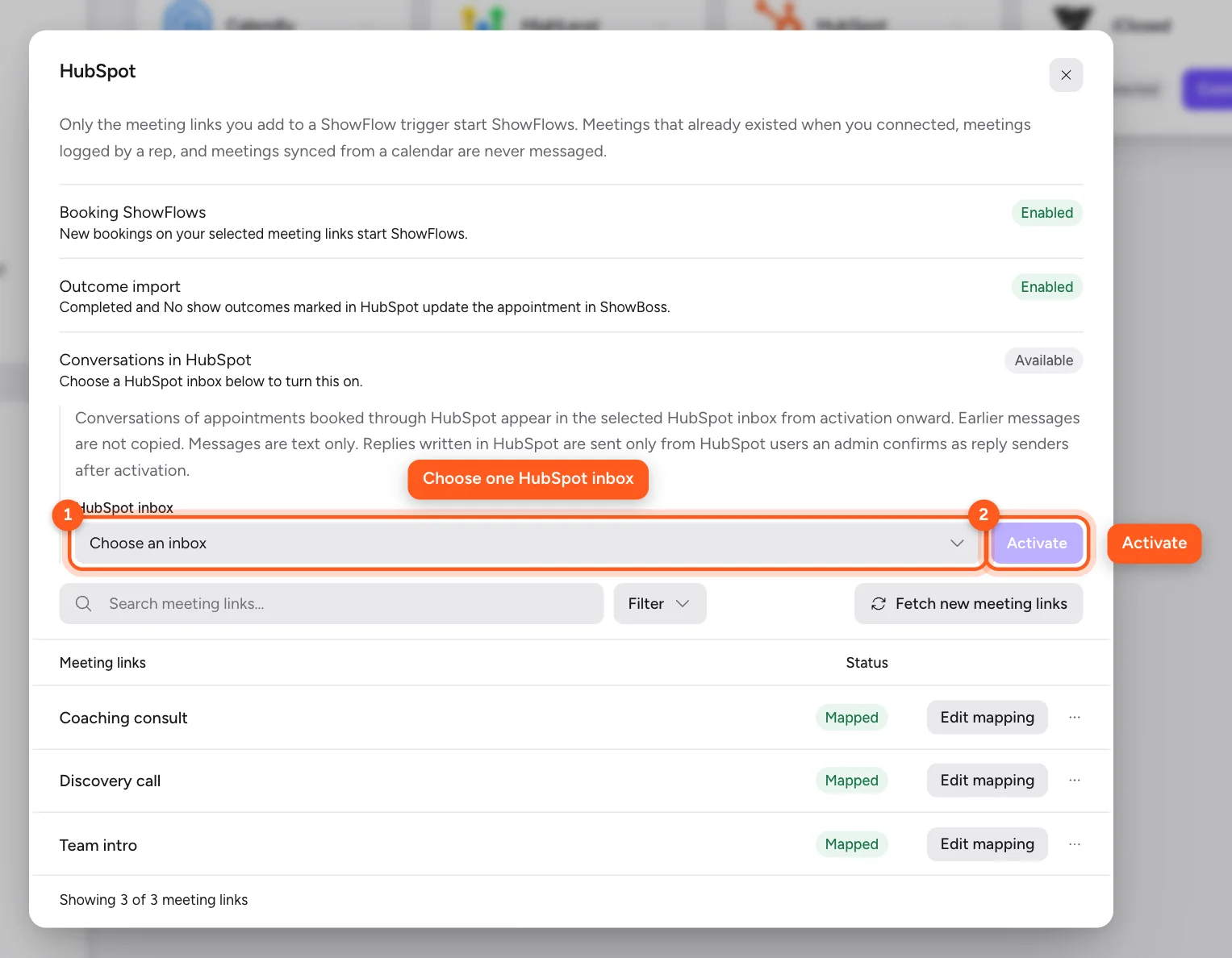
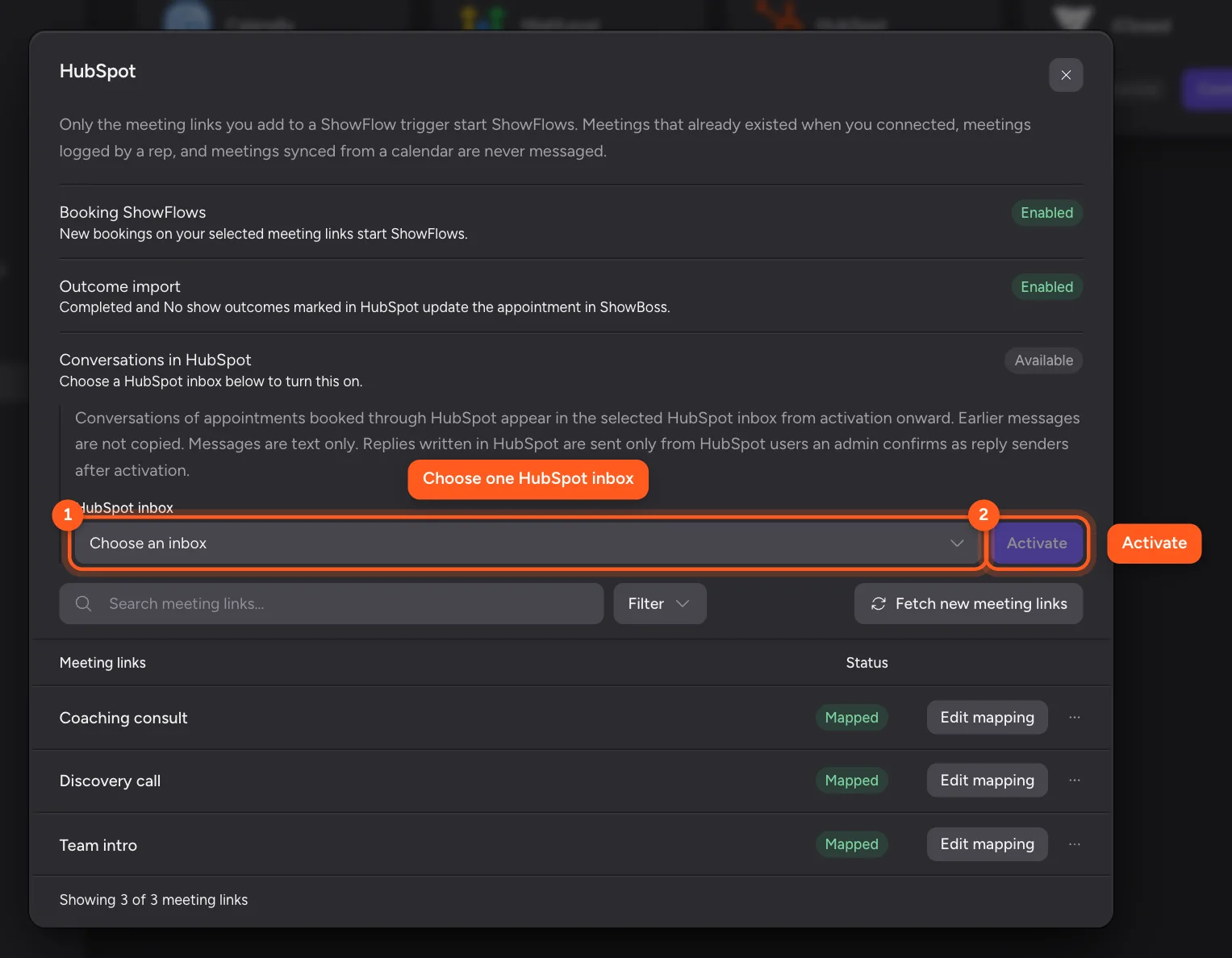
ShowBoss uses one HubSpot inbox for the whole organization. Each lead conversation is its own thread in that inbox.
What appears in HubSpot
- Only conversations for appointments booked through HubSpot appear. Conversations for other appointments stay in ShowBoss only.
- Messages appear from activation onward. Earlier messages are never copied.
- Messages are text only. An attachment, media, or contact card from ShowBoss appears as a short placeholder sentence instead.
- If you deactivate and activate again, syncing starts from the new activation.
Reply from HubSpot
Replies need an extra step. Before a HubSpot user's replies can send, an admin must match that user to a ShowBoss member:
- On the active card, find Reply senders. It lists your HubSpot users.
- For each user, choose a ShowBoss member and choose Confirm.
- Choose Remove to stop that user's replies from sending.
ShowBoss never matches people by email on its own. An email match is only a suggestion until you choose Confirm.
A confirmed HubSpot user sends as that ShowBoss member. Replies from users who are not confirmed are not sent. A confirmation ends when:
- The member leaves the organization or loses access to it, or their ShowBoss account is deactivated.
- You reconnect HubSpot. The earlier member is offered again with a Re-confirm button, but nothing sends until you choose it.
- You deactivate conversations.
Replies on the card may show Replies from HubSpot are not yet enabled for this account. Lead messages still sync, but replies written in HubSpot are not sent until ShowBoss enables replies for your account. You can confirm reply senders in the meantime.
A reply goes out through the persona's normal channel, like a reply sent in the ShowBoss inbox. The same rules apply: opt-outs, the contact window, channel availability, and billing. A reply that breaks one of those rules is not sent and is not charged. A reply that ShowBoss cannot process within about 15 minutes is also not sent, rather than going out late.
HubSpot users cannot start new conversations from HubSpot. Reply only in the threads ShowBoss created. Attachments added in HubSpot are not sent.
Note: At this time ShowBoss does not mark an unsent reply as failed in HubSpot. If a reply seems to be missing, check the conversation in the ShowBoss inbox, and send it again from ShowBoss if needed.
Turn it off
- To stop from ShowBoss, choose Deactivate HubSpot conversations, then Deactivate. New messages stop appearing in HubSpot, replies written in HubSpot are no longer sent, and confirmed reply senders are cleared. Booking workflows and outcome import are not affected.
- If someone removes the ShowBoss channel in HubSpot, ShowBoss stops syncing in both directions and the card says so. Choose an inbox and Try again to start over from that moment.
How long changes take
Changes in HubSpot can take a few minutes to reach ShowBoss. Wait a few minutes before concluding that a booking, reschedule, cancellation, or outcome was missed.
Troubleshooting
The HubSpot card is missing
HubSpot is enabled per account. Ask ShowBoss support to turn it on.
I cannot approve the connection in HubSpot
Connecting needs a HubSpot Super Admin or a user with Marketplace Access. Ask a person with that access to connect, or to grant it to you.
A booking did not start a workflow
Check that:
- The booking was made through a meeting link that is selected on a published workflow's trigger.
- The booking was created after HubSpot was connected, and its start time was in the future when it arrived.
- The meeting has exactly one contact, and that contact has a phone number.
- The meeting was booked through the link, not logged, scheduled in the CRM, or synced from a calendar.
Open the integration's History for the reason, and wait a few minutes after booking. If the row shows Error with a mapping message, see Recover a meeting after a mapping error.
Conversations in HubSpot are not available or replies are not sending
- Not turned on for this account yet: ask ShowBoss support to enable it.
- Cannot use custom channels: the portal needs Sales Hub or Service Hub Professional or higher.
- Needs extra permissions: choose Grant chat permissions and approve in HubSpot.
- A reply is not sent: confirm the HubSpot user under Reply senders, and check that the member still has access. After reconnecting HubSpot, choose Re-confirm for each user.
- A reply is not sent even though the user is confirmed: the lead may have opted out or be outside the contact window, or the reply may be older than about 15 minutes.
- To find out why a specific reply was not sent, open the HubSpot integration's History. Each reply that could not be sent is listed with the reason. The reply's text is not stored there.
The connection needs attention
The HubSpot card tells you what recovery is required. Choose Reconnect, sign in to the same HubSpot account, and approve it again. Your meeting link mappings stay saved.
Next step
Add your meeting link to a workflow trigger and test it with a new booking through that link: Test your first booking.