Before you start
You need access to a selected organization. Most organization screens also require the permission associated with that feature. If you cannot open a screen, ask an organization owner or admin for help.
Set up your account and organization
When creating an account from inside the app, choose a Timezone before continuing to payment. Search for a named zone or select UTC. Until you choose one, a Use button offers your browser's timezone, such as Use America/New_York. Choose it only if it matches your organization.
A public plan page uses your browser's timezone. You can change it later in Configuration. Existing payment sessions keep their saved timezone, and an older paid session may ask you to choose one when finishing setup. See Manage account and organization access for creation and paid-setup recovery.
Joining an existing account by invitation does not create an organization and does not ask you to choose its timezone.
Follow the onboarding path
This path covers appointment-based Show-up Flows. If your subscription includes opt-in flows, use Opt-in Flows to start with leads without appointments instead.
- Connect your calendar from Integrations.
- Choose the sender Persona used by your messages in Choose a Persona.
- Create your first workflow in Set up your first workflow.
- Complete Test your first booking with a controlled booking.
- Check the message and handle its reply in Use the Inbox.
- Continue with Configure notifications and Record appointment outcomes when those workflows are ready.
- If teammates need access, see Invite a teammate.
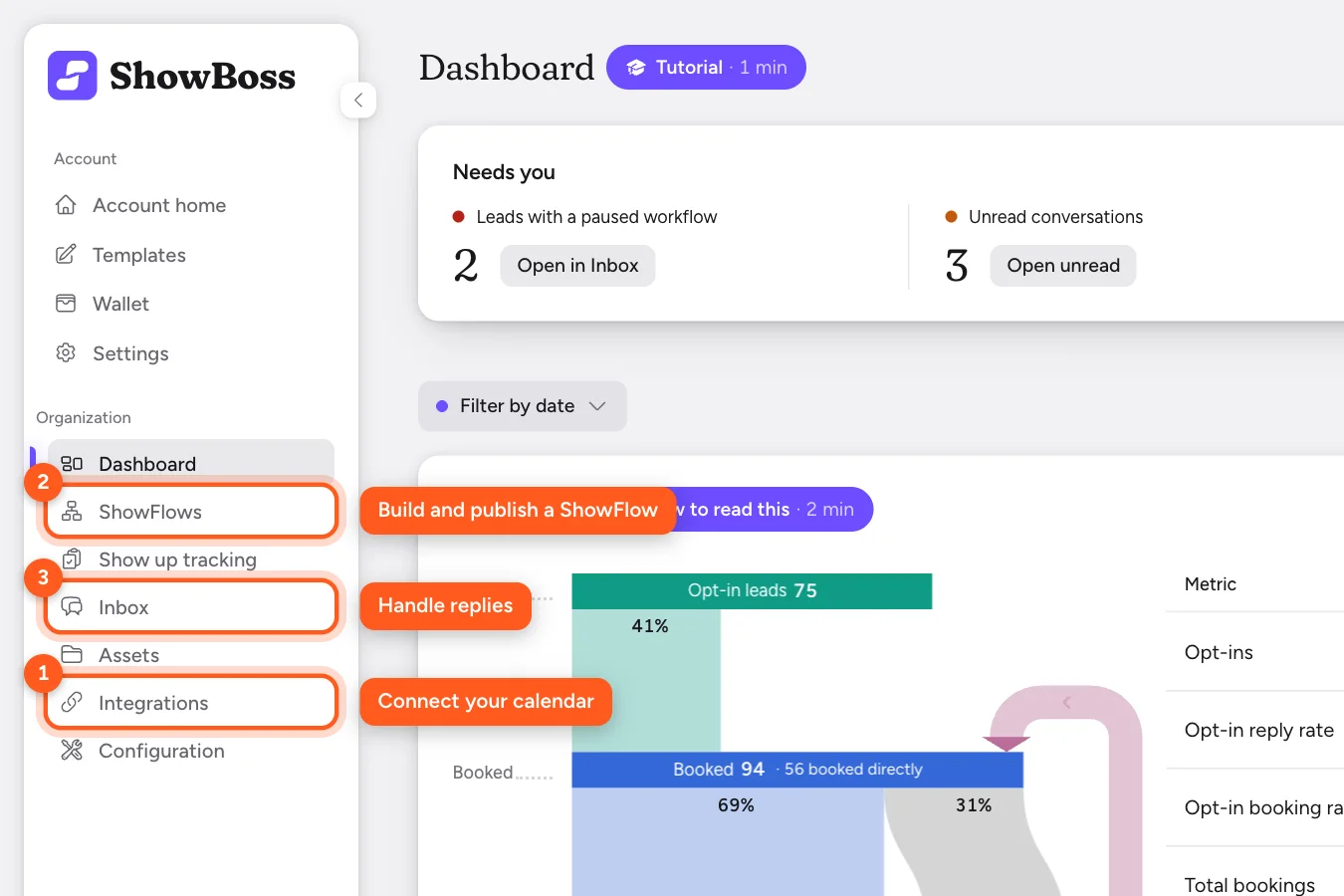
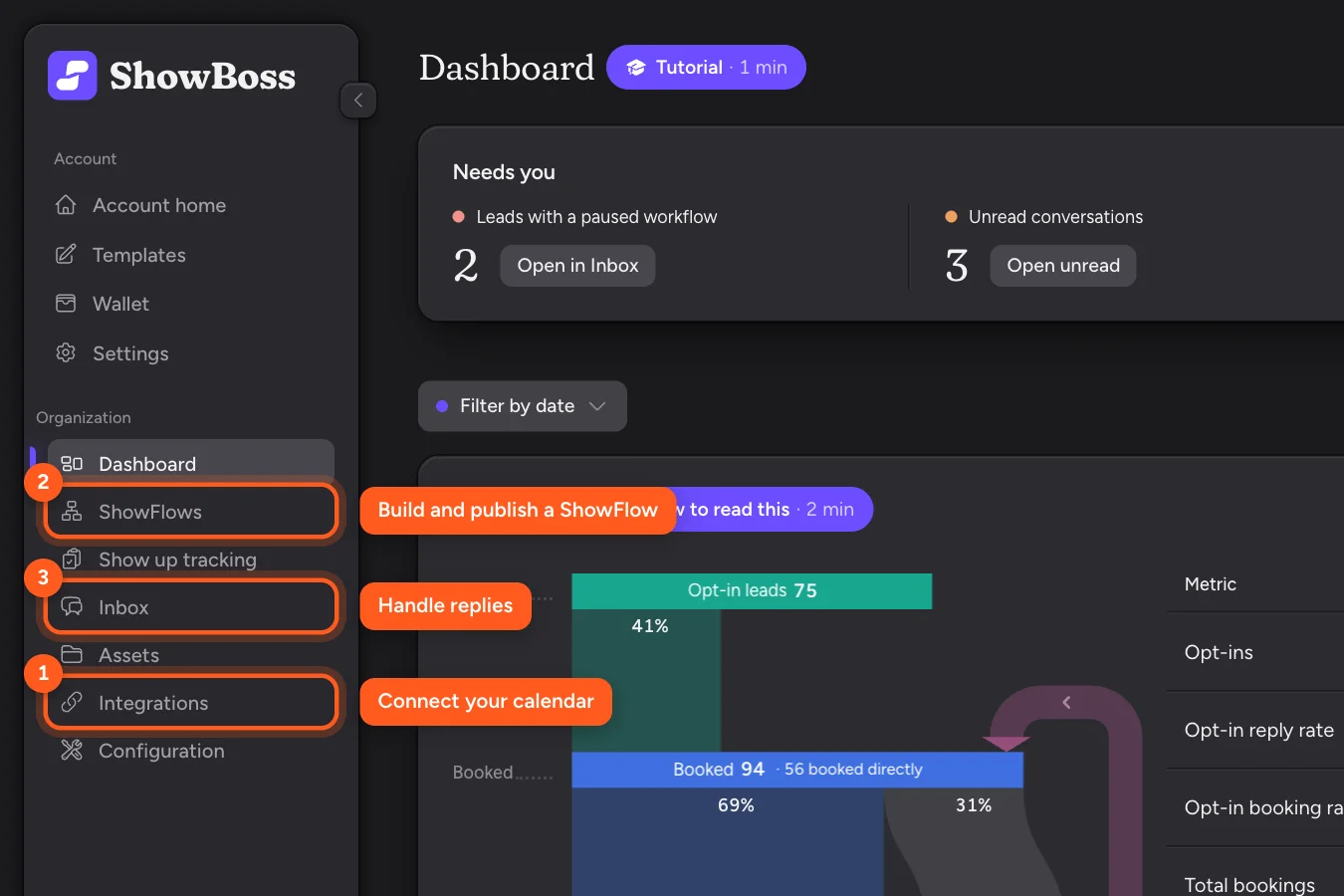
How the pieces connect
Calendar connection
An active calendar connection makes a provider's calendars available in ShowBoss. Each calendar also needs its required variables mapped before it is ready for workflows. In Integrations, a status of Mapped means the required variables are configured; Mapped + means at least one optional or custom variable is mapped as well.
Workflow and entry point
A workflow contains the steps you configure. To use it with appointments, publish the flow and give it an active matching calendar entry point. A calendar connection by itself does not publish or attach a workflow.
Persona and Inbox
A Persona is the sender identity selected for messaging. When people reply, you handle those replies in Inbox.
Check your setup
Use each guide's success check as you go. Check that your calendar is connected and mapped, your workflow is published with an active calendar entry point, and your controlled booking is available to review. Then use the test guide to check the flow and handle the reply in Inbox.
If you get stuck
Open the guide for the step that is not ready. For calendar connection or mapping issues, start with Connect your calendar. For a workflow that is not available for an appointment, review Set up your first workflow and confirm its published state and calendar entry point.