Before you start
Select the correct account. Your available invitation roles and organization assignments depend on the account permissions shown to you.
Follow the interactive guide
In Account settings > Staff, choose Tutorial under the Staff tab, or Show me how in the Help panel's Tutorial card. The tutorial walks through the real invitation form. Review the recipient and access before choosing Send email invite to user yourself.
You can go back or choose Exit guide without clearing unfinished invitation details. Starting the tutorial again keeps those details. If the tutorial is unavailable, Help explains what you need before starting.
Respond to a ShowBoss access request
Any active owner of the requested account can review the request. The request is valid for 14 days and grants no access by itself.
- In the ShowBoss email, choose Review access request. Sign in if asked. The link opens the requested account's Account settings > Staff.
- Review the account, reason, invitee, User role, Permissions, and organizations in ShowBoss access request. Unavailable organizations and permissions are left out and shown in the summary.
- Choose Add user to review the prefilled details, or choose Show me how in the request summary for the guide. If you already started a draft, it stays in place; choose Use request details only when you want to replace it.
- Review and edit the invitation details, then choose Send email invite to user yourself.
- Confirm the staff table shows Pending. This does not confirm email delivery, acceptance, or active access. If a message says the invitation was saved but email failed, follow that message before resending.
Back, Exit guide, section changes, and reopening the same request link within the app keep your draft for that account. Changing account or signed-in user, refreshing the browser, or completing an invitation clears it.
If a pending invitation already exists, open Edit user for that teammate and choose Resend invitation email if needed. If they are already a member, open Edit user to review their access; the request does not change it. Use the Access switch in Staff to turn a member's access off or on.
An expired request shows its summary without prefilling the form. Ask ShowBoss for a new request. If the request is unavailable, sign in as an active owner of its account and reopen the email link.
Send an invitation
- Open Account settings.
- Choose Staff.
- Choose Add user.
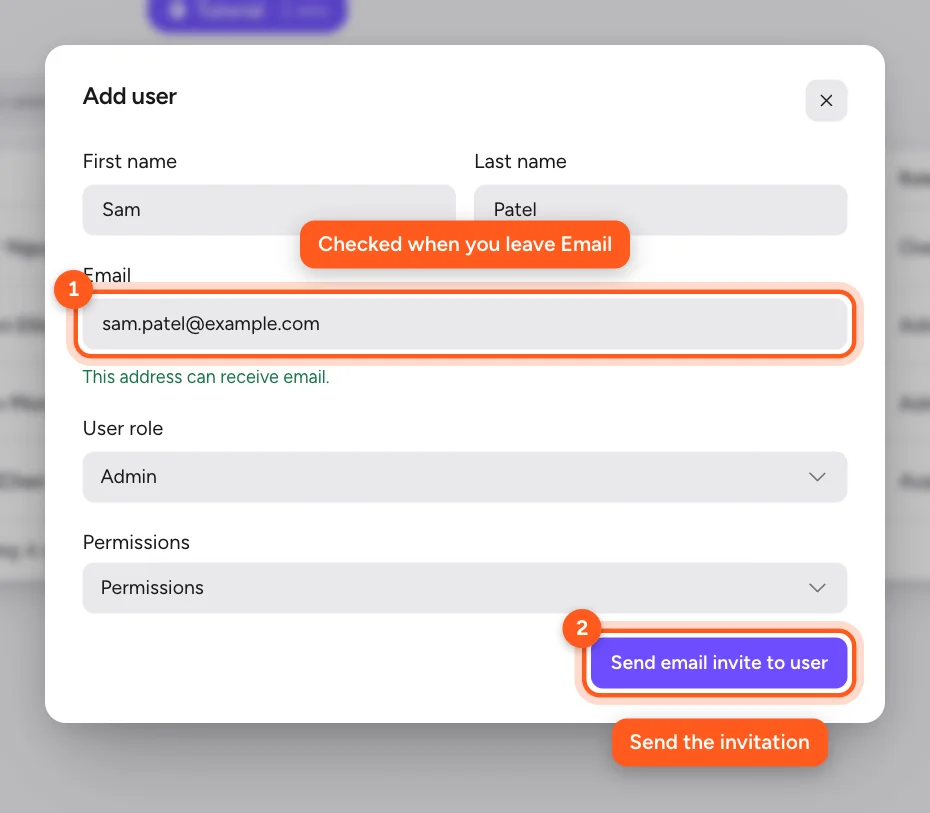
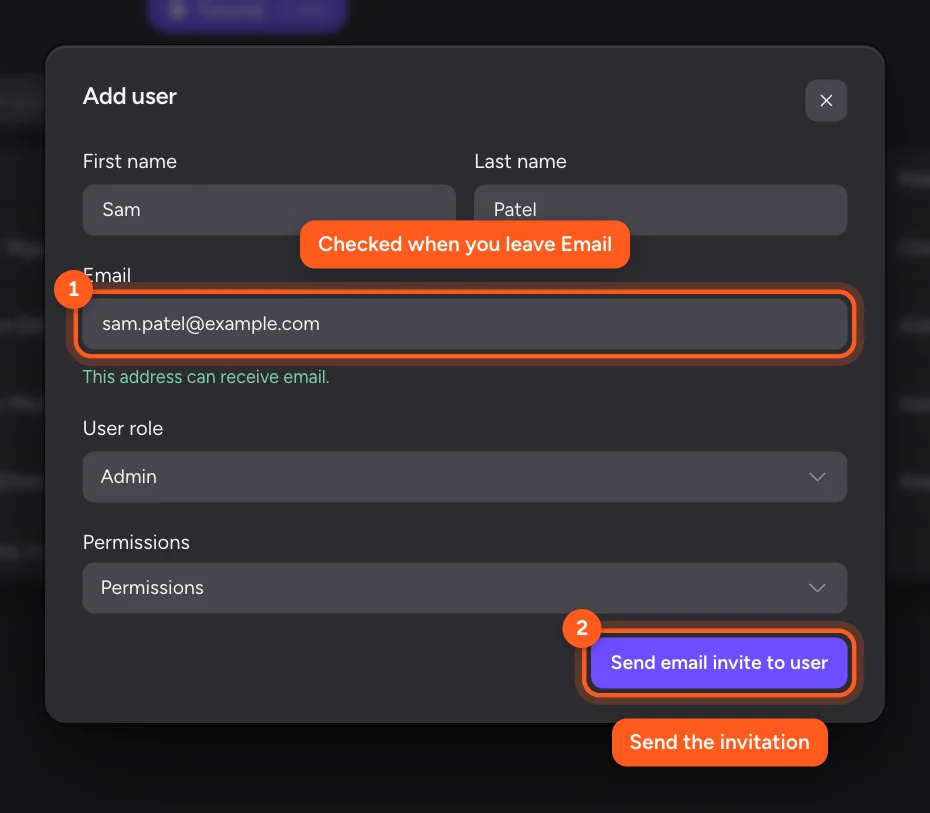
- Enter the teammate's First name, Last name, and Email.
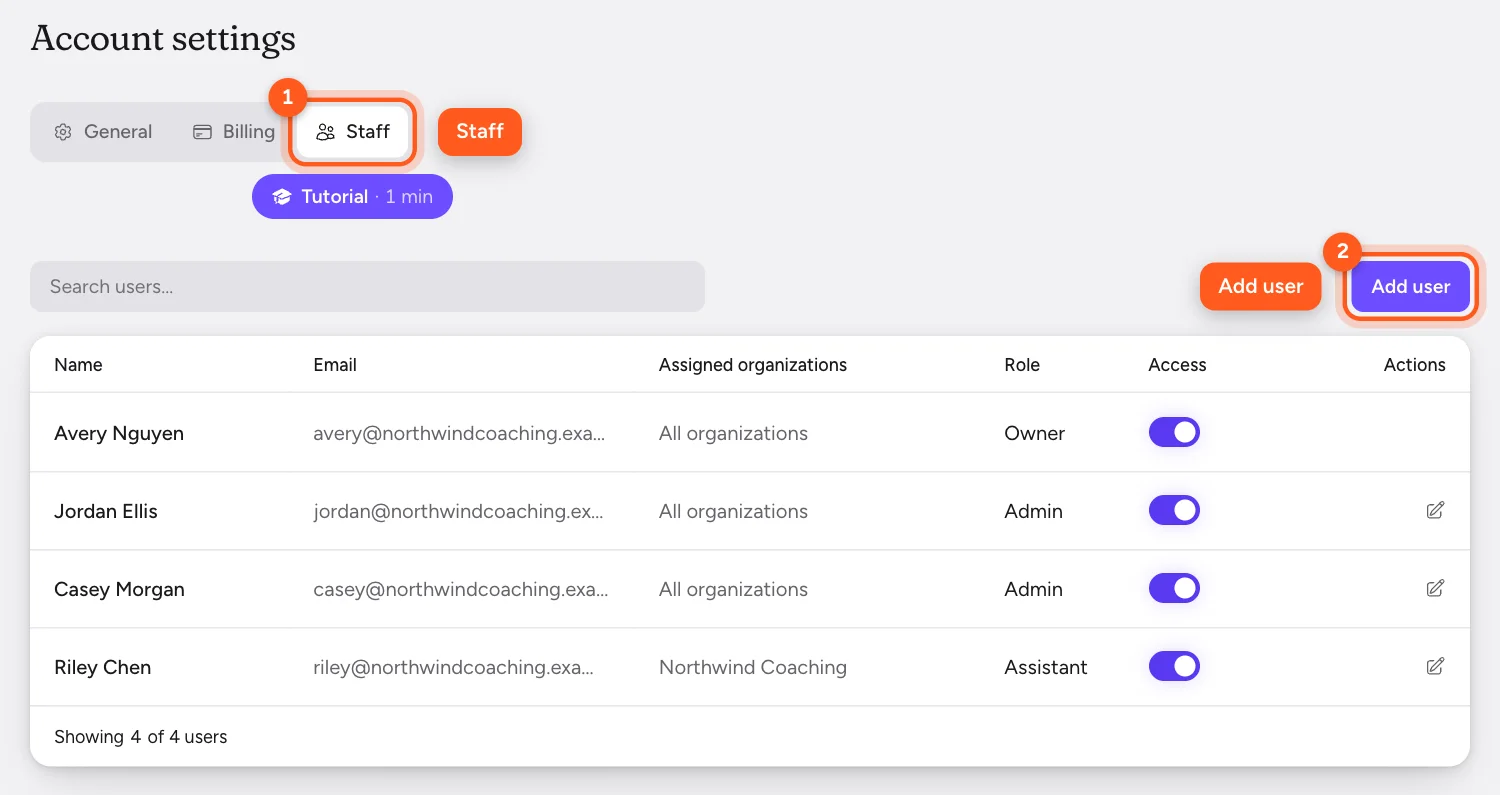
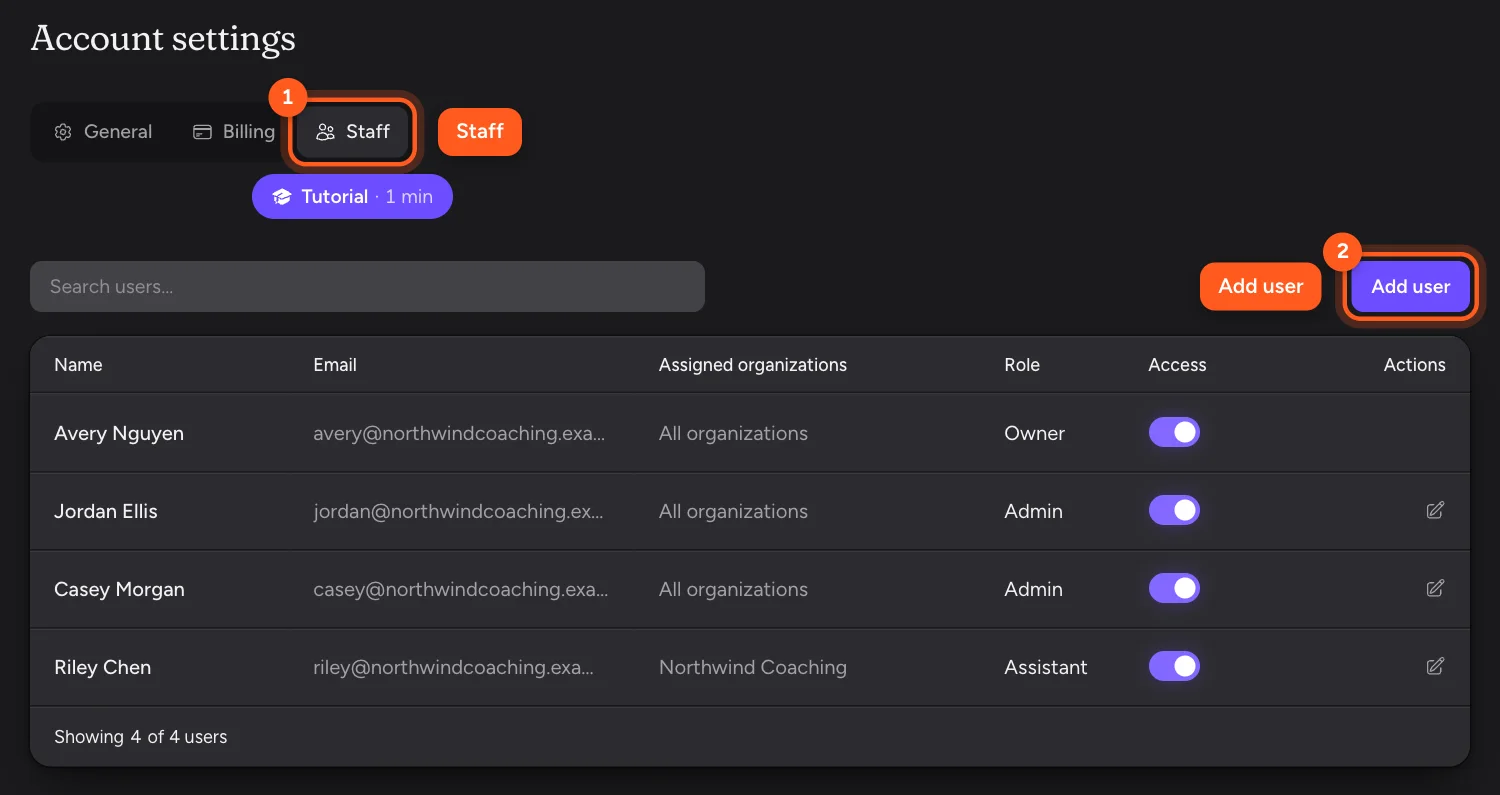
If no account is selected, the page displays Select an account to manage staff.
Check the email address
When you leave the Email field, ShowBoss can check whether the address can receive email. The result appears below the field:
- This address can receive email. You can send the invitation.
- This address can't receive email. Check for typos or use another address. Correct the address or ask the teammate for another one.
- We couldn't confirm this address can receive email. Check it for typos. You can still use it. Review the address before sending.
- We couldn't check this address right now. You can still use it. You can send the invitation.
- This looks like a temporary address. Use a permanent one. Ask the teammate for their regular email address.
- Enter a valid email address. The address is incomplete or contains a typo.
You can send the invitation while the check runs or after a warning. Correct the address if ShowBoss asks you to. ShowBoss checks the address again when you send.
Choose access and send
- Choose the available User role.
- If Permissions appears, review the available settings.
- For a multi-organization account and an Assistant role, use Select organizations and choose the available organizations or All organizations.
- Choose Send email invite to user.
Check invitation status
In the staff table, check the teammate's Access column. A pending invitation shows Pending. If Bounced appears next to the address, change it before resending. Once they join, the Access switch turns their access on or off. Sending the invitation saves it for the recipient to use; it does not by itself prove that the email was delivered or accepted.
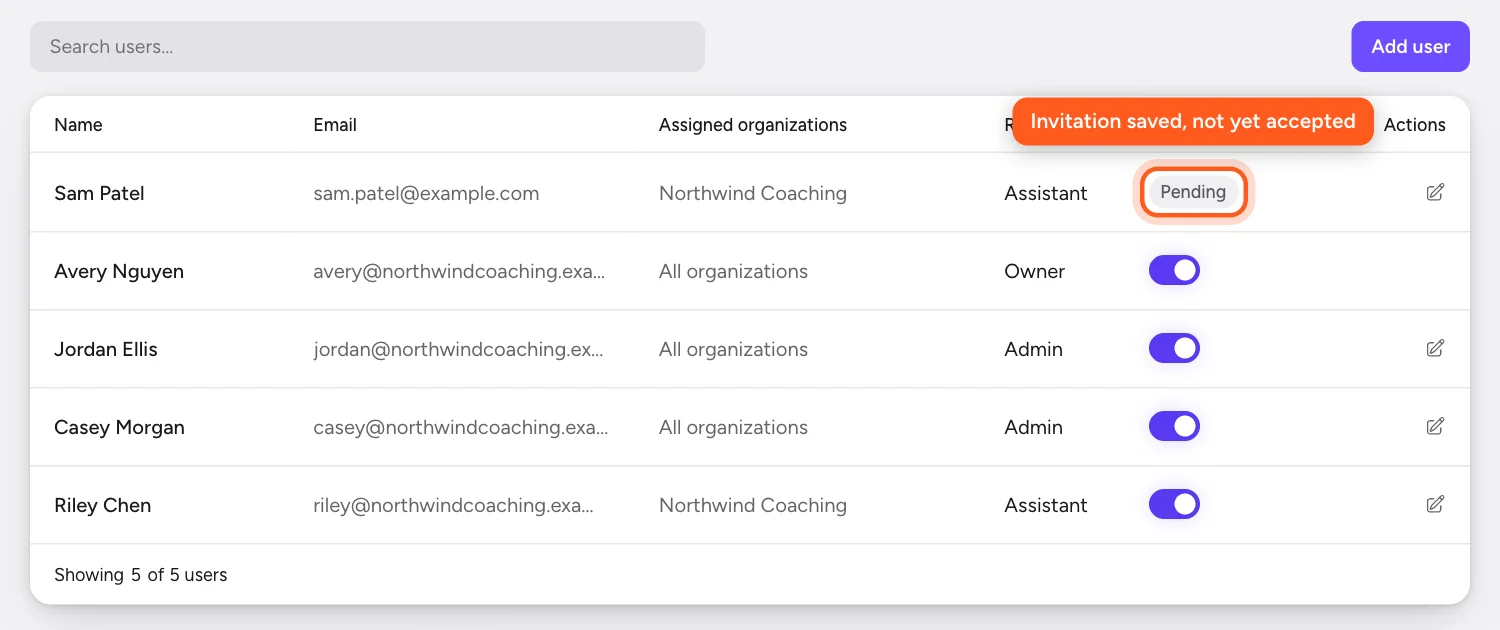
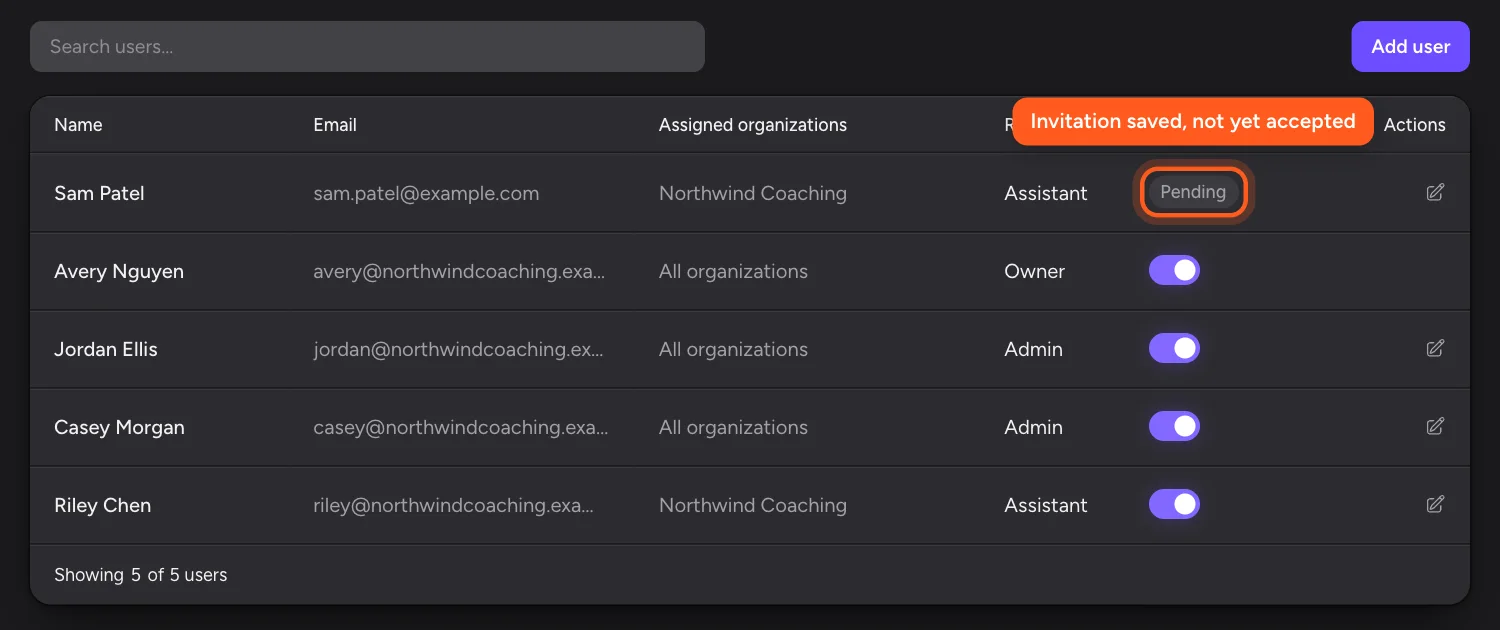
If the invitation is saved but its email is not sent, the add window closes, the staff table shows the pending teammate, and a message above the table explains why:
- Invitation was saved, but this address can't receive email. or …this looks like a temporary address. Open Edit user, change Email, choose Update user, then resend the invitation.
- Invitation was saved, but the email could not be sent. Resend the invitation.
Resend an invitation
In Staff, find the pending teammate and choose the envelope (Resend invitation email) in its Actions column. It turns into a check for a moment once the email is sent.
You can also resend from Edit user:
- Choose Edit user (pencil). ShowBoss checks the saved email address.
- Choose Resend invitation email.
If you edit Email, choose Update user to save the address. Reopen Edit user and resend to the saved address.
If the resend fails, the Edit user window stays open and shows the same kind of message. When the message says the address can't receive email or is temporary, change Email and choose Update user before you resend. If the account has reached its daily invitation email limit, try again later. The limit includes new invitations and resends.
Revoke an invitation
- In Staff, find the pending teammate and choose the trash (Revoke invitation) in its Actions column.
- In Revoke invitation to …?, choose Revoke invitation. The invitation link stops working.
Next step
Ask the teammate to use the emailed invitation, then confirm that their account has active access. If you need sender setup after they join, continue with Choose a Persona.