Before you start
Select the account you want to review and make sure you can open Wallet. Owners can use all Wallet actions. Admins can add funds and edit automatic top-up settings, but cannot save new cards through Manage cards. Assistants cannot add cards, add funds, or edit automatic top-up settings; their activity view is limited to organizations assigned to them.
Billing manages subscription settings separately from the usage balance shown in Wallet.
Upgrade your subscription in Billing
Account owners and admins can confirm eligible upgrades from Billing without leaving ShowBoss.
- Open Billing for the account you want to change and choose the plan or annual-billing upgrade.
- In Confirm plan change, review the current and new plan and billing frequency. Charged today is the amount you are confirming now; Next renewal shows the renewal amount and date. Payment method shows the card brand and last four digits, with Apple Pay or Google Pay when applicable, or Link. If details are unavailable, the subscription payment method is still used for the charge.
- Review any notice about replacing a scheduled plan change or clearing a scheduled cancellation. These changes take effect only after payment succeeds. A failed payment leaves the existing schedule or cancellation in place.
- Choose Confirm change. If your bank asks you to authenticate the card, complete the secure authentication in the page. The confirmation dialog is hidden while the bank's challenge is open and returns afterwards.
- Wait for Your plan has been updated, then choose Done. The plan, billing frequency, and included usage update after successful payment is confirmed.
Choose Change beside Payment method to enter a different card, then choose Use this card. If your subscription has no usable payment method, Change or Add a card opens the same card form. Saving sets your default card and reloads the price for your review before you confirm the upgrade. Canceling the card form or a card-setup failure keeps your previous card.
If payment is declined or card authentication does not complete, choose Try again to retry the same pending payment with your current default card. Complete the secure authentication if your bank asks again. To switch cards, choose Use a different card, enter its details, and choose Save card and retry payment. This sets the new card as your default and retries the pending plan-change payment. The chosen card stays your default even if the payment is declined.
If the quote changes or expires, review the new Charged today amount and confirm again. If the page cannot confirm a result, Retry confirmation checks the same requested change.
Payment is still processing means the payment has not yet been confirmed. Payment authorized after card authentication means the plan update is still being confirmed. Use Refresh plan status to check again. Closing the dialog does not cancel a pending payment. Closing while waiting for plan confirmation stops that wait. If the dialog closes during card authentication, finish the bank's challenge; Billing then checks for the updated plan for up to 30 seconds. Reopening the same upgrade lets you review and continue a pending change.
You can cancel an upgrade that's waiting for payment.
For a change scheduled at the end of the current period, the dialog shows its effective date and Schedule change. Your current plan stays active through the paid period, and that change does not charge you today.
Pay an overdue or paused subscription in Billing
When a subscription payment is overdue, or your subscription is paused, Billing shows the subscription status instead of your plan settings. Account owners and admins can manage saved cards there and pay the invoice without leaving ShowBoss. Other users see only the option to continue in Stripe; ask an owner or admin to pay.
Manage your cards
Your saved cards are listed under the amount due. Choose Set as default on a saved card, or choose Add card, enter the card details, and choose Add new card to save it as your default. Saving or choosing a card does not charge it; it only sets which card the payment button uses. Your default card is also used for future renewals and upgrades.
To remove a saved card that is not your default, choose Remove on it and confirm, as described in Remove a saved card. The same rules apply while the subscription is overdue or paused: the default card cannot be removed, and a card with a payment waiting for your bank's confirmation cannot be removed until that payment is finished or cancelled.
Pay an overdue invoice
- Review Amount due and its due date. If you have no default card, the payment button is unavailable and Add a card to pay this invoice is shown; add a card first.
- Choose Pay $X with .... The button names the amount and the card it charges, for example Pay $49.00 with Visa •4242. Your card is charged only when you choose this button.
- If your bank asks you to authenticate the card, complete the secure authentication in the page.
- Wait for Payment received. Your subscription is active again. Billing then reloads, your plan settings return, and the rest of ShowBoss opens again without a browser refresh.
Access returns once Stripe confirms the payment and reports your subscription as active. Billing checks for the confirmation for up to 30 seconds. If it is still waiting, Payment authorized or Payment is still processing is shown; choose Refresh status to check again. You can also reload Billing later. If the invoice was already paid elsewhere, Billing says so and your subscription is up to date.
Paying one invoice does not always restore access. If Stripe still reports the subscription as overdue after the payment, for example because an older invoice is also open, Billing shows Payment received, but your subscription is not active yet and offers the next invoice under Amount due. This also happens after card authentication or while Billing is still checking a payment, and after Refresh status. Pay it the same way; access returns when Stripe reports the subscription as active. If no further invoice is ready to pay, Billing asks you to reload in a moment.
If the invoice changes before the payment is sent, for example because its amount was updated, Billing shows The invoice changed. Review the new amount and pay again. Review the new Amount due and choose the payment button again.
If the payment is declined
Billing shows the decline with Your payment was declined or your bank's reason, and no charge is made. A declined payment can also send the Subscription payment failed email, the same email a failed renewal sends. To try again:
- Choose Set as default on another saved card, or choose Add card and save a new card. Billing confirms Your default card was updated.
- Choose Pay $X with ... again with the new card.
If you cancel or do not complete the bank's authentication, the payment is not completed and you can choose the payment button again, with the same or a different card. If a payment with a different saved card is still waiting for your bank's confirmation, Billing names that card and offers Confirm with .... Choose it to finish that payment, or cancel its confirmation and then pay with your default card.
Resume a paused subscription
A paused subscription has no invoice to pay yet.
- Choose Resume subscription. This resumes the subscription in ShowBoss and creates its first invoice; it does not open Stripe.
- Wait for Subscription resumed. Pay the invoice below to restore access. If the invoice is not ready yet, reload Billing in a moment.
- Pay the invoice as described above with Pay $X with ....
Pay in Stripe instead
Pay in Stripe instead opens Stripe's secure billing portal to complete the payment there, as before. For a paused subscription, it resumes the subscription and continues in Stripe. Use it if in-app payment is unavailable for your subscription; Billing tells you when that is the case.
Billing pays your most recent open invoice. If older invoices are also open, Billing notes how many other open invoices can be paid in Stripe. If your subscription is still overdue after a payment, Billing says so and shows the next invoice to pay.
How your allowance pays for follow-up
Your subscription provides a plan-specific allowance every four weeks. Eligible charges use it first. Unused allowance expires at the reset. Purchased Wallet funds carry over. The allowance is separate from purchased funds; it is not a payment added to your Wallet balance.
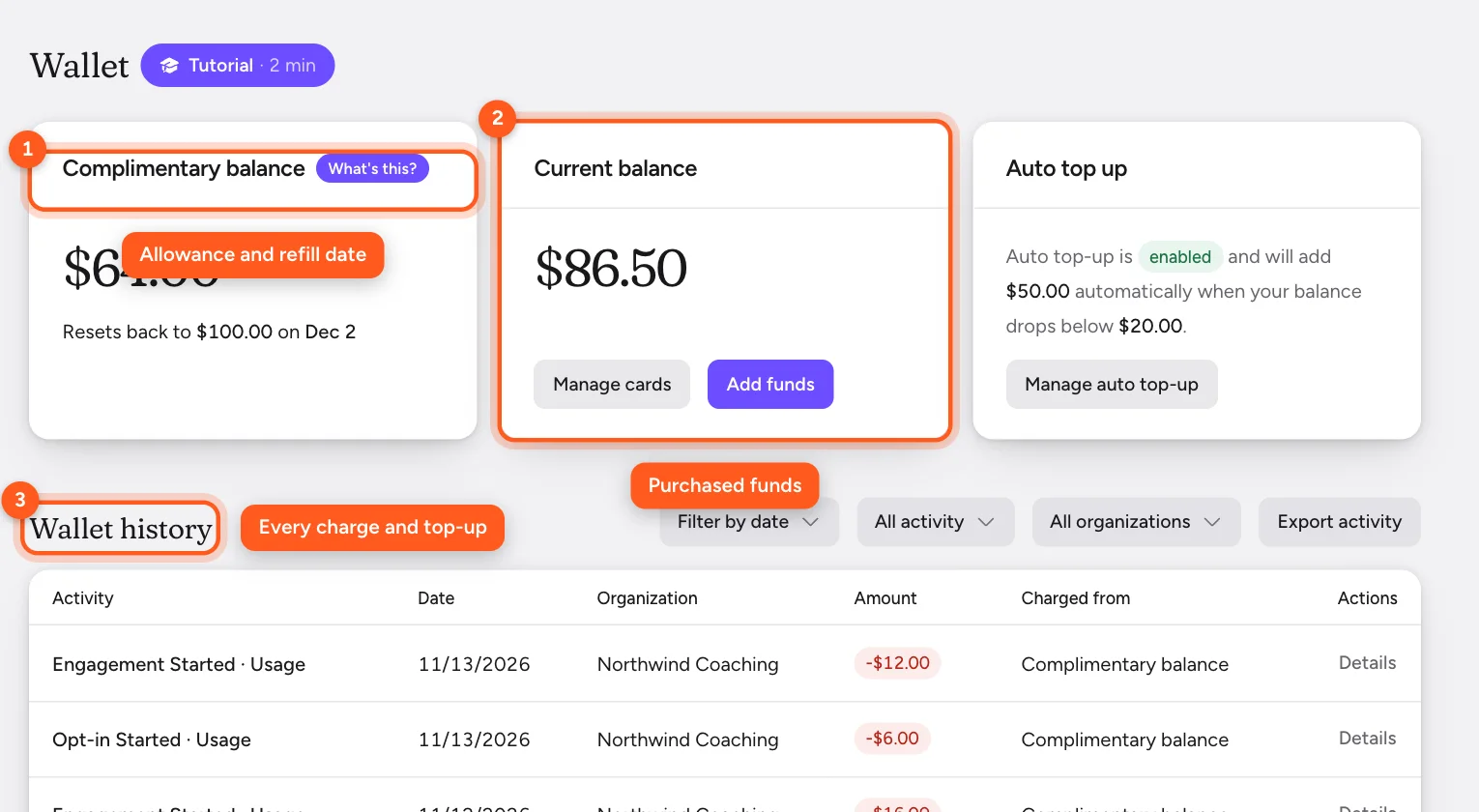
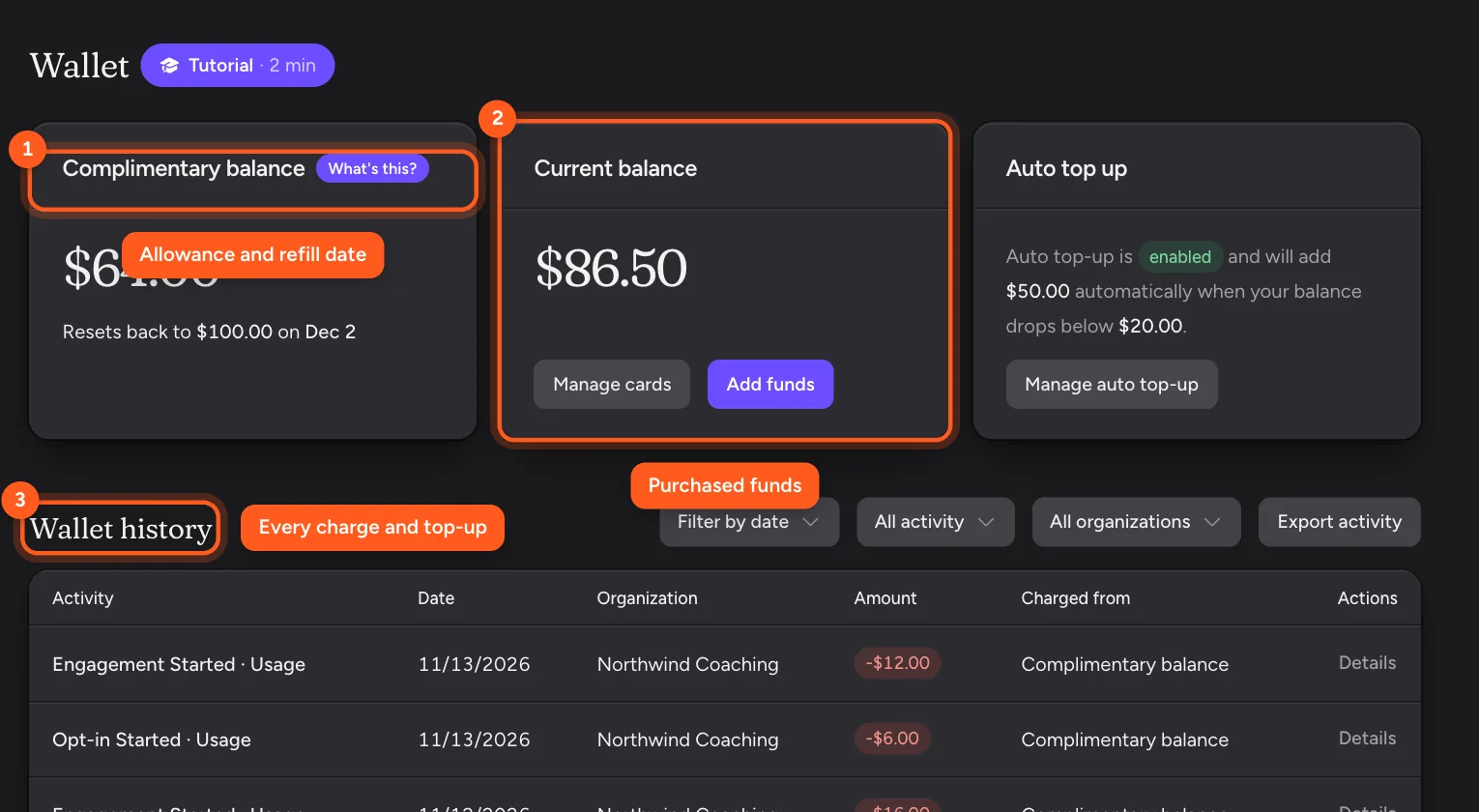
Check your allowance and refill date under Complimentary balance, and purchased funds under Current balance. In Wallet history, charges paid by the allowance show Complimentary balance under Charged from.
When appointment follow-up is charged
A workflow carries out a sequence of follow-up actions for a lead, such as appointment reminders. The appointment charge covers follow-up through one Persona:
- Replanning the same continuing workflow run does not add another appointment charge.
- Follow-up through a different Persona can create a separate charge.
- Moving an existing run to an earlier or replacement appointment does not add another appointment charge.
- When a later, distinct appointment eventually starts its own workflow run, that new run is charged normally.
- Individual messages and steps do not each create a new appointment charge.
For example, suppose Tuesday's appointment starts a workflow run and is charged once. A Monday appointment then arrives late and takes over that existing run, so the takeover itself is not charged. After Monday ends, Tuesday starts a new fallback run and that new run is charged normally. The result is two charged runs, even though the activity may show Tuesday at both the beginning and end of the history.
At $2 per charge, follow-up through one Persona costs $2; follow-up for the same appointment through two Personas can cost $4. This is why counting appointments alone does not always predict usage.
At $2 per appointment follow-up charge, divide your included allowance by $2 to estimate how many charges it covers.
This calculation assumes all usage is charged at $2. The applicable charge depends on your account's pricing. Wallet history shows the charges actually applied.
Opt-in Flows use the same allowance. A charge applies when a lead starts an Opt-in Flow that includes customer messages. The first qualifying reply or added reaction in that same conversation can return the amount specified by your plan, once per run; an opt-out does not qualify. The credit returns to Wallet funds if they paid the charge, or to your current allowance if it paid. It is not a refund to your payment card.
When a lead's number changes
Moving a booking's workflows to a lead's new number from the Inbox uses the same appointment follow-up charge; there is no separate fee. The Change phone number dialog shows the charge under Charges before you confirm, and the amount charged is the amount quoted.
- A workflow that continues its Same run into an Existing chat the lead already has with that Persona on the new number is not charged.
- A workflow that continues its Same run into a New chat is charged once.
- A workflow restarted on the newest version is a New run and is charged once, whether the chat is new or existing.
- A workflow waiting for billing recovery is not charged by the change; recovery takes the normal start charge on the new number when it runs.
A workflow is never charged twice for one change, and the original charge on the previous number is not refunded. Each charge is funded as any other: fully from your remaining allowance when it covers the charge, otherwise fully from Wallet funds. From allowance, From wallet, and Total in the dialog show the split. If neither source covers a charge, the dialog says so and nothing is changed or charged. The feature appears only when it is enabled for your account; see Change a lead's phone number.
When purchased funds are needed
If your remaining allowance cannot cover a charge in full, the entire charge uses purchased Wallet funds. For example, $1 of allowance and $1 of purchased funds cannot be combined to pay a $2 charge.
If neither source can cover the charge, that follow-up is blocked from starting. Add funds or configure automatic top-up to keep it covered. After resolving a billing block, check the affected appointment's status rather than assuming its messages have already run.
Review the Wallet
Open Wallet and review Current balance, Complimentary balance, and Wallet history. The view separates included usage from purchased balance; an assistant may see activity only for assigned organizations.
Save a payment card
- Open Manage cards.
- Choose Add new card.
- Complete the displayed card form and choose Add new card.
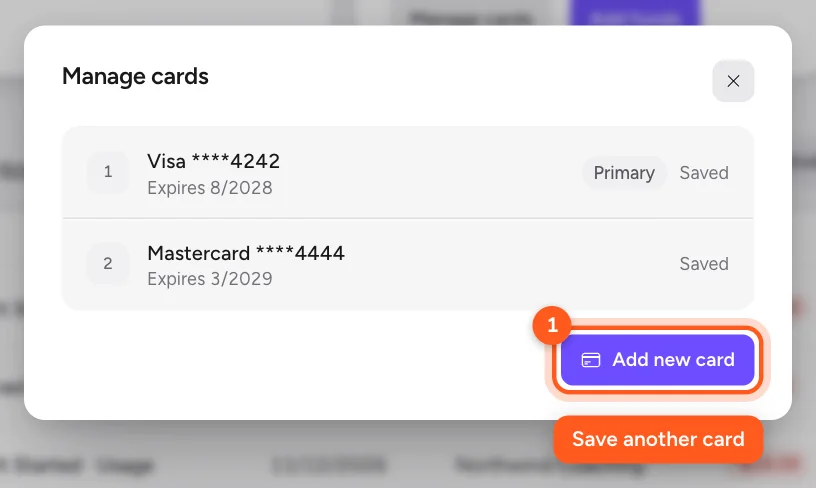
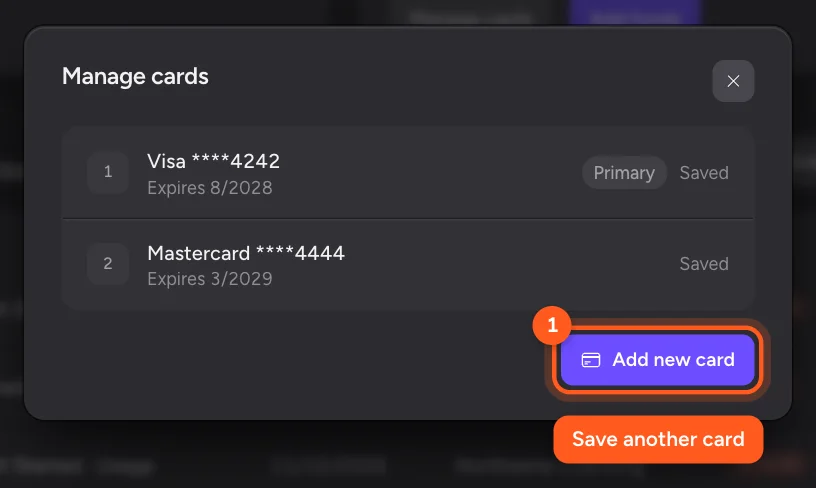
Saving a card in Manage cards makes it your default card for subscription renewals, upgrades, and future payments. It does not charge the card immediately. This card-saving action is available to owners.
You can also change this default in Billing: choose Set as default on a saved card or save a new card with Add card. Your default card is used for your subscription renewals and upgrades. Your saved cards and default update in place, without reloading the page. Changing it in the upgrade dialog also updates the default shown with your saved cards.
Paying an overdue invoice in Billing always uses your default card, so no further question is asked. If you instead pay an overdue subscription invoice in Stripe with a different card, that card is saved to your account and appears with your saved cards. Billing then asks whether to use it for future renewals. Choose Use this card to make it your default card for renewals and upgrades. Choose Keep current card to keep your existing default; the card stays saved. A saved card that is not your default can be removed in Billing with Remove. The question stays in Billing until an owner or admin answers it, and it is not shown for a card that has been removed or has expired.
Remove a saved card
Account owners and admins can remove a saved card in Billing, under Payment methods. Remove is offered only on cards that are not your default card. To remove your current default card, first choose Set as default on another saved card, then remove the previous one.
- Open Billing and find the card under Payment methods.
- Choose Remove on that card.
- In Remove card, check the card named in the dialog and choose Remove card. Choose Keep card to leave it saved.
Billing confirms that the card was removed and updates your saved cards in place. The card is also removed from automatic top-up. If it was the only card selected for automatic top-up, automatic top-up is turned off and Billing says Automatic top-up was turned off because no other card is selected for it; select another card under Manage auto top-up to turn it on again. A removed card can be added again later with Add card.
A card with a subscription payment waiting for your bank's confirmation cannot be removed. Finish or cancel that payment, then remove the card. If the card was already removed, for example in another browser tab or in Stripe, Billing says This card was already removed and refreshes your saved cards. If Stripe could not remove the card, Billing says so: the card is still saved, but it is no longer used for automatic top-up. Try again in a moment.
The same action is available while a subscription payment is overdue or your subscription is paused.
Add purchased balance
- Choose Add funds.
- Choose Amount and select the saved card to charge, or choose Use new card and enter its details.
- If the amount is more than $100, select the displayed confirmation checkbox.
- Choose Add funds to confirm the purchase.
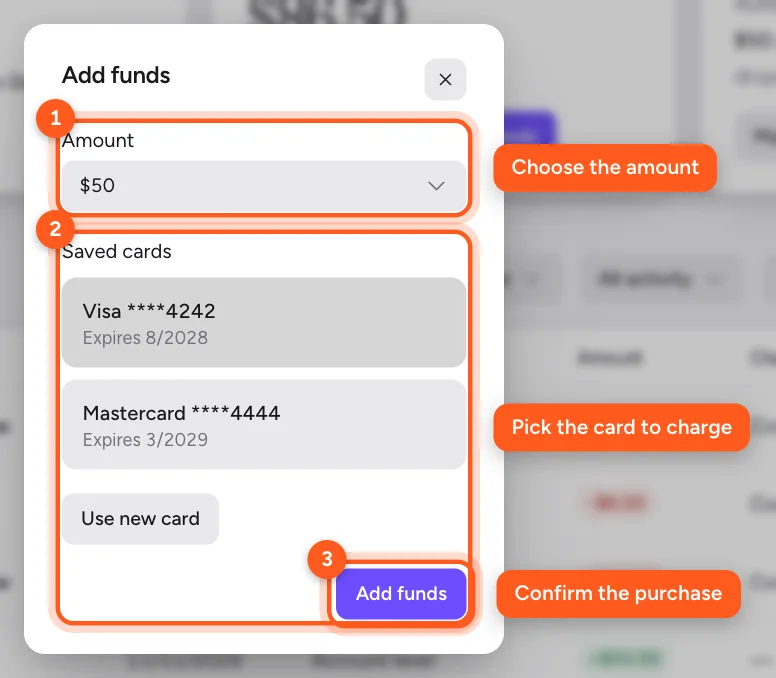
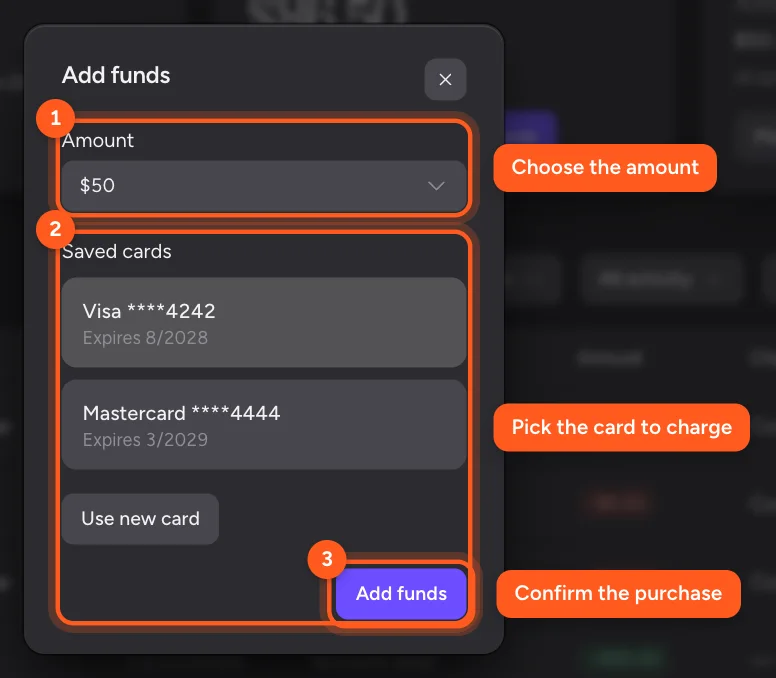
The selected card is charged for the amount you confirm. If Add funds is unavailable, ask an owner or admin with Wallet access to complete the purchase.
Configure automatic top-up
- Choose Manage auto top-up. The Auto top up popup opens.
- Turn on the switch beside Current settings.
- Set When wallet balance drops below: and Automatically add this amount:.
- Under Payment methods, choose Add beside up to three saved cards. The first is Primary; the rest are tried in order if a payment fails.
- If the amount is more than $100, accept the confirmation.
- Choose Save.
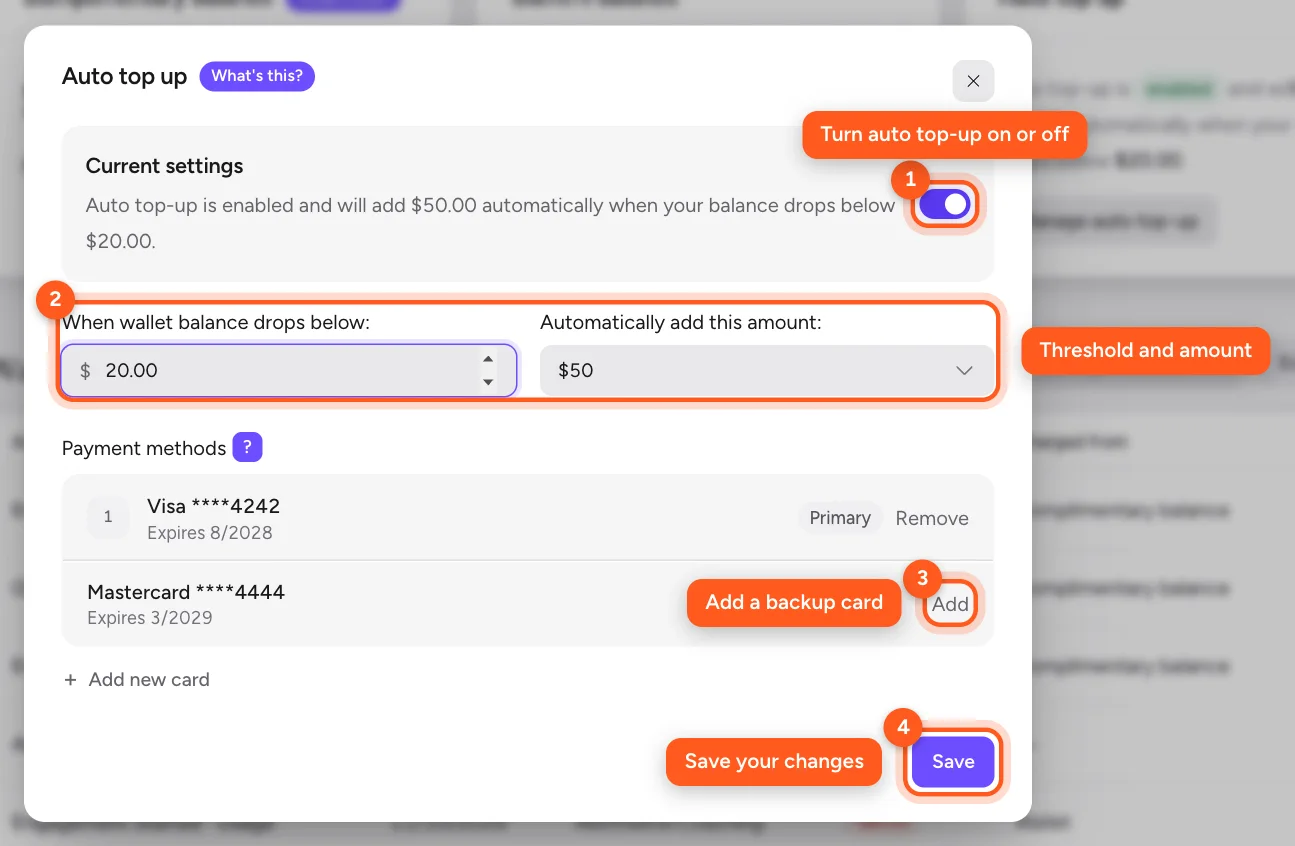
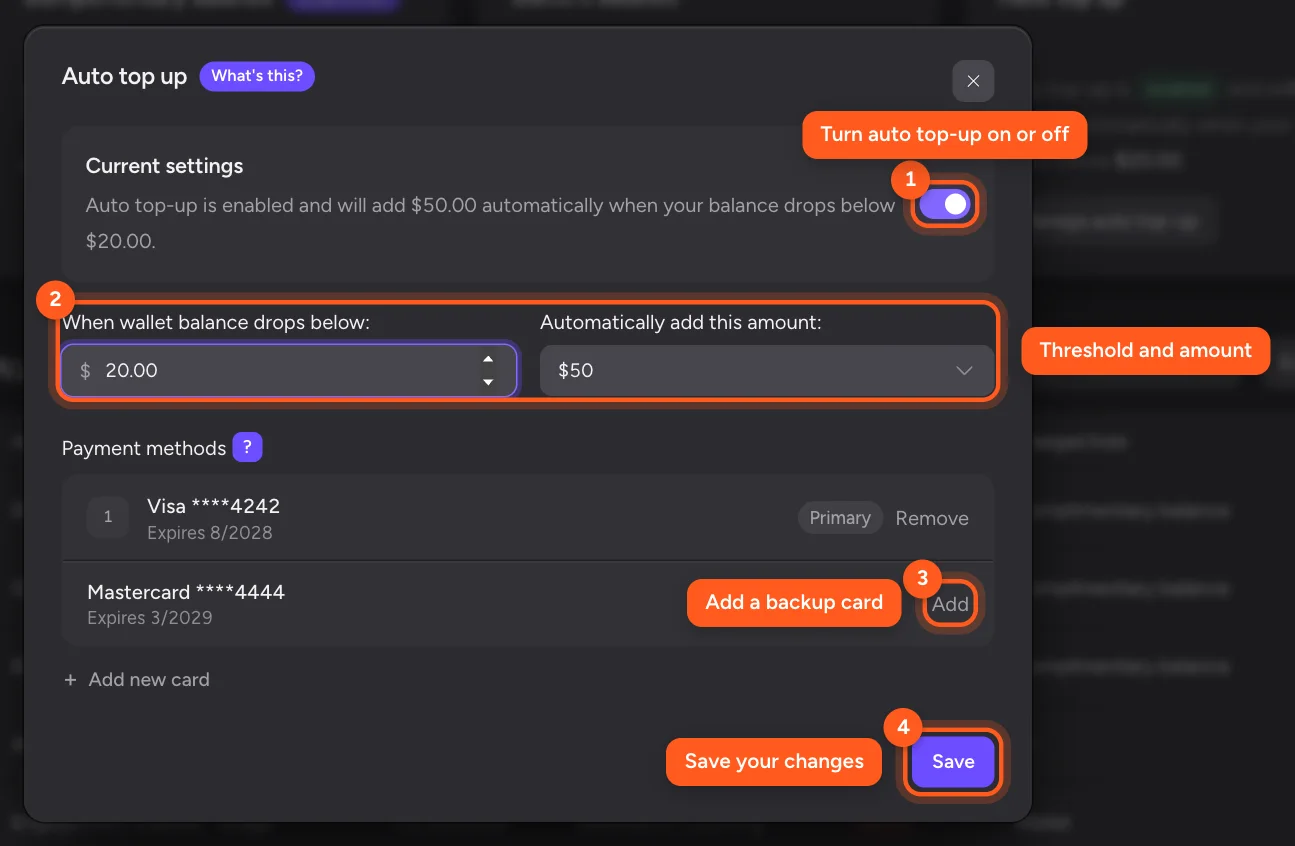
Up to three selected cards can be attempted in the order shown. To stop automatic purchases, turn off the switch beside Current settings and review the warning: once purchased funds run out, eligible activity that cannot be fully funded by the remaining included allowance will not run.
Understand included usage
The plan page shows how often included usage refreshes. Read that period alongside the billing frequency; the two periods can differ.
Included usage applies only to eligible activity and only when enough allowance remains for the entire charge. When the remaining allowance is not enough, the full charge uses purchased Wallet balance. Included usage and purchased balance cannot be combined to pay part of one charge.
Use Wallet history and the displayed balance before starting usage-sensitive work. A Wallet balance does not by itself prove that a particular workflow is ready to run; check the setup and billing message shown for that flow.
Check your result
Confirm that the displayed balance and activity are current. After a card or top-up change, confirm the saved card, threshold, amount, and card order are displayed as intended.
Troubleshooting
I cannot open Wallet
Confirm that the intended account is selected and that your account has Wallet access. If the page is unavailable, ask an owner or admin to review account access.
I cannot add funds or change automatic top-up
These actions are available to owners and admins. Assistants cannot add funds or edit automatic top-up settings. Ask an owner or admin to make the change.
I cannot save a card
Saving a card through Manage cards is available to owners. Ask an owner to save the card for future payments.
I cannot remove a card
Remove is shown to owners and admins only; ask an owner or admin to remove the card. Your default card does not offer Remove: choose Set as default on another saved card first, then remove the previous one. If Billing says a payment with this card is waiting for your bank's confirmation, finish or cancel that payment, then try again.
I cannot pay the overdue invoice in Billing
Saved cards and Pay $X with ... are shown to owners and admins only; ask an owner or admin to pay. If the payment button is unavailable and Add a card to pay this invoice is shown, choose Add card first. If Billing says in-app payment is not available for your subscription, or your saved cards could not be loaded, reload Billing or choose Pay in Stripe instead.
My subscription payment was declined
Choose Set as default on another saved card, or choose Add card, then choose Pay $X with ... again. Nothing was charged for the declined attempt. You may also receive the Subscription payment failed email for it.
Billing still shows the subscription as overdue after I paid
Access returns once Stripe confirms the payment and reports your subscription as active. Choose Refresh status, or reload Billing in a moment. If a payment is still processing, Billing says so; wait for it to complete before paying again. If Billing says Payment received, but your subscription is not active yet, another invoice is still open; pay the invoice now shown under Amount due. If you paid in Stripe, return to Billing and reload it.
A charge did not use the included allowance
Check Complimentary balance and the charge eligibility shown in the app. Included usage must cover the entire charge; it cannot be combined with purchased balance for a partial payment.
Activity may not run after I disable top-up
Review the warning shown when you disable automatic top-up. Once purchased funds run out, eligible activity that cannot be fully funded by the remaining included allowance will not run. Re-enable top-up or add purchased balance if you have the required permission.
Next step
If a workflow shows a billing or readiness error, use My first workflow did not run to check its account, calendar, publication, entry point, and displayed usage evidence.