Before you start
This feature is available only when it is enabled for your account. When it is enabled, Lead Details shows a Change phone number button next to Phone. When it is not, the button is absent and the rest of the Inbox works as before.
Have the lead's new number ready, including the country code if the lead is outside your country. The conversation must belong to a booking: the dialog moves that booking's workflows, not the whole lead.
Changing the number does not send anything to the lead. Workflows continue on the new number from where they were, with the same Persona, and the current chat keeps its history.
Open the dialog and enter the number
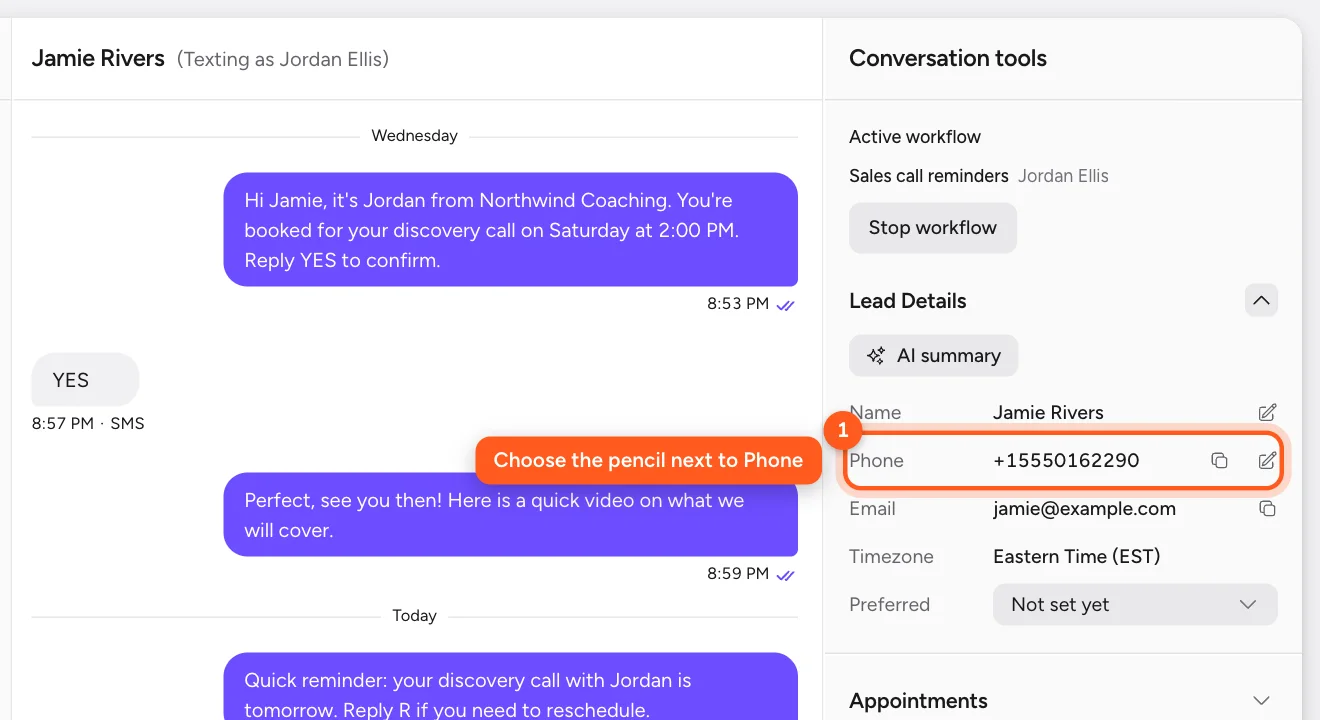
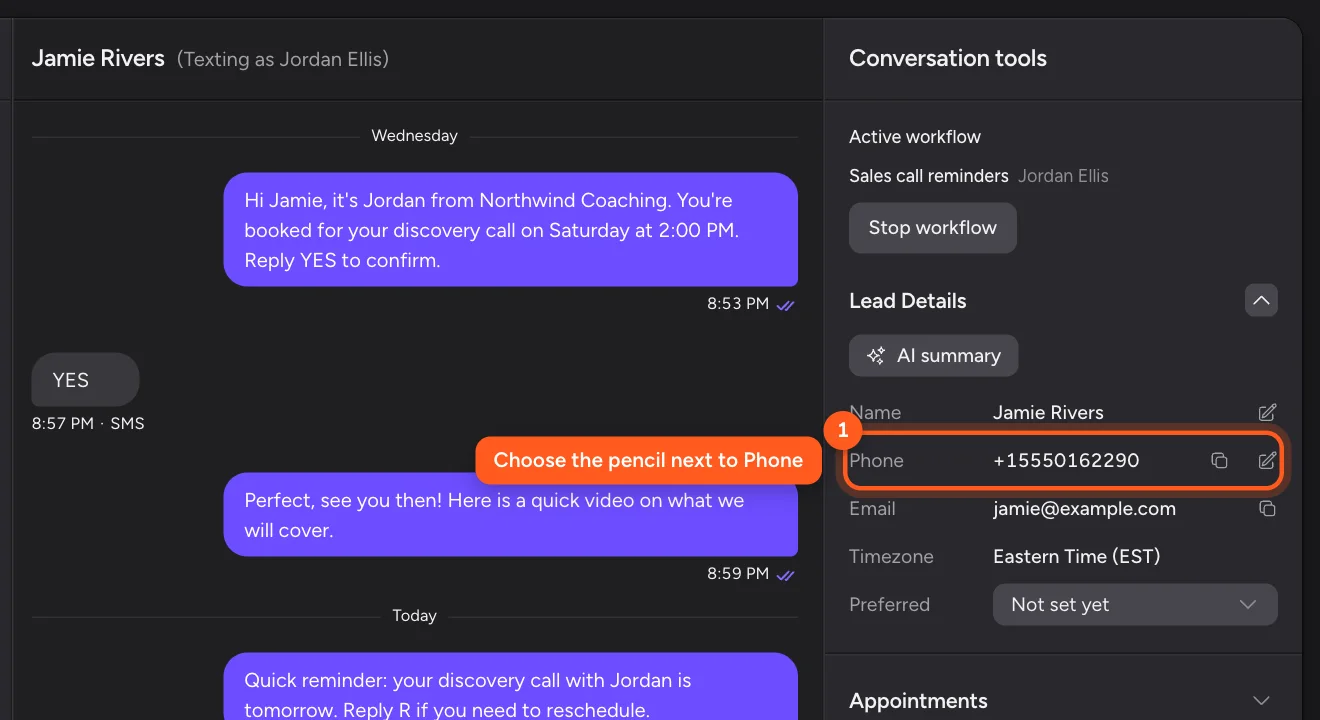
- In Inbox, open the conversation. On a desktop, Lead Details is in Conversation tools beside the conversation. On a phone, tap the lead's name at the top of the conversation.
- Next to Phone, choose Change phone number.
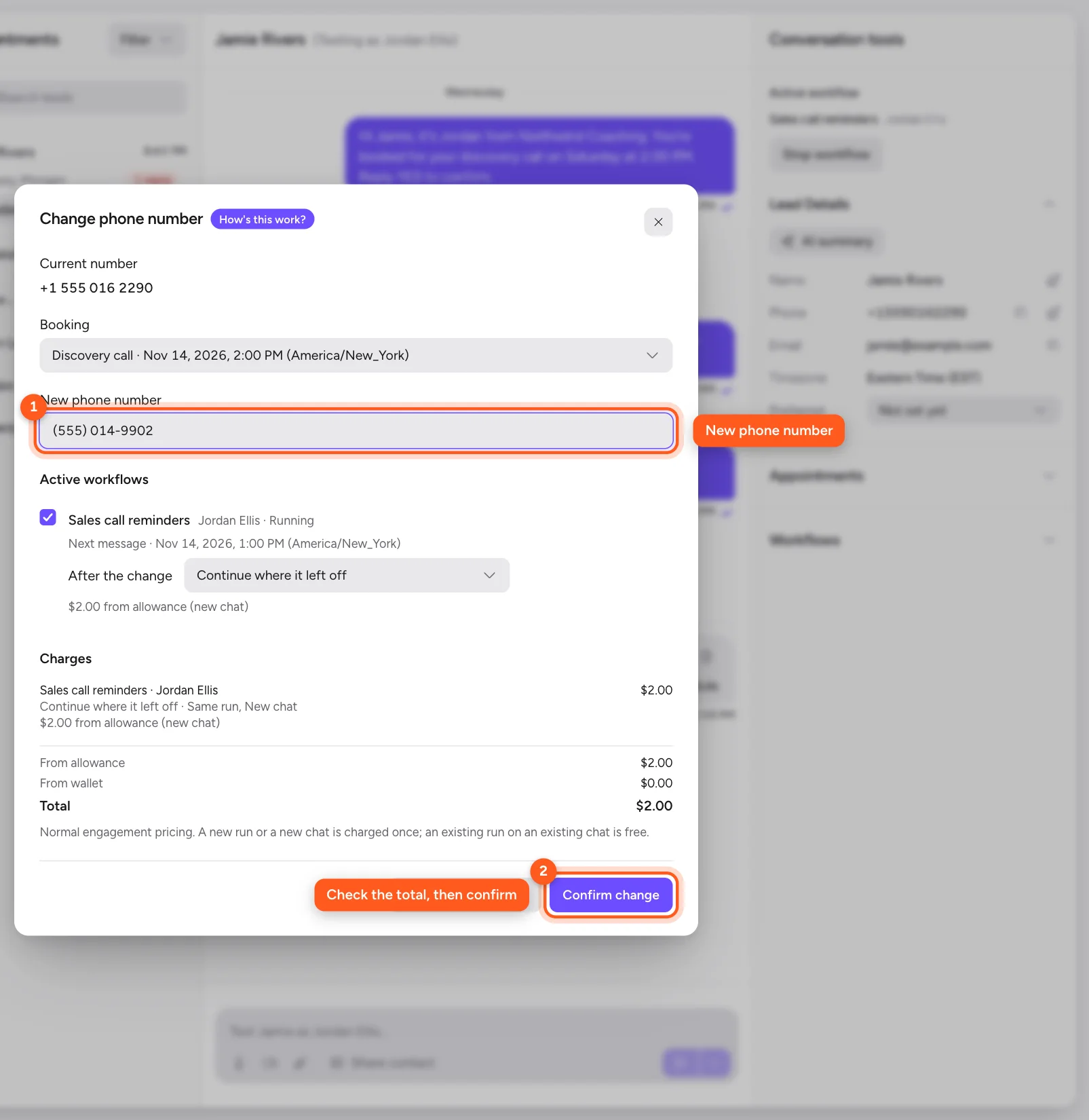
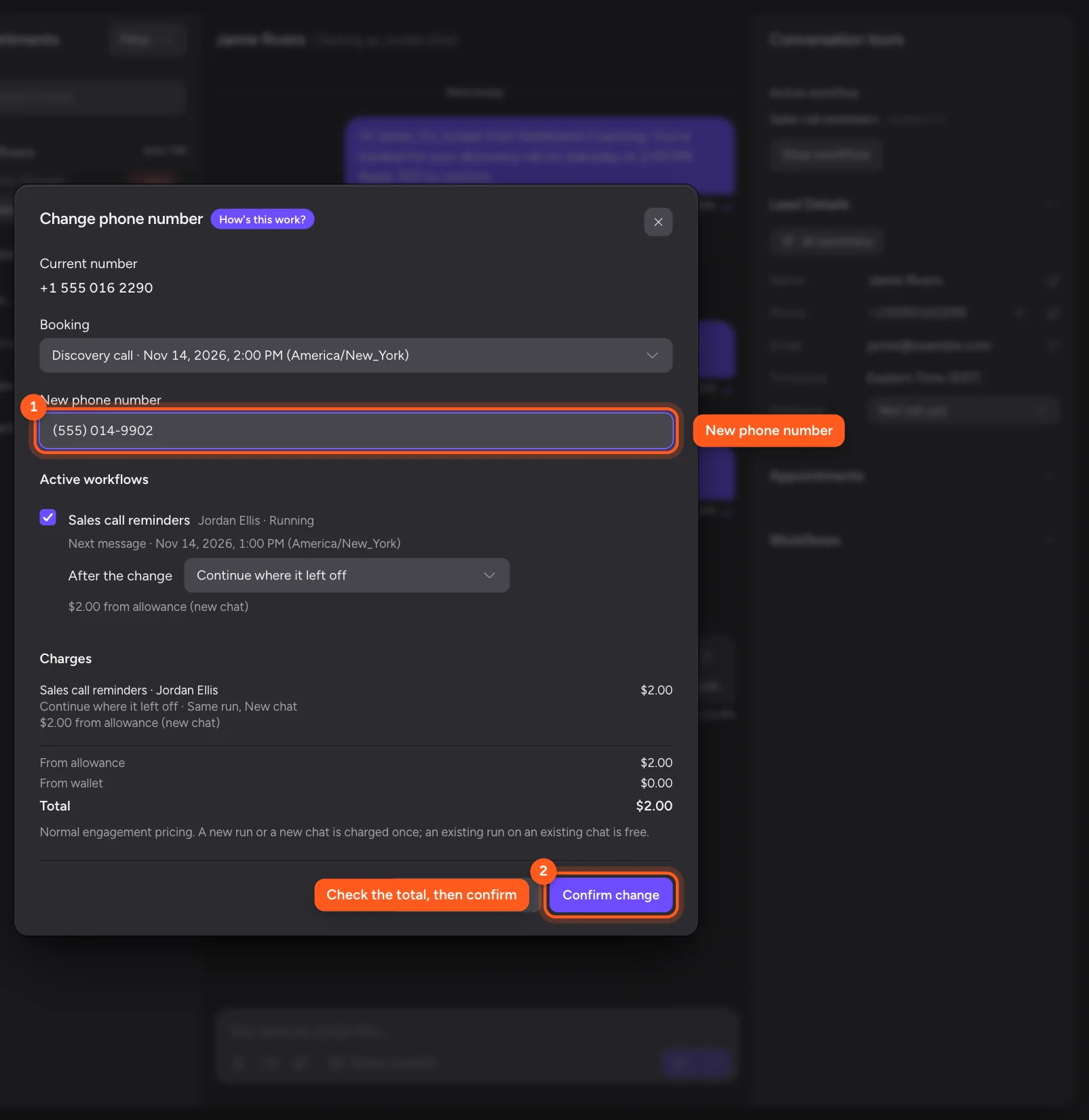
- In the Change phone number dialog, check Current number and Booking. When the lead has several bookings, choose the right one from the Booking list. Booking says None linked when no booking is linked to the conversation; then there is nothing to move. How's this work? beside the title explains what moves.
- Enter the lead's number in New phone number. Include the country code if the lead is abroad. If the number can't be used, a red line under the field says why.
ShowBoss then prepares a quote and shows Preparing the quote…. Every later change to the booking, number, selection, or option shows Updating the quote… and refreshes the details. If the quote cannot load, choose Try again.
If the booking already uses the number you entered, the dialog says This booking already uses this number. Nothing to move.
Choose which workflows move
Active workflows lists every running, paused, or blocked workflow on the booking, with its Persona, its status, and its next step and time. All of them are ticked to move. Untick a workflow to leave it where it is; the dialog then says Stays on the current number, untouched. A workflow marked This workflow already runs on the new number has nothing to move.
If there are no active workflows, confirming records the new number only.
Paused workflows keep their pause
A paused workflow is moved paused. The row shows which pause travels with it:
- A workflow waiting for billing recovery stays blocked and starts on the new number once recovery runs.
- A workflow paused by a Persona departure stays paused.
- A workflow paused for an opt-out, a question, a reschedule request, or manual review keeps the same pause. Resolve it in the new chat with the usual Workflow action controls.
- A workflow waiting for a reply is held on the new chat until you send a message or route the reply. See Finish a workflow that was waiting for a reply.
Choose what happens after the change
Under After the change, each selected workflow offers the options that fit its current state. An option that is not available is greyed out, and its hover text says why.
- Continue where it left off keeps the same run and its next step and time, including a delay that is already partly elapsed.
- Send a message, then keep waiting is offered to a workflow waiting for a reply. The workflow waits for a message you send from the new chat, then waits for the lead's reply again.
- Choose the reply branch manually is also offered to a workflow waiting for a reply. You pick the branch yourself in the new chat.
- Restart on the newest version stops the current run and starts a new run on the newest published version of the workflow. A warning under the option explains this. Restart is offered only to a running workflow. It is not offered when the newest version changes the sender or the chat setup, for Ghost Busting workflows, or for a workflow paused by a Persona departure or waiting for billing recovery.
A restart counts as a new run and is charged. Continuing or waiting counts as the same run. See Review the charges.
Resolve conflicts
Conflicts to resolve appears when a selected workflow would land in a chat, or in a sending lane, that another workflow already uses. Each entry says which workflow is in the way:
- For another booking's workflow, choose End workflow beside the entry. This stops exactly that workflow in its own chat and cancels its pending automated messages, like End workflow in the Inbox; no other workflow is affected. If the entry then says This workflow is no longer active, that workflow had already ended; the dialog quotes again and shows what still conflicts. When the entry says End it from its own chat, open that conversation and stop it there.
- For two workflows from this booking that would share one chat, untick one of them or stop it.
The dialog quotes again after each stop. Confirm change stays unavailable until no conflict remains. The change never stops, merges, or overwrites another workflow on its own.
Move or cancel scheduled messages
Scheduled messages appears only when the booking has messages you or a teammate scheduled by hand that have not started sending. Each entry shows its send time and offers Move and Cancel, with Move preselected.
- Move sends the message from the new chat at the same scheduled time.
- Cancel drops it.
A scheduled message that includes a contact card can be moved. The card is rebuilt for the new chat, so the lead receives the sending number of the new chat. Move is unavailable for a card only when contact cards are turned off for the account or the card's Persona is no longer active; the entry then explains this, and only Cancel is offered. In rare cases a moved card cannot be rebuilt within 24 hours of the change; that message then ends as Canceled on the previous chat.
Messages that are already sending, sent, or failed are not listed and do not move. Automated messages from a workflow move with their workflow.
Review the charges
Charges lists every selected workflow with its Persona, its chosen option, whether it is the Same run or a New run, and whether it lands in an Existing chat or a New chat. Below the list, From allowance, From wallet, and Total show how the change is funded. The amounts come from the quote; the amount charged on confirmation is the amount shown.
A number change uses the normal appointment follow-up charge. There is no separate fee for the change itself.
| Run after the change | Chat on the new number | Charge |
|---|---|---|
| Same run (continue, send a message, or choose the branch) | Existing chat with this Persona | None |
| Same run | New chat | One follow-up charge |
| New run (restart) | Existing chat | One follow-up charge |
| New run (restart) | New chat | One follow-up charge |
A new chat means the lead has never had a conversation with that Persona on the new number. A workflow that moves to a chat the lead already has with the same Persona, without a restart, is free. A workflow is never charged twice for one change, and the original charge on the previous number is not refunded.
A workflow waiting for billing recovery is not charged by the change. The dialog says No charge now. Billing recovery charges the normal start on the new number.
Each charge uses your included allowance when the remaining allowance covers it, and Wallet funds otherwise, as described in Manage your Wallet and usage. If neither covers a charge, the dialog says Your balance cannot cover this change. Add funds or deselect a workflow. Nothing is changed or charged until the quote can be funded.
Confirm the change
- Check the number, the selections, and Total.
- Choose Confirm change. Choose Keep current number to close the dialog without changing anything.
Confirm change is unavailable while the quote is updating, while a conflict remains, or when the quote cannot be funded. If the booking changed while the dialog was open, the dialog says The quote changed. Review the updated details and confirm again. and shows the new details. If a message for this booking is sending at that moment, or another operation is working on the booking, the dialog says so and asks you to try again in a moment; choose Quote again when it is offered.
If the connection drops during confirmation, the dialog says We couldn't confirm whether the change went through. Retry to check; the same request is never applied twice. Choose Retry. Retrying checks the same request and cannot apply the change or its charge a second time.
After a successful change the dialog says Number changed. and opens the new chat. If the new chat is not ready yet, the dialog says that a link will appear, and you can choose Close; the link appears in the current chat once the new chat exists.
Work with the linked chats
Both chats show the connection:
- At the top of the conversation, Linked chats describes the change and its time. The previous chat offers Open new chat; the new chat offers Open previous chat.
- In the timeline, a divider reads Number changed · continues in the new chat on the previous chat and Number changed · continues from the previous chat on the new chat, at the point where the change happened.
The previous chat keeps its history and stays available. Its Linked chats entry says New messages go to the new chat. A reply the lead sends to the previous number is shown there as usual but does not continue a moved workflow or release a hold; open the new chat to continue the workflow.
Above the composer in the new chat, a note reads This chat continues from the lead's previous number. A short message lets them know who is texting. It is only a suggestion. ShowBoss sends nothing on its own after a number change, and the note disappears after you send a message from the new chat.
If the previous chat needs no more attention, you can mark the lead Done as described in Use the Inbox.
Finish a workflow that was waiting for a reply
A workflow that was waiting for a reply when the number changed cannot know whether the lead will see earlier messages on the new number. ShowBoss holds it on the new chat and shows a card under Workflow action in Lead Details. The hold follows the option you chose in the dialog, and you can switch between the two.
Waiting for your message
The card says Waiting for your message and shows the state of your message under Your message: Not sent yet, Sending…, Sent, or a note that your last message failed. The composer shows a matching reminder.
- Write a message to the lead in the new chat and send it as usual.
- Wait for ShowBoss to confirm it. Sent alone is not enough; a failed or canceled message does not count, and a scheduled message counts only when it sends.
- When the message is confirmed, the card changes to Message confirmed. The workflow is waiting for the lead's reply again, with its full reply window measured from your message. A reply timeout, if the node has one, is measured the same way.
Only a message sent after the change counts. If the lead replied on the new number before your message was confirmed, the hold stays so you can read the reply first; send another message or choose the branch yourself.
To route the reply yourself instead, choose Choose the reply branch instead.
Choose where the workflow continues
The card says Choose where the workflow continues.
- Under Continue workflow on, choose the branch that fits the conversation. The option marked Fallback path is for replies that fit no other branch.
- Choose Resume workflow. Resuming does not send a message; the next steps on the chosen branch run.
To let a message of yours continue the wait instead, choose Send a message instead. Only a message you send after switching counts.
When the hold ends
- The card shows Hold ends with a date 7 days after the change. Switching between the two options does not extend it. If no message is confirmed and no branch is chosen by then, the workflow stops and the card says Hold expired.
- If the lead opts out, asks a question, or asks to reschedule while the hold is open, that pause takes over. The card says Another pause took over; use the controls of the new pause when they appear.
- End workflow under Workflows in Conversation tools stays available throughout; ending this workflow ends its hold with it. A paused workflow shows a Paused label there.
The hold has no shortcut button. Only a confirmed message or a chosen branch releases it.
If this feature is turned off for your account while a hold is open, the card says so. Sending a message still continues a Waiting for your message hold, pending contact-card moves still finish, and End workflow stays available; choosing a branch and switching options wait until the feature is turned on again.
Updates from your calendar or booking tool
The new number belongs to the booking you changed. If your calendar or booking tool later sends the same booking again with the old number, for example on a reschedule or an edit, ShowBoss keeps the new number and applies the time, status, and other changes as usual. A rescheduled appointment that your booking tool reports as replacing this one keeps the new number too. ShowBoss never writes the number back to your calendar or booking tool.
A separate booking made later with the old number is a separate booking with its own number; it is not moved.
Check your result
The new chat is open or linked, and Linked chats appears in both chats. Each moved workflow is listed in the new chat with the next step you expected, and Wallet shows the charges from Total under Wallet history. Untouched workflows are still listed in the previous chat.
Troubleshooting
I do not see Change phone number
The button appears only when the feature is enabled for your account, and only next to a lead's phone number. If the dialog says Change number is turned off for this account or Change number needs a monetary billing plan, the feature is not available to your account; nothing was changed.
Confirm change is unavailable
Wait for Updating the quote… to finish, resolve every entry under Conflicts to resolve, choose an available option for each selected workflow, and check that the quote can be funded. The dialog names the remaining problem above the workflow list.
The lead replied on the old number
Messages to the previous number arrive in the previous chat and do not continue the moved workflow. Reply from the new chat, or choose the reply branch yourself under Workflow action in the new chat.
The workflow stopped about a week after the change
A workflow waiting for a reply stops when its hold expires 7 days after the change with no confirmed message and no chosen branch. The card shows Hold expired. Start a new workflow for the lead if follow-up is still needed.
A moved scheduled message shows Canceled on the previous chat
Non-card messages move immediately. A message with a contact card is rebuilt for the new chat shortly after the change; if that cannot complete within 24 hours, it ends as Canceled on the previous chat. Schedule a new message from the new chat if needed.
Next step
To understand how the hold relates to the node's own reply handling, see Route replies with Wait for reply. For allowance and Wallet funding, see Manage your Wallet and usage.