Before you start
Open the workflow editor with permission to edit it. Choose its sending Persona before publishing a reachable Message. A contact card's Persona is separate.
Add text and variables
- Choose Add action > Message, or select a Message node already on the canvas.
- Under Message, add media at the top, then write the text that goes with it underneath.
- Place the cursor where a dynamic value belongs, open Variables, and choose a value. See Use workflow variables in a workflow for transforms and fallbacks.
- Under SMS fallback, which appears once media is attached, write the text for leads who can't get media, or keep Same as message on. While the fallback is optional, choose ? beside the title for what it is; while it's required, a Required pill sits there instead; hover it for why. Without media, the SMS is the message itself.
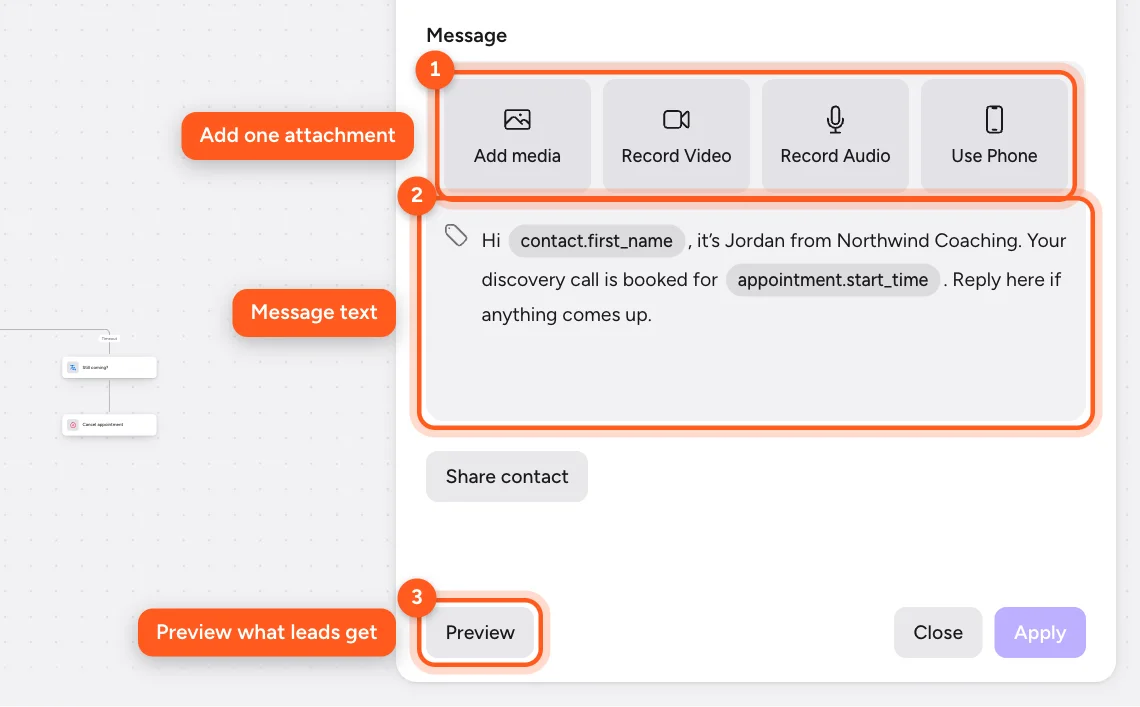
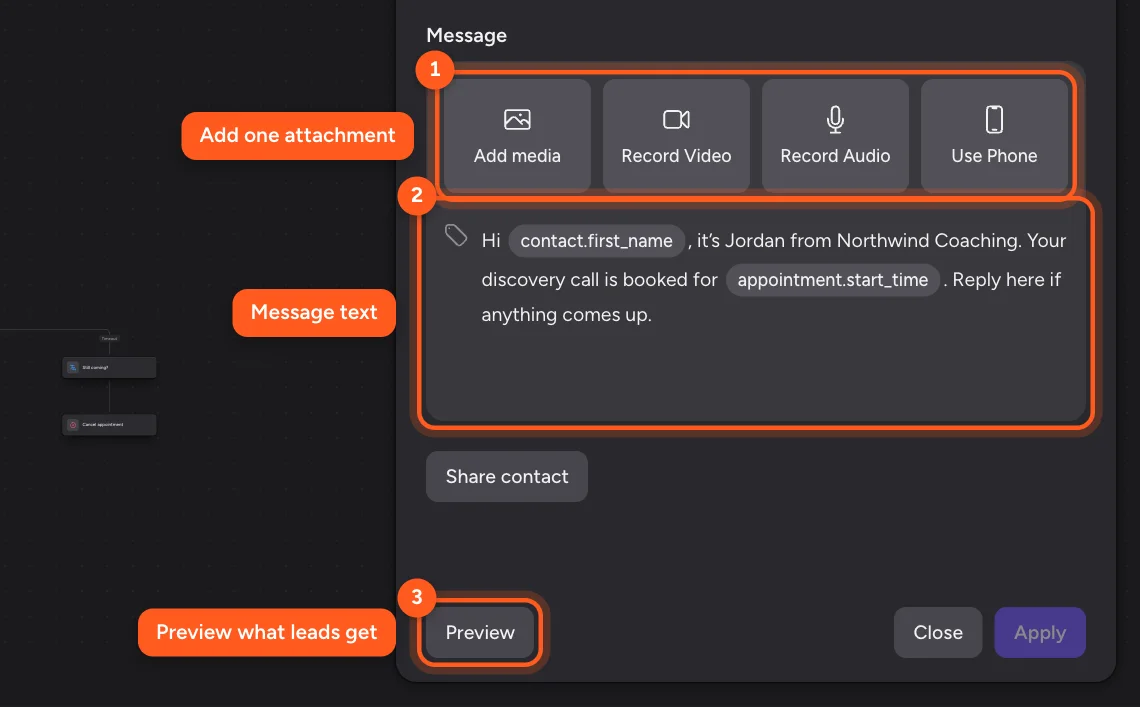
A Message without media needs primary text. Every Message needs usable SMS text. With media, recipients who cannot receive it use the SMS fallback. A voice note is always sent on its own, so with one attached the text field goes away; choose Why can't I add a message? under the voice note for why (with tutorials off, it's the ? beside Message). The message then needs fallback copy. While a required SMS fallback is empty, its Required pill is red. Adding media turns Same as message off, so the fallback starts empty. The fallback is never filled in for you, because text for leads without media usually reads differently; when the message has text, turn on Same as message to send it instead. If you apply while a required SMS fallback is empty, the empty field is outlined in red and 👈 Hover appears beside the pill until you point at or click into the field.
Add one attachment or a contact card
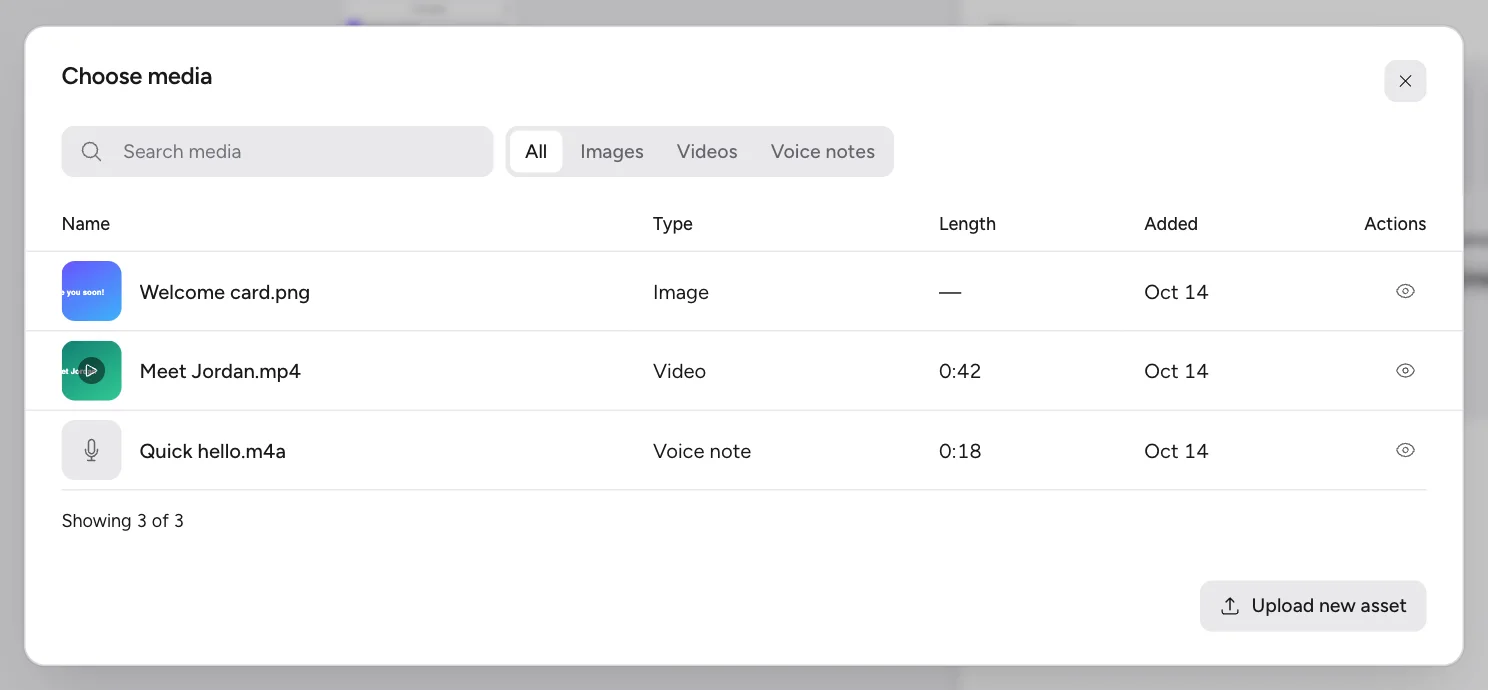
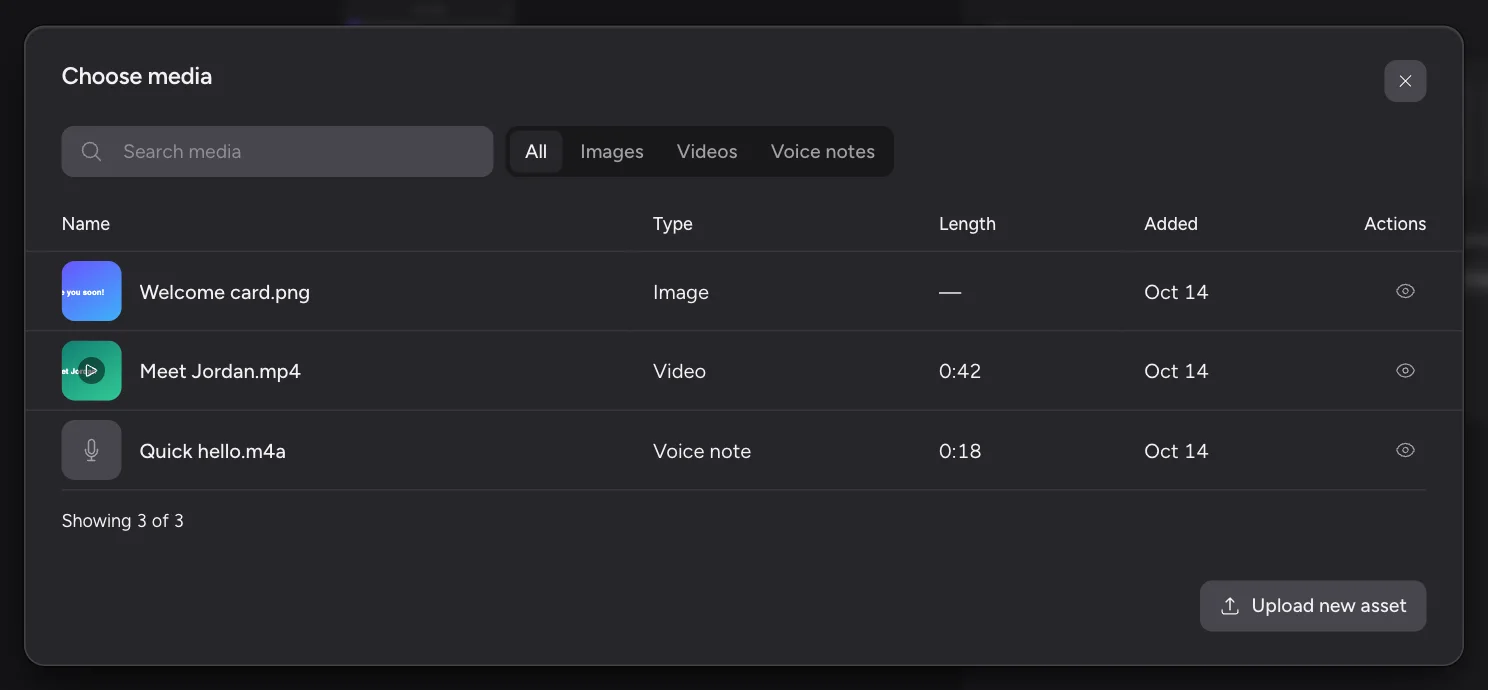
Choose one media item through Choose media. Filter by Picture, Video, or Voice note, choose an item, or select Upload New File. You can also use Record Video, Record Audio, or Use Phone. Use Phone shows a QR code: scan it with your phone to send a picture or video from it, or select Use Phone again to stop. A Message holds one attachment, so these buttons hide once media is attached. An attached video or picture shows as a small thumbnail beside its name; select it to play the video or see the picture full size in a popup. To use different media, select the trash icon beside its name, and the buttons come back.
If Share contact is available under the message, select a Persona to make a contact-card Message. That message contains the selected Persona contact only; it cannot also contain text or an attachment.
The card includes the Persona's picture when it has one; see Give a Persona a picture. If the Mac that sends the message runs a messaging server that does not support contact pictures yet, the card is sent without the picture. The name and number still arrive.
Check an audio or video transcript
An audio or video can be ready to play before its transcript is available. The Transcript button beside the media's name spins while the Message inspector checks for a transcript, for up to one minute after it sees ready media without text. If none arrives, choose Transcript to check again. Once a transcript is available, Transcript opens the media with the full text, where Copy transcript copies it. Checking again only looks for available text; it does not restart transcription. Missing text does not mean the recording is silent.
On a voice note, remove it with the trash icon at the end of its player.
Available transcripts also provide spoken context when you test a following Wait for reply node.
Preview and save
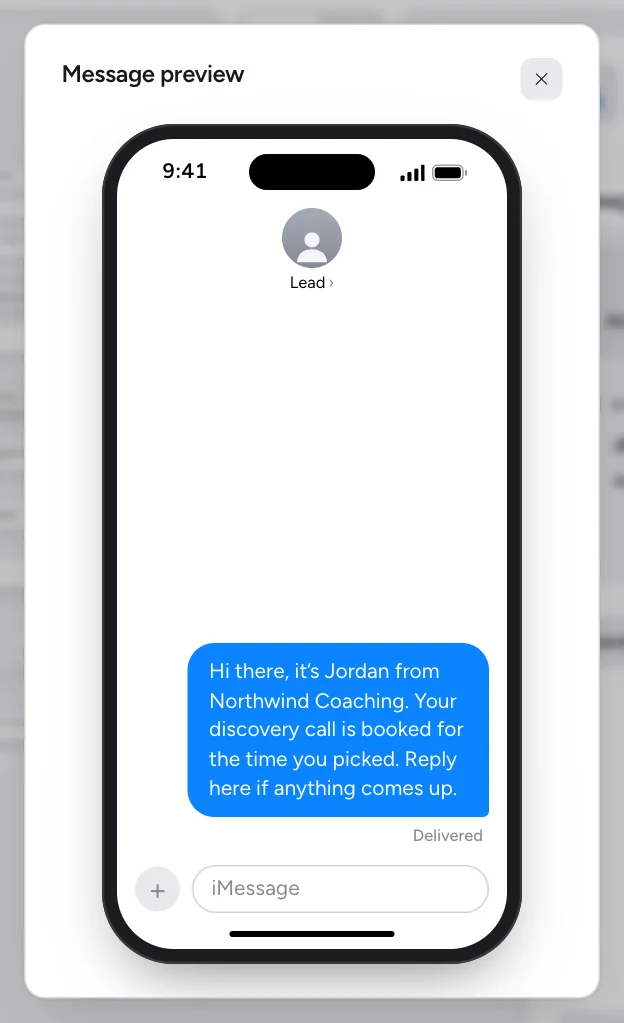
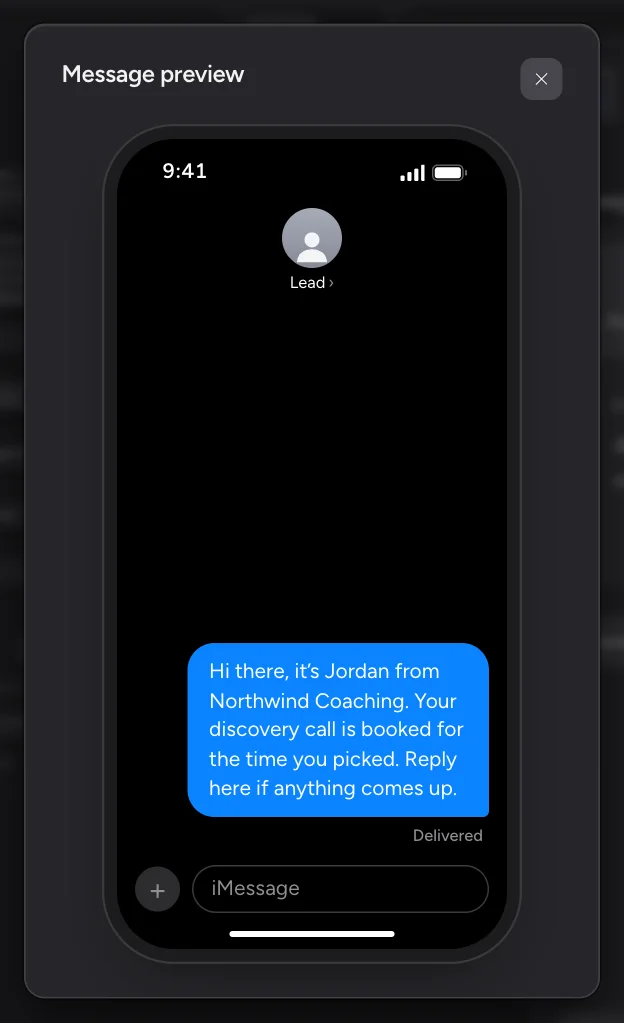
Choose Preview, beside Apply, to open Message preview. Without media it shows one phone, since every lead gets the same text. With media it shows two phones as the message is sent: With media, in iMessage blue with the attachment you can play, and SMS fallback, the text-only version in SMS green. When the SMS fallback is optional and left empty, the SMS fallback phone shows the message's own text without the media. It does not send a message.
Choose node-level Apply, then save the workflow draft and confirm Save is gone from the top bar. Choose Publish separately. In a compact no-show recovery, reschedule, or ghost-busting editor, save the child flow with that editor's Save, at the top right next to close; the main inspector dialog does not apply.
Check your result
In Message preview, confirm both phones read correctly. Content and media should pass the displayed checks, and Save should be gone from the top bar before publication.
Consecutive Message nodes can send as a burst. The next Message can normally proceed as soon as the previous complete message is handed to the messaging provider; Sent, Delivered, and Read updates can arrive later. Messages are composed and submitted one at a time per sending phone, across its channels. Typing or recording indicators depend on provider support, and delivery timing is not guaranteed.
An ordinary failure does not automatically cancel later eligible Messages. Uncertain submission can hold later work until a handoff or final result in ShowBoss is established. Stopping the workflow, opt-out, recipient restrictions, channel changes and sender unavailability keep their own effects.
Read the Message outcome
In Lead history, choose a lead and then ? on this step. Sent means ShowBoss sent every part of the message; it doesn't confirm the lead received it. When the channel reports back, you also see Delivered or Couldn’t be delivered, and which channel it went by, such as SMS or iMessage. If only some parts went out, it says how many, such as 1 of 2 messages sent.
Troubleshooting
The Message cannot be published
Add primary text when there is no media and usable SMS text for every Message. Replace or remove unavailable media. A contact card cannot include text or attachments. If the Message already has text or media, the Share contact dialog warns that the card replaces them, and its button reads Replace with contact card.
The SMS fallback is not what I expected
Under SMS fallback, check whether Same as message is on. Recipients who cannot receive media use the SMS fallback. Voice notes need fallback copy because they cannot include primary text.
The contact card arrived without a picture
Check that the Persona has a picture under Sender personas. If it does, the sending Mac's messaging server may not support contact pictures yet; the card is then sent with the name and number only until that server is updated.
My edit is saved but not live
Choose node-level Apply, save the workflow, confirm Save is gone from the top bar, and choose Publish separately.
Next step
Add a Wait for time node after the message when the next action should be delayed, or review Manage existing workflows before publishing.