Before you start
Cancel appointment appears in appointment workflows when it is enabled for your account. It is not available in Opt-in flows, No-show Recovery or Ghost Busting.
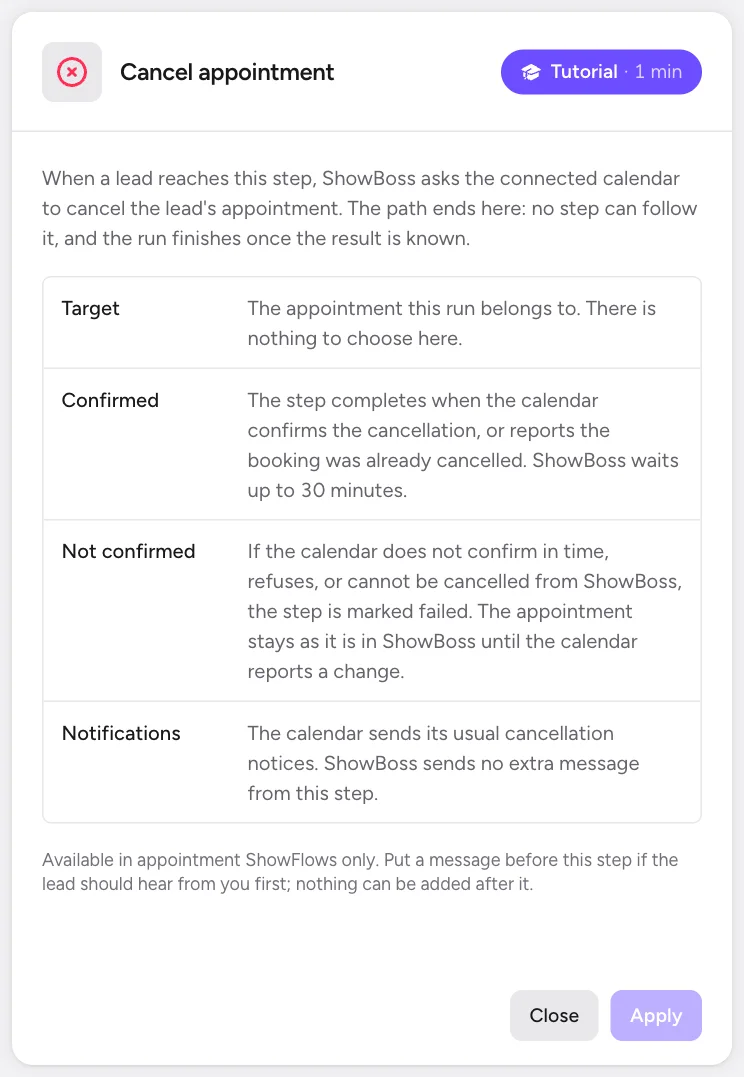
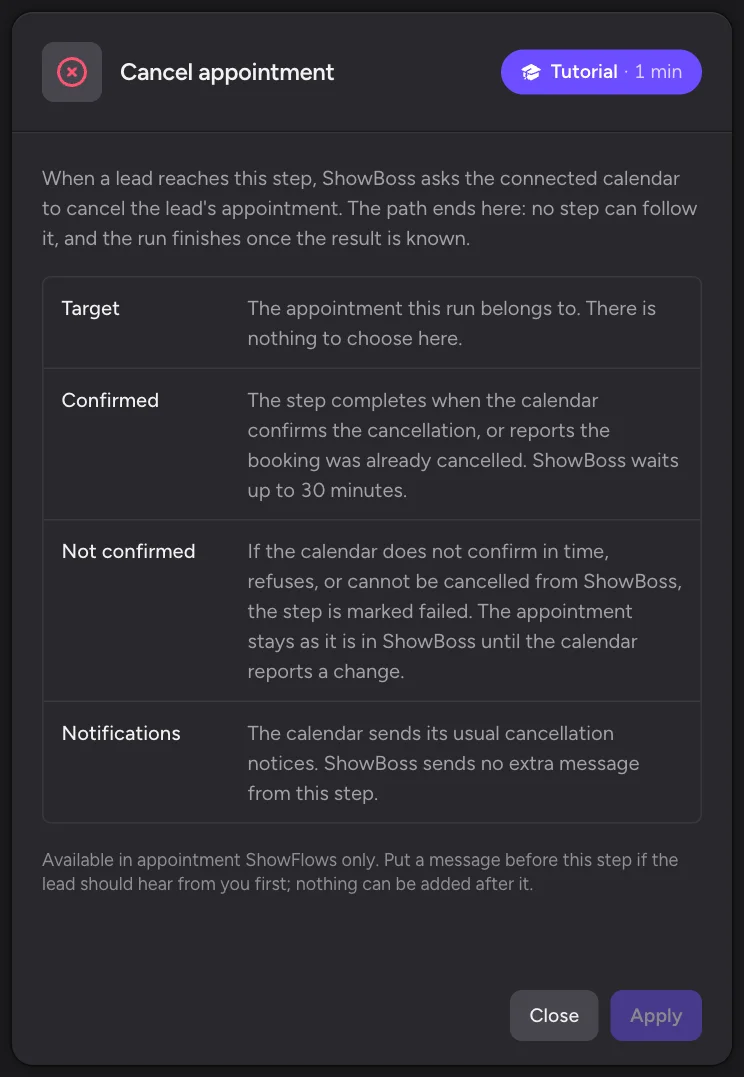
The node has no settings. It always targets the appointment that started the run, and your calendar decides who is notified. If you only want to record that a lead cancelled, without changing the calendar, use the appointment outcome instead (see Record appointment outcomes).
Add the node
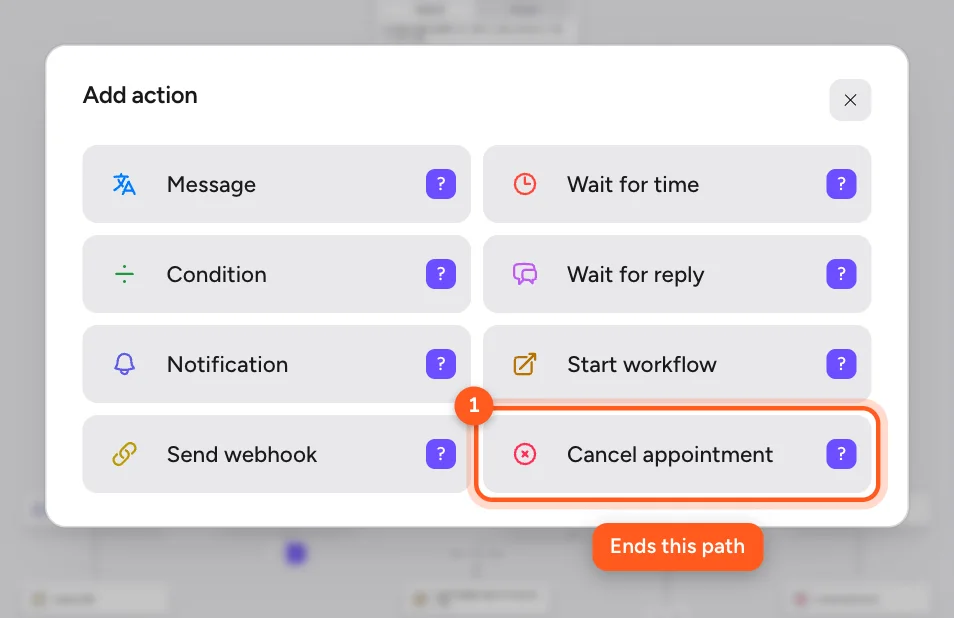
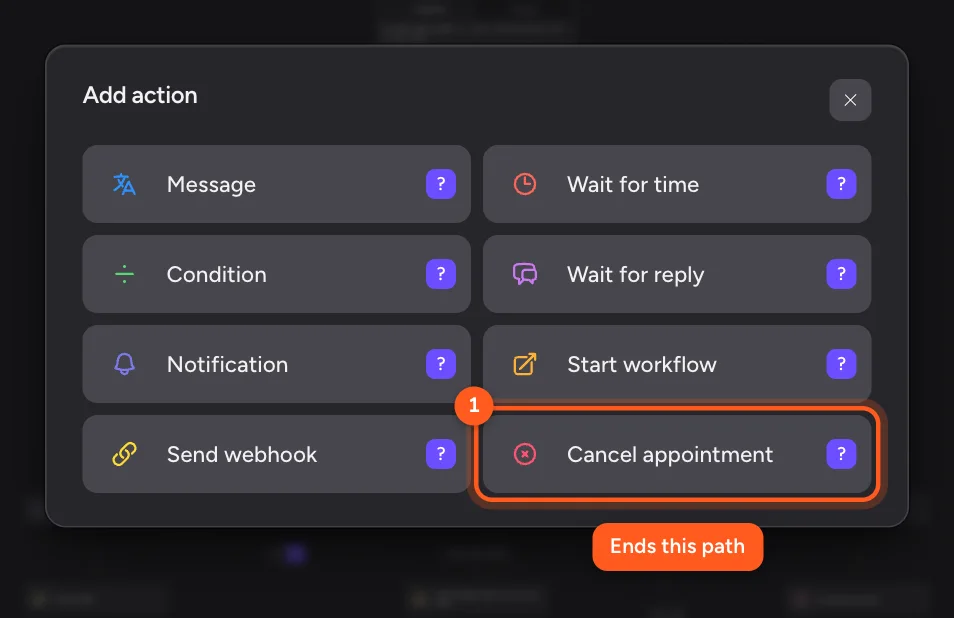
- Open the Add action menu at the end of a path. Cancel appointment is disabled on the insert buttons between steps and when another step would follow it.
- Choose Cancel appointment. The card shows Cancels the booking in the calendar · ends this path and offers no add or link button below it.
- Select the node to read what it does. There is nothing to configure.
- Apply, save the workflow and publish.
Put the step after the decision that should trigger it, for example on a Wait for reply branch where the lead confirms they want to cancel. Nothing after this step runs, so place any closing message before it.
What happens when a lead reaches it
- ShowBoss asks the connected calendar to cancel the lead's appointment.
- The step waits for the calendar to confirm, for up to 30 minutes.
- When the calendar confirms the cancellation, or reports that the booking was already cancelled, the step completes and the run finishes. The appointment is updated in ShowBoss the same way as a cancellation made directly in the calendar.
The calendar sends its usual cancellation notices to the lead and your team. ShowBoss sends no additional message from this step.
When the step fails
The step is marked failed, the run finishes, and the appointment stays as it is in ShowBoss when:
- your calendar does not support cancellation from ShowBoss;
- the calendar connection needs to be reconnected;
- the appointment was rescheduled, cancelled another way, or is already in the past;
- the calendar refuses the cancellation.
If the calendar does not confirm within 30 minutes, the run finishes. Lead history shows Unknown if the cancellation may have reached the calendar without being confirmed. It shows Couldn’t cancel if the request expired before it was sent. Check the calendar before trying again. ShowBoss keeps checking the calendar; if the cancellation is confirmed later, the appointment is updated in ShowBoss, but the step result in Lead history does not change.
ShowBoss never marks the appointment cancelled on its own. Check the calendar when a step fails and cancel there if needed.
Troubleshooting
Cancel appointment is missing from the Add action menu
The node is offered only in appointment workflows, only at the end of a path, and only when it is enabled for your account. Open the menu from the Add action button below the last step of the path.
Cancel appointment cannot be connected to another step
Nothing can follow this step. Move the step to the end of the path, or add the next step before it.
The appointment still shows as booked
The step failed or has not been confirmed yet. Open the lead in Lead history to see the result, then check the calendar. The appointment in ShowBoss follows the calendar.