Before you start
Select the account and organization where you want to create or manage a flow. You need Workflows access for the account. To use a template in an organization, that template must be assigned to the organization.
Create a workflow from a template
- Open Workflows.
- Choose Create show-up flow.
- In the Create workflow dialog, choose Use Template.
- Under Template, select an assigned template.
- Choose Use Template.
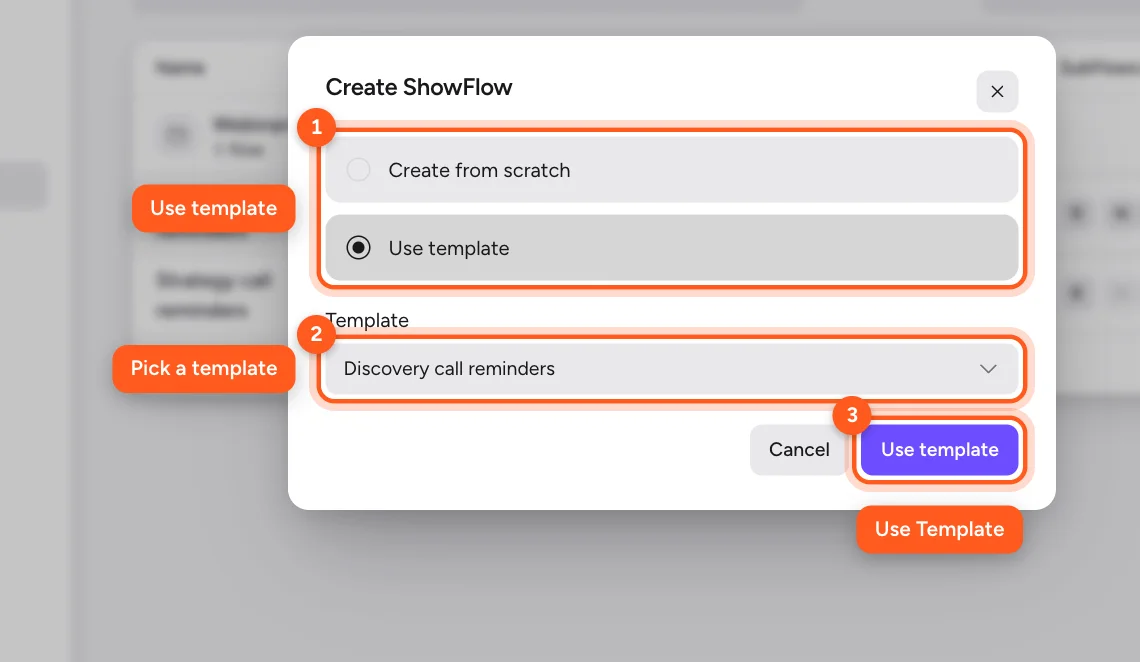
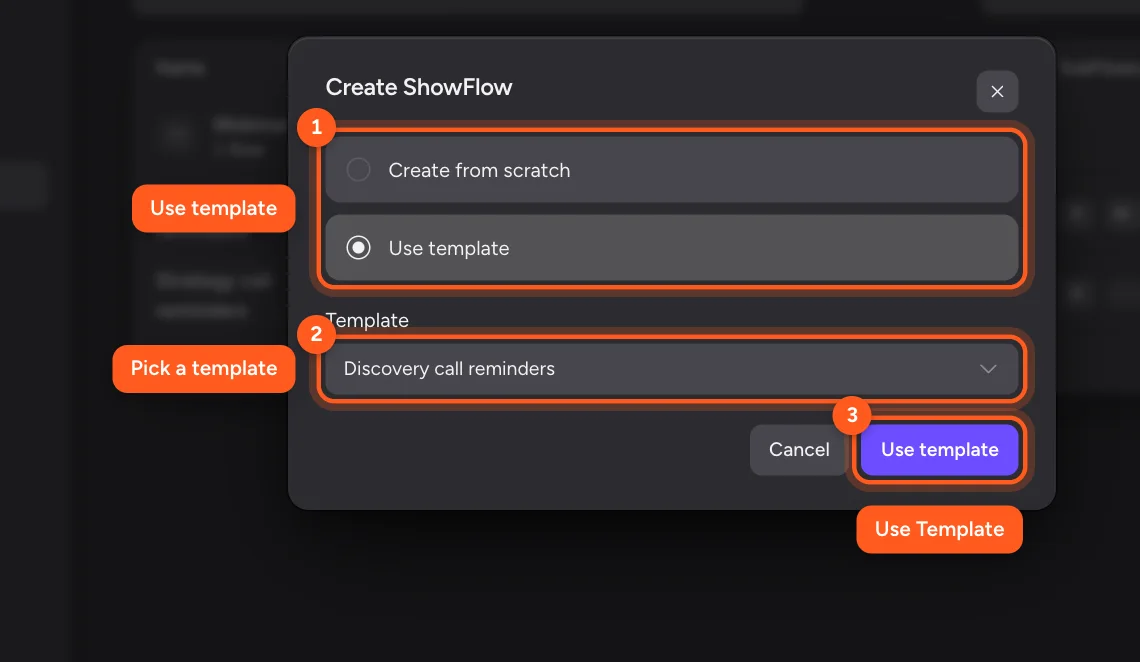
ShowBoss opens a new draft workflow in the editor. The new flow is unpublished, so review its settings and complete the normal save and publish checks before using it. Only templates assigned to the selected organization appear in the picker.
The template snapshot includes the saved graph and its fallback workflows. Media attachments can become placeholders, so review media and resolve any publish blockers before publishing.
Create a reusable account template
- Open Templates.
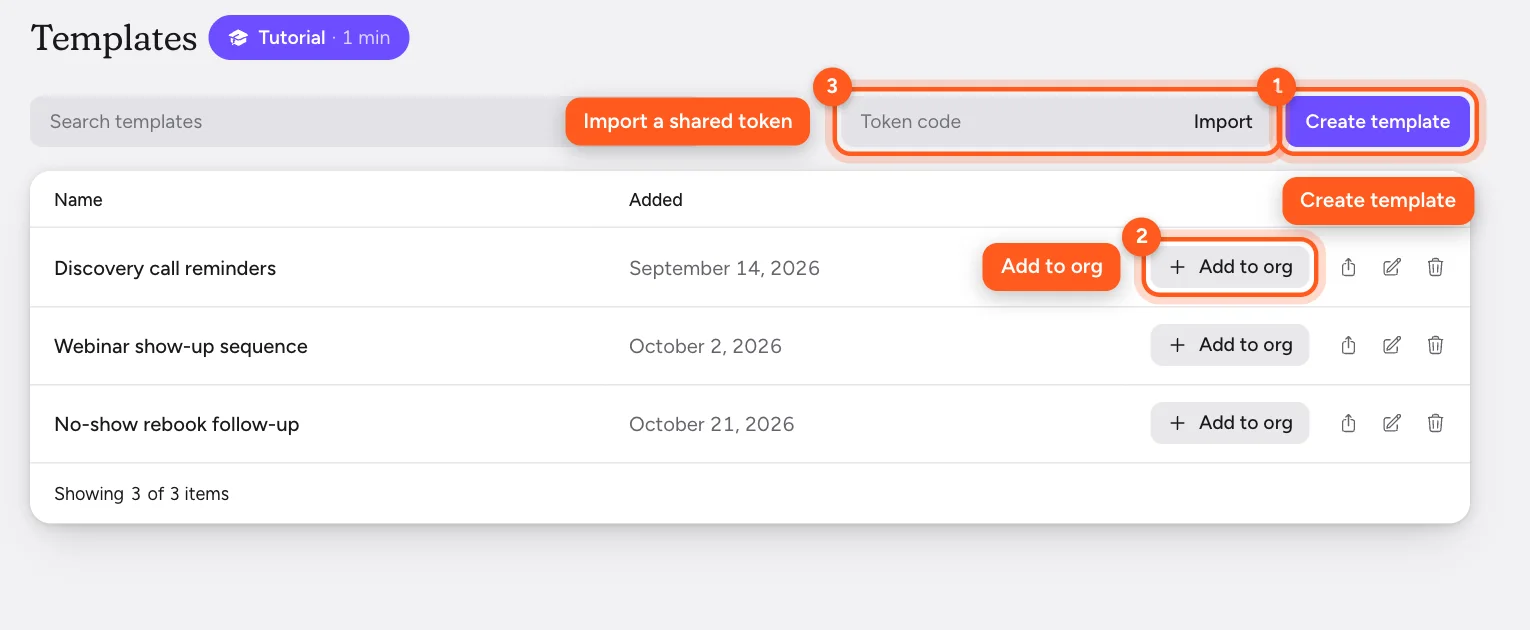
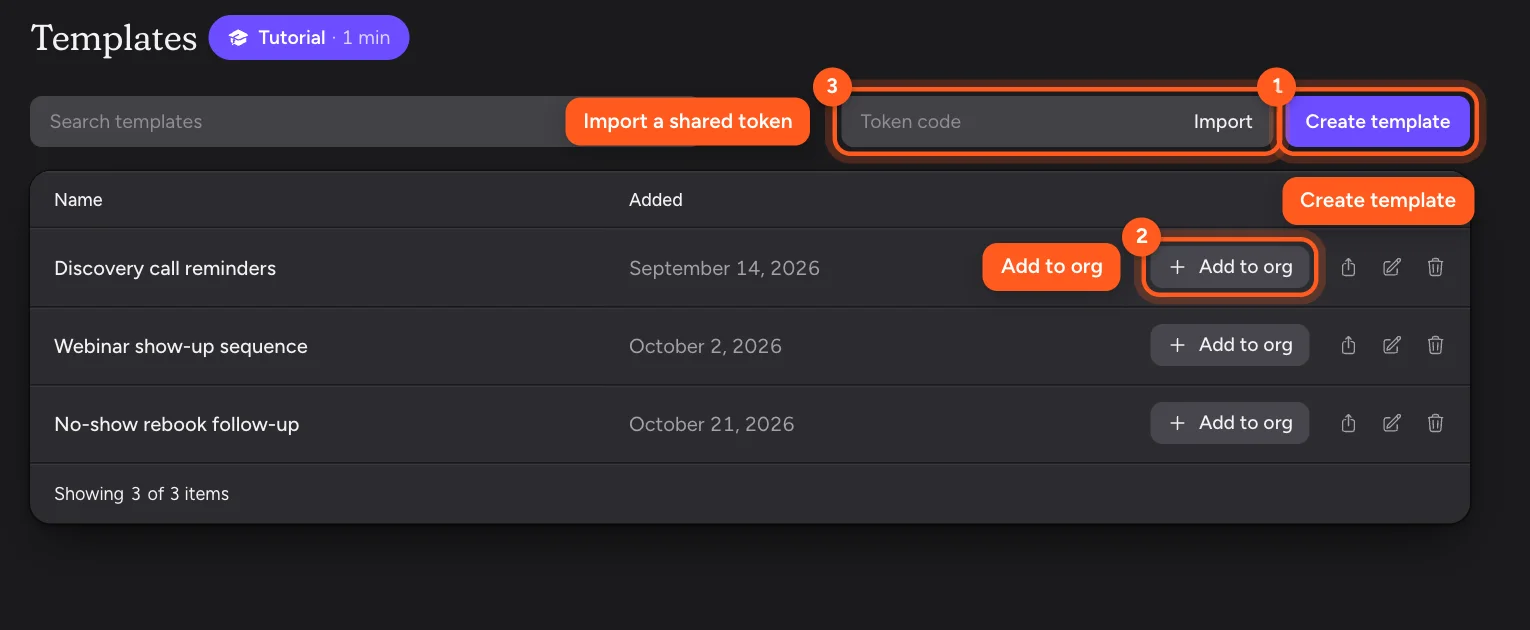
- Choose Create template.
- Enter a Template name.
- Select the Source organization and then the Source workflow.
- On a multi-organization account, choose the organizations under Available in. The template appears in their template picker; no workflow is created.
- Choose Create template.
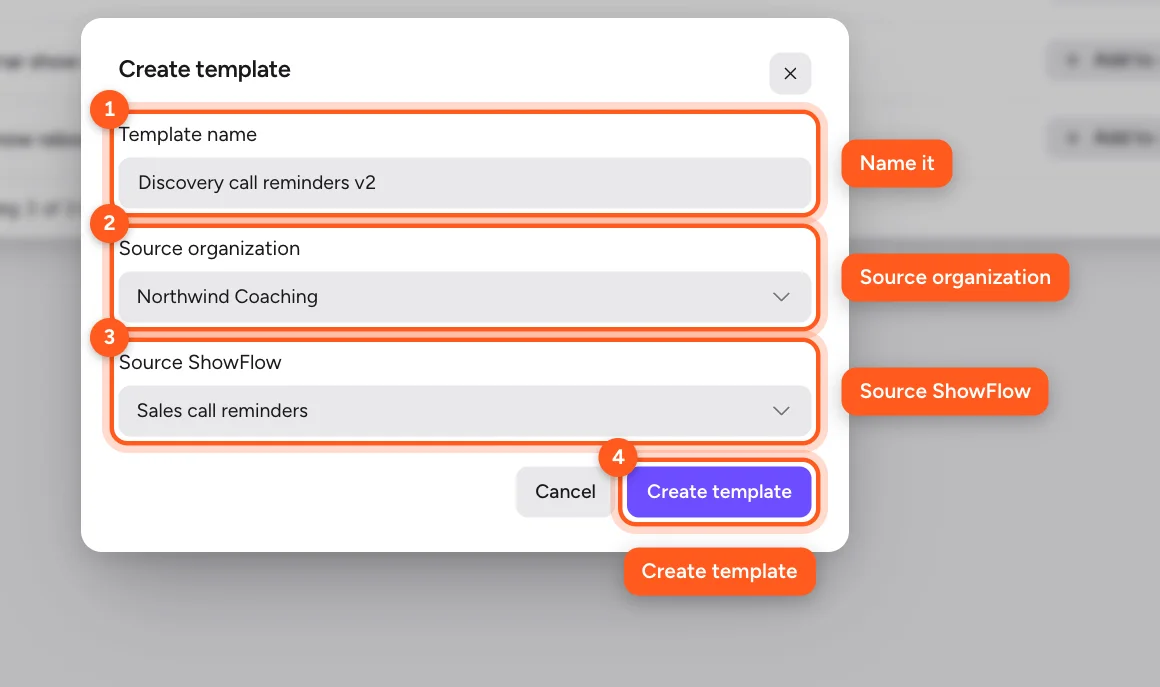
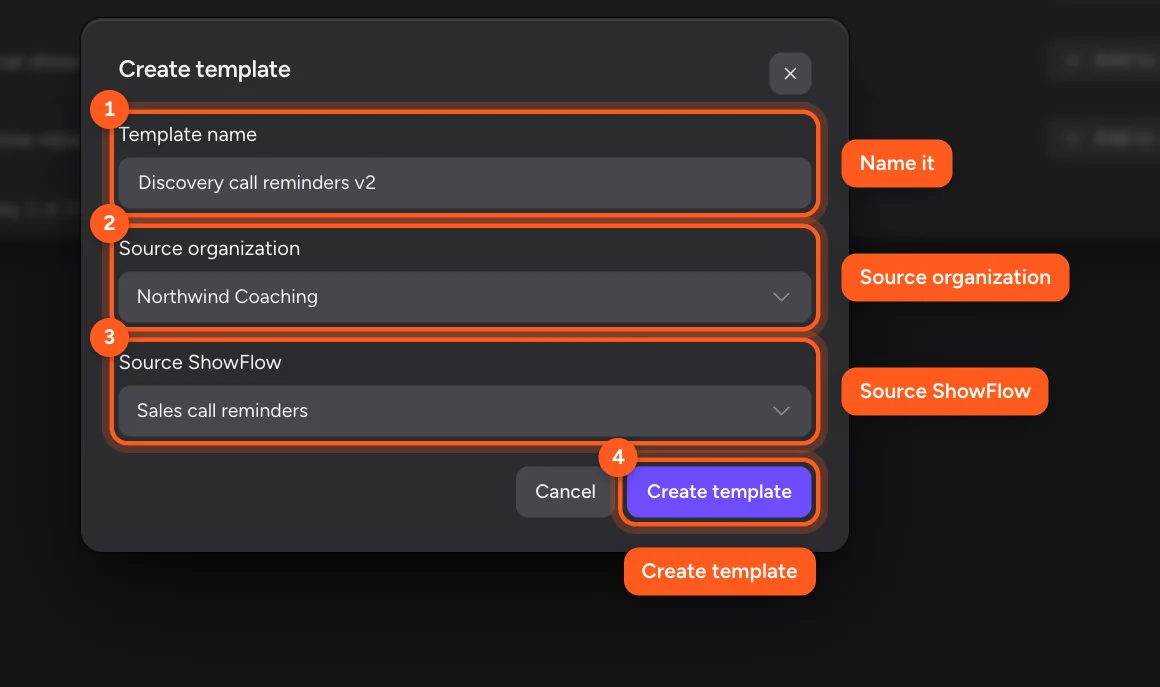
If a template with the same name already exists, the dialog warns that creating it will replace the existing account template. Review that warning before confirming. The source workflow is not changed; the template stores a snapshot of it.
Assign and manage templates
From Templates, find the template and choose an action:
- Choose Add to org, select Organizations, and choose Add to organizations to create a new unpublished workflow in each selected organization. This creates flows; it does not change which organizations can see the template in their picker.
- Choose Rename template to change its account-template name.
- Choose Delete template and complete the confirmation to remove it from the account template list.
- Choose Share template to create a token for another account to import.
Template maintenance is separate from editing a workflow already created from it; review existing flows independently.
Share and import a template
Share a template
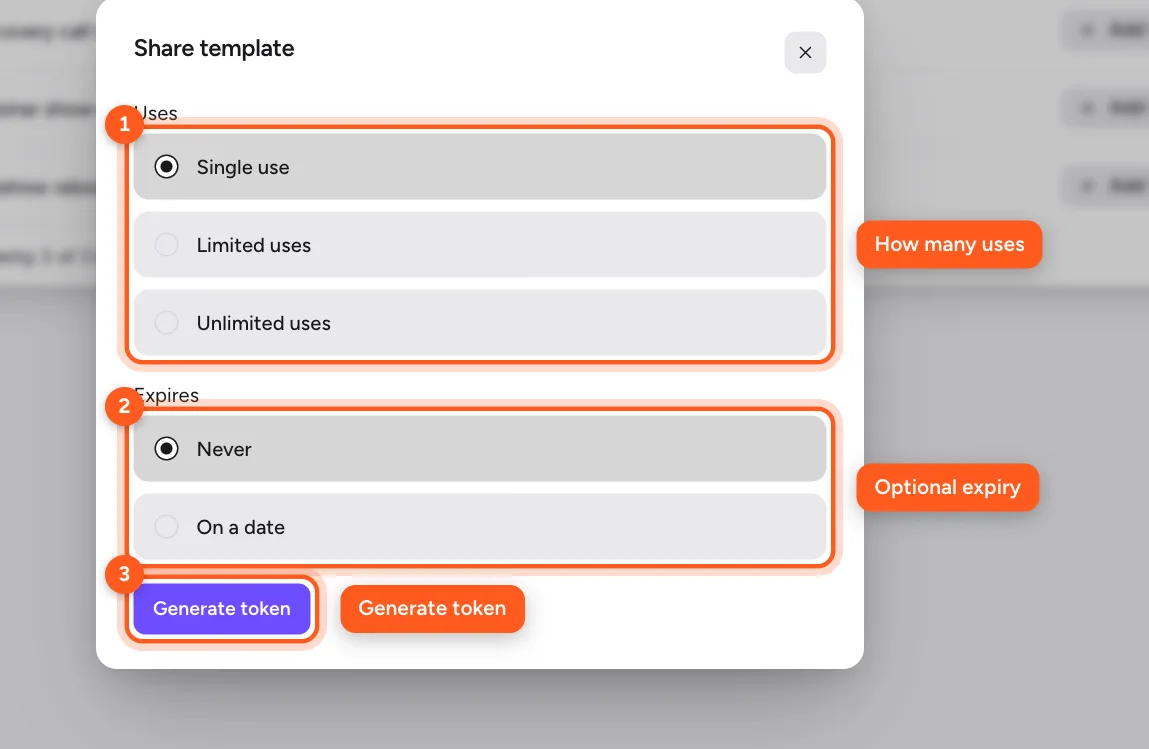
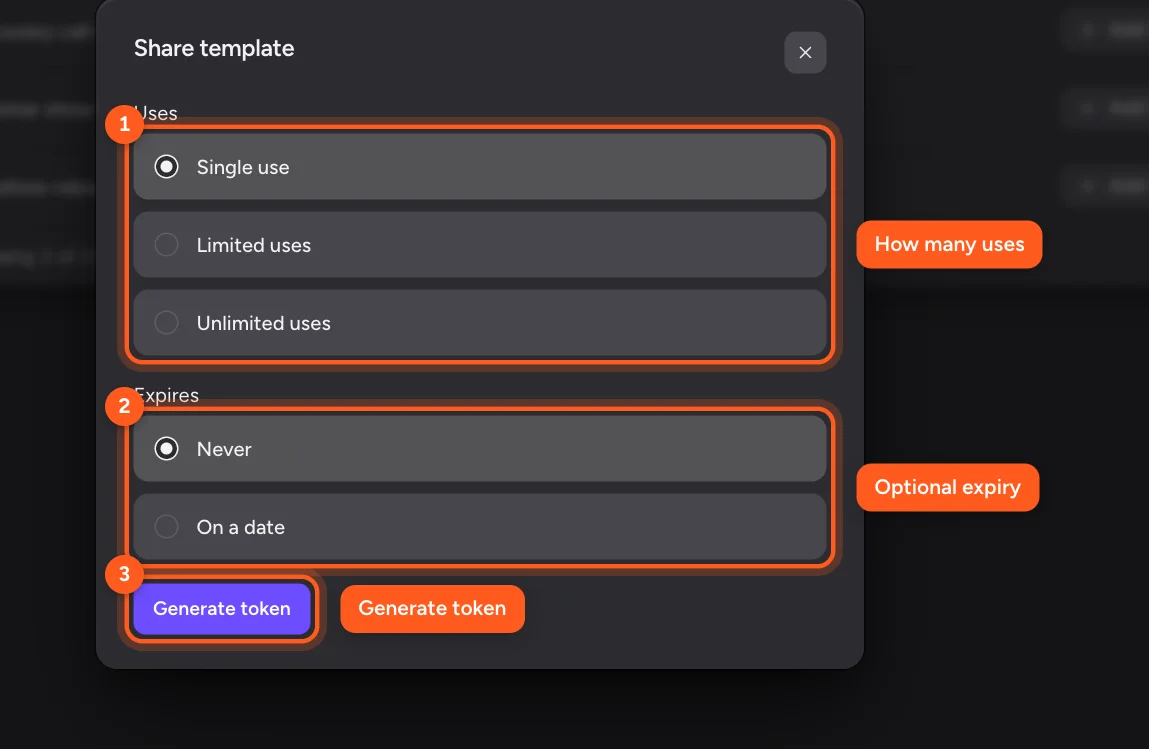
- In Templates, choose Share template for the template.
- Choose Single use, Limited uses, or Unlimited uses. For a limited share, enter the redemption limit.
- Optionally set Expires to On a date and choose a future expiration date and time.
- Choose Generate token, then use Copy token to share the displayed token through your approved channel.
Import a shared template
Start here when someone has given you a template token.
- In the receiving account's Templates page, enter the token in Token code and choose Import.
- Review the Template name and Available in, then choose Import.
An import with a name that already exists warns that it will replace the existing template with that name. Confirm only when that replacement is intended.
Check your result
After using a template, the editor opens a new draft workflow. Review its settings, steps, Personas, fallback workflows, and media before saving and publishing.
After creating or importing a template, confirm it appears in Templates and that the organizations under Available in are the ones intended. A template being listed does not publish a workflow.
Troubleshooting
No template appears in Use Template
Confirm that you selected the intended organization and that it was included under Available in when the template was created or imported. Ask the template creator to review those assignments. Add to org creates flows directly; it does not update the template picker assignments.
The new flow contains media placeholders
The template snapshot can represent media attachments as placeholders. Open the new draft, review each affected step, replace or complete the media, save the draft, and resolve any displayed publish blocker.
I am warned about a same-name replacement
Creating or importing a template with an existing name replaces that account template. Cancel or change the name if you need to keep the existing template; confirm only when replacing its snapshot and assignments is intended.
I cannot manage templates
Confirm that the intended account is selected and that you have Workflows access. Ask an account owner or admin to review your access if Templates is unavailable.
Next step
Continue with Set up and publish your first workflow after reviewing the new draft.