Start with the result
Show rate is the result. The other cards describe actions you control and lead engagement that may help explain it. Use the loop get a baseline → change one thing in a workflow → measure show rate → keep or revert. For example, add a reminder, let enough appointments pass, then compare show rate using similar periods and the same How far out they booked groups.
Open Dashboard in an organization or the agency panel. Show rate and the numbers that explain it are in the After booking stage; No-shows who rebooked is in After the call. Point at a card's ? for its calculation, and choose View details for its counts. The Show rate pill reads Good at 80% or more, Under 80% or Under 60%. The date range and workflow selection also apply here. Agency numbers pool appointments across selected organizations: rates use combined counts, and reply times use all of them together rather than averaging organization medians.
These cards cover appointments linked to a workflow, including recovery and re-engagement workflows. Deleted, cancelled, ignored, and opt-in-only appointments are excluded. A message before the call falls between booking and call start; a reply must follow the first successful message before the call and arrive before the call starts. Messages stay attributed to their original appointment when you change the workflow selection.
Results
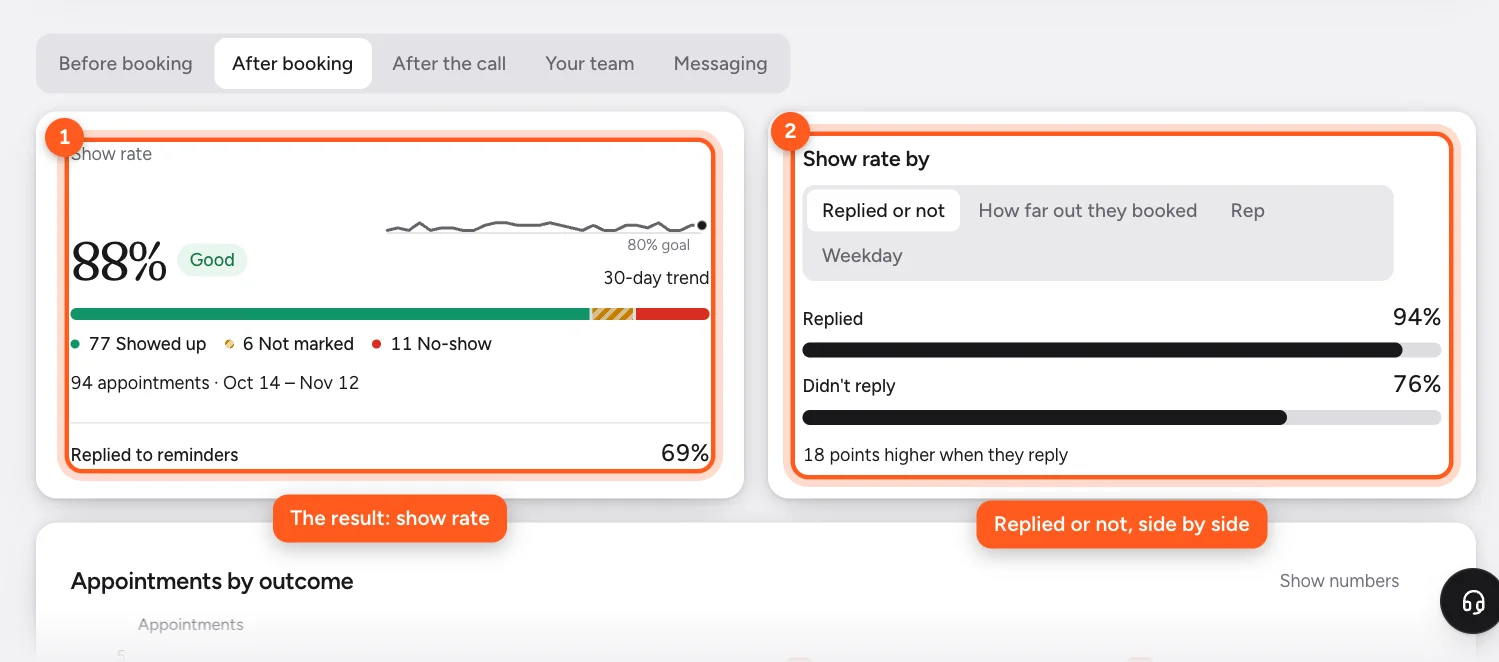
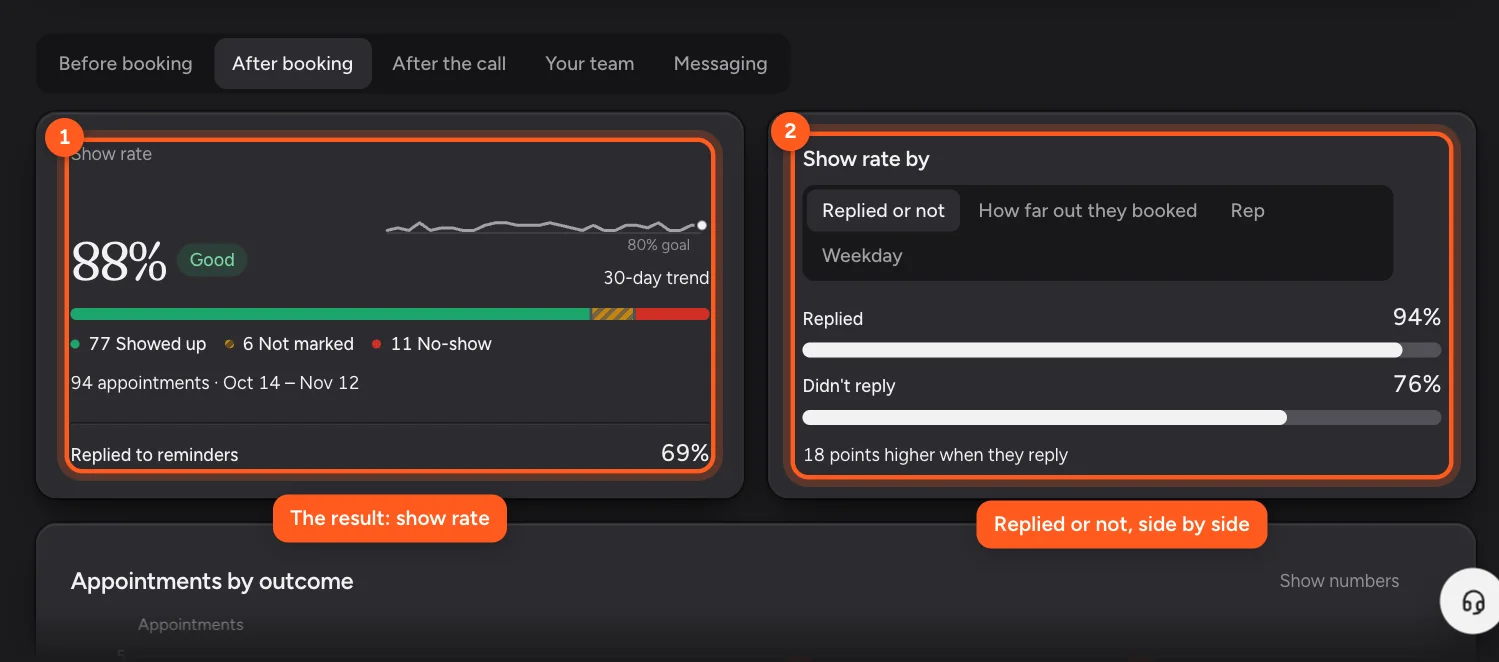
- Show rate (top row): Showed up plus past Not marked appointments, divided by Showed up, No-show and past Not marked appointments. Future calls are excluded. Not marked appointments count as showed up until you mark them; they are not confirmed shows.
- Not marked: the Show rate pill shows "{n} not marked" when too many outcomes are missing, and Needs you lists them. Mark appointment outcomes to improve accuracy before judging a change.
- No-shows who rebooked (top row): recoveries that booked again divided by all finished recoveries for no-show appointments in the period. Recoveries still running are counted separately in View details and left out of the rate.
- Rebooked no-shows who showed up (No-show recovery): show rate for the rebooked appointments whose call time has passed, counting Not marked as showed up. Recoveries without a linked appointment are left out.
After booking
Lead engagement:
- Replied to reminders (under Show rate): among past appointments with at least one successful message before the call, the share where the lead replied after the first message and before the call. A reply before any message does not count.
- Replied or not (the first tab of Show rate by): show rate for leads who replied before their call next to leads who didn't, using the same reply definition. The line under it reads, for example, "27 points higher when they reply" or "5 points lower when they reply".
Team actions:
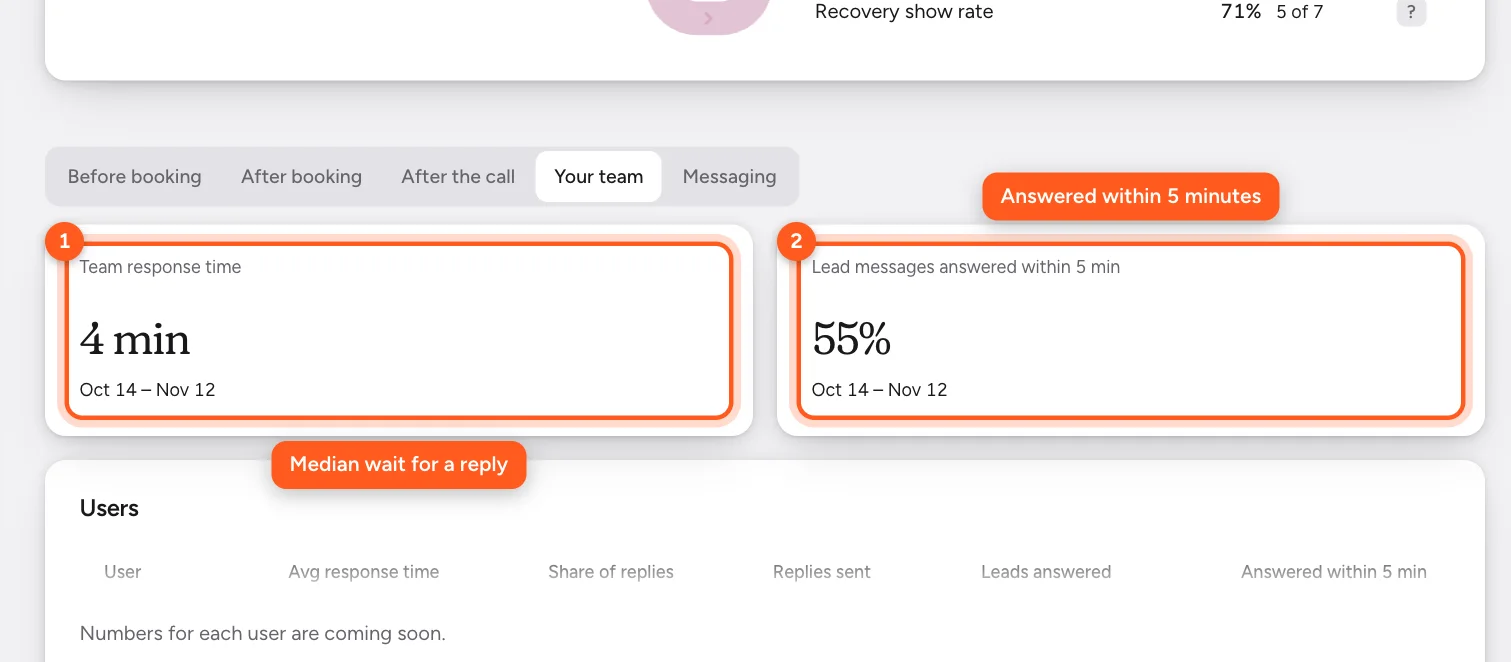
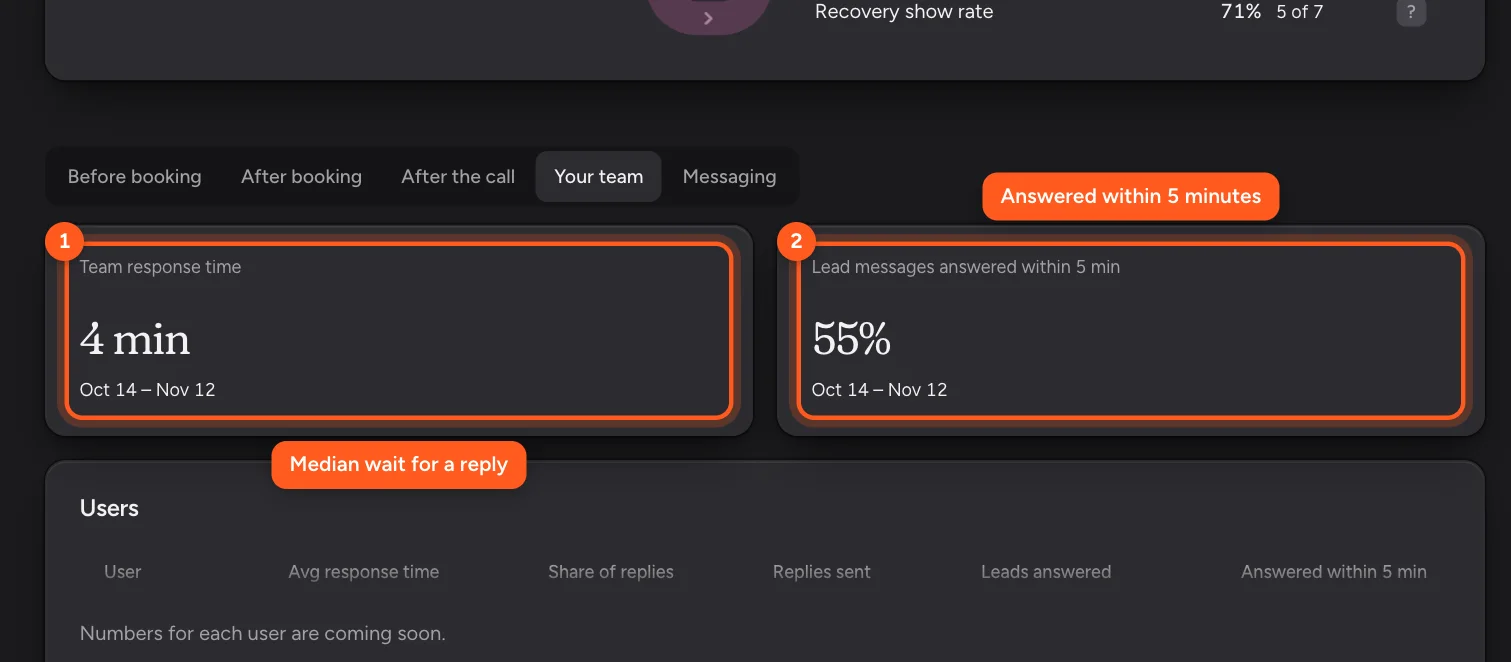
- Team response time (in Your team): time from a lead's message to the first successful reply. Any reply counts, from a person or a workflow: the lead cannot tell the difference, and wait-for-reply steps are designed to answer. More messages from the lead while waiting stay part of the same wait. Hours between 10 pm and 7 am in the organization timezone don't count. The number covers waits that started in the selected dates and ended with a reply. Lead messages answered within 5 min, and Within 15 min in the ?, include every wait with at least 15 minutes outside those hours, including unanswered ones. A wait-for-reply step that takes a message ends the wait, but without a sent reply it adds no reply time.
Team response time shows the median: half are faster. The ? adds 3 in 4 within … (three quarters were this fast or faster), the share within each window, and how many replies the number is based on.
Compare groups
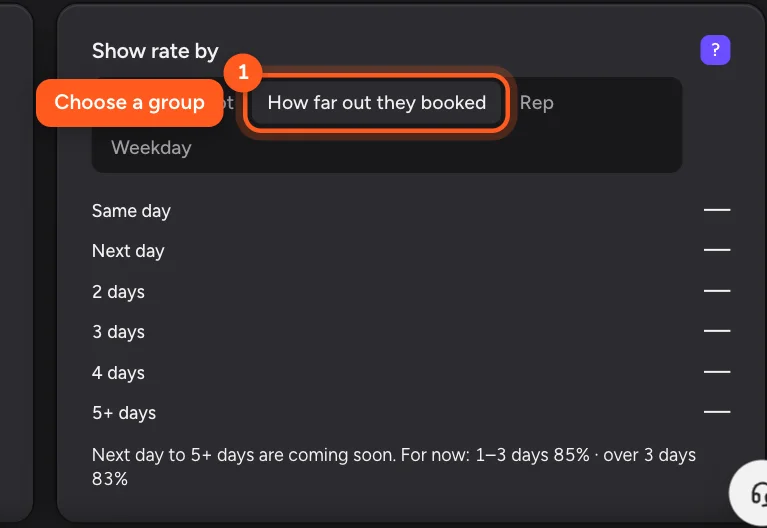
Show rate by compares show rate by Replied or not, How far out they booked, Rep and call Weekday (Monday to Sunday). Choose a tab to see its groups as bars; the bar length is the show rate, and groups with too few appointments show a dash. How far out they booked groups calls into Same day, Next day, 2 days, 3 days, 4 days and 5+ days, using calendar days in the dashboard reporting timezone. Until ShowBoss splits the older groups by day, only Same day has a number; the others show a dash and the card's last line shows the 1–3 days and over 3 days show rates for now. Weekday and the booking days use the dashboard timezone shown at the bottom of the report; see Choose a reporting period. The booking time your calendar sent is used when available; otherwise the time ShowBoss recorded the appointment is used. Booking time is capped at call start.
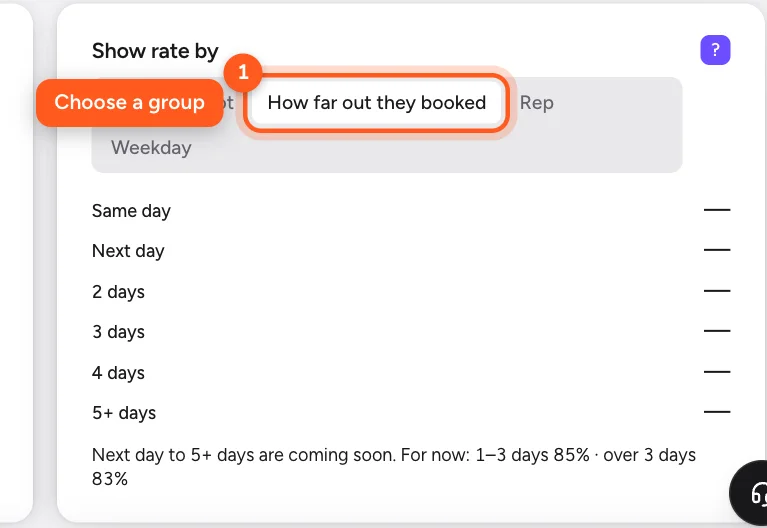
Showing top … of … means more groups are not displayed. Show rate per workflow is in the Workflows table.
Read the numbers carefully
— means there is nothing to count, rather than 0%. Groups with fewer than 20 appointments show a dash instead of a percentage. When either side of Replied or not has too few appointments, its bars are hidden and it reads Not enough appointments to compare. View details and the ? say when a number rests on a small sample; wait for more appointments before drawing conclusions.
After-booking numbers updated … at the bottom shows how current these numbers are. Changes typically appear within minutes. If Some updates are pending appears, the values reflect the latest available data. Based on data updated … under a card means that card's data was computed earlier than the rest of the page. Still calculating means the numbers are not ready yet; it is not a zero result. Choose Refresh to request current values. If a refresh fails, kept values are labeled stale; use Retry KPIs.
Night hours and the stages before the call use the organization's timezone, separately from the dashboard reporting timezone described above. If the organization timezone is missing or invalid, these calculations use the booking's timezone when valid, otherwise UTC. The notice names the affected organizations and links to Organization settings. To set or clear a timezone, follow Organization settings. Dismissing the notice does not change the timezone. Allow the numbers to update after a correction.
These comparisons show a link, not proof. Leads who reply may already be more interested, so a higher show rate for that group does not prove that asking for a reply caused more shows. Change one thing at a time, mark outcomes, and compare similar groups before deciding what to keep.
Next step
Use Show Up Tracking to mark outcomes, or review your workflow before making one focused change. For charts, filters, and record access, see Understand your dashboard.